Business hours and holidays
Partly availableSet the hours your team answers customers and the days you are closed, which chat, SLAs, urgency and response-time reports all follow.
On this page
Admins set business hours under Settings > Business hours and holidays. Other roles can open the page to check the hours but cannot change them. A helpdesk has one set of hours and one holiday list, used by every channel.
Set your weekly hours#
Under Time zone, choose the zone your hours are written in. It starts as the helpdesk's own time zone; if you pick another, the page reminds you which zone the helpdesk itself runs on.
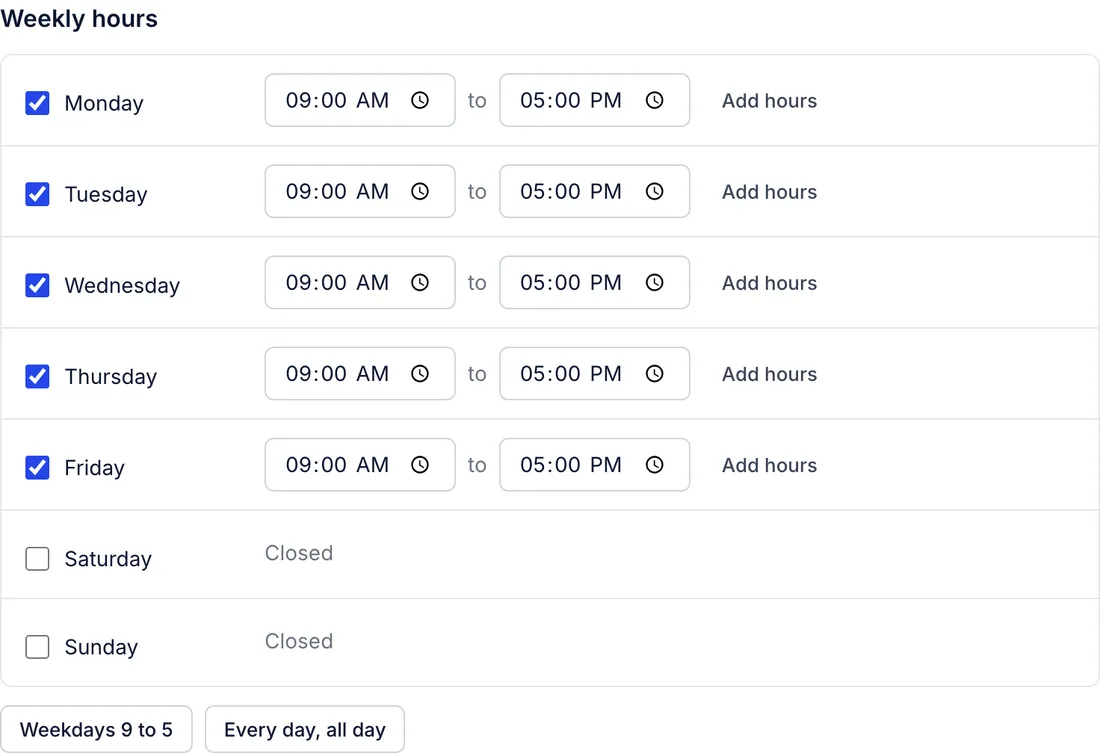
Under Weekly hours, tick each day you work and set when you open and close. An unticked day shows Closed.
For a split day, such as a lunch break, select Add hours on that day and set a second range. A day can have up to three ranges.
Select Save changes. Discard throws away what you changed since the last save.
Two buttons fill the week in one go: Weekdays 9 to 5 opens Monday to Friday from 09:00 to 17:00, and Every day, all day opens all seven days around the clock. You can adjust single days afterwards.
Each closing time must be later than its opening time. Hours that run past midnight need two ranges on two days, for example 20:00 to 23:59 on Friday and 00:00 to 02:00 on Saturday.
Add holidays#
Holidays are whole days your team is closed. They count as outside business hours, whatever the weekly hours say for that day.
Under Holidays, select Add holiday.
Give it a Name, such as New Year's Day.
Pick the First day. For a closure of several days, also pick the Last day; leave it empty for a single day.
Select Done, then Save changes below the holiday list. The holiday is only kept once the page is saved.
Holidays are fixed dates. A holiday that comes back every year has to be added again for the next year. Use Edit on a holiday's row to change it, or the bin icon to remove it, then save the page.
Shorter opening hours on a particular day, such as closing early on Christmas Eve, are not available. Mark the day as a holiday, or change that week's hours and set them back afterwards.
What follows your business hours#
| Where | What changes |
|---|---|
| Chat | A widget set to be live during business hours shows as offline outside them, and visitors leave a message instead. You choose whether the launcher still shows. See Chat outside business hours. |
| SLAs | A target with Count business hours only switched on pauses its clock outside your hours and on holidays. See Service level targets. |
| Reports | Business hours only in the analytics filters counts response and resolution times in working hours. See Filter, compare and export reports. |
| Urgency | Nights, weekends and holidays do not make a waiting ticket look more urgent. See Urgency settings. |
Not available yet#
Rules have no business-hours condition, so a rule cannot tag or answer only the tickets that arrive while you are closed.
Separate hours for a single mailbox, chat widget or contact form are not available. Every channel follows the helpdesk's hours.
Related articles
- Service level targets (SLAs)Set how fast your team should first reply to and resolve each kind of ticket, and see where those targets already shape the urgency of open tickets.
- Chat outside business hoursWhen the chat is live, who counts as available, what visitors see when nobody is, and how their offline messages reach you and get answered by email.
- Filter, compare and export reportsPick a date range and a comparison, narrow a report to one channel, tag, agent or team, count business hours only, share the view and download it as CSV.
- Agent availability and statusesSee who is free to take tickets and chats, set a teammate away when they forgot, and create the away statuses agents choose from.
Still stuck?
Write to the Growth Dept team and a person answers. Say which helpdesk you work in and what you were trying to do.