Service level targets (SLAs)
Partly availableSet how fast your team should first reply to and resolve each kind of ticket, and see where those targets already shape the urgency of open tickets.
On this page
An SLA policy names a group of tickets and two targets for them: how soon the first reply should go out, and how soon the ticket should be resolved. You set policies on Workflows > SLAs.
What they do today:
First response targets are used. While a customer waits for your answer, the policy that covers their ticket sets when that answer is due. That due time shows in the ticket's urgency details, and a ticket close to or past it moves up the urgency order. See How targets feed urgency.
Resolution targets are saved only. Nothing measures tickets against them yet.
Reports, breach warnings and alerts are not built yet. There is no count of tickets that met or missed a policy. Analytics shows your actual first response and resolution times (median and average), which is the place to set realistic targets from. See How each metric is counted.
Who can set SLAs#
Admins create, edit, reorder, pause and delete policies. Other roles can read them.
Create a policy#
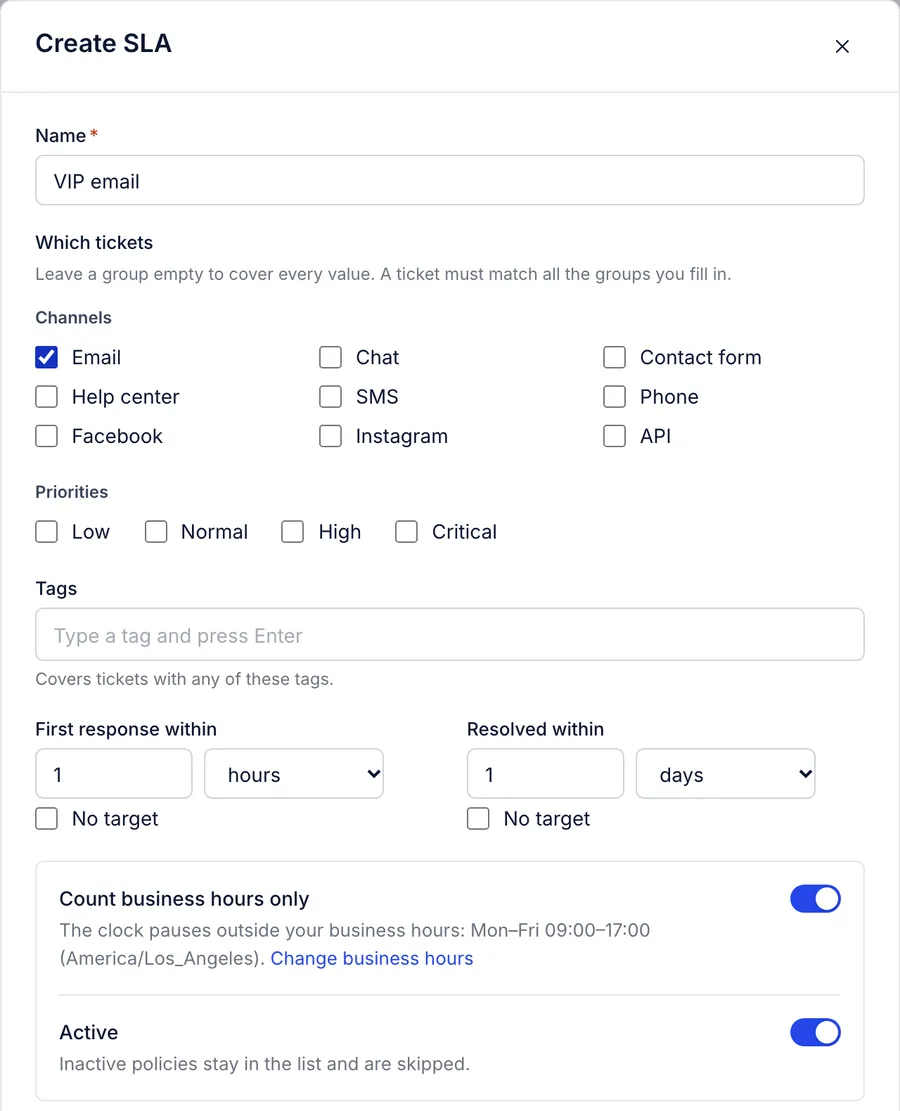
Open Workflows > SLAs and press Create SLA.
Give it a Name, such as "Priority email".
Under Which tickets, choose what it covers. Leave a group empty to cover every value in it. A ticket has to match every group you fill in.
Channels: Email, Chat, Contact form, Help center, SMS, Phone, Facebook, Instagram, API.
Priorities: Low, Normal, High, Critical.
Tags: type a tag and press Enter. A ticket with any one of the tags matches.
Set First response within and Resolved within, each as a number of minutes, hours or days. Tick No target to leave one out; a policy needs at least one. First response can be up to 30 days and resolution up to 90 days.
Leave Count business hours only on if your team does not work around the clock. The clock then pauses outside the hours and holidays set in Settings > Business hours and holidays; the dialog shows the current hours and links there. See Business hours and holidays.
Leave Active on, and press Create SLA.
A new policy goes to the bottom of the list. Move it up if it should win over broader policies.
Order matters#
Policies are checked from the top of the list. A ticket follows the first active policy it matches, and the rest are ignored for it. So put narrow policies above broad ones:
| Order | Policy | Covers | First response | Resolution | Clock |
|---|---|---|---|---|---|
| 1 | VIP | Tagged vip | 1 hour | 1 day | Around the clock |
| 2 | Urgent email | Email · High, Critical priority | 2 hours | 2 days | Business hours |
| 3 | Everything else | Every ticket | 4 hours | 3 days | Business hours |
With this list, a high-priority email from a VIP customer follows VIP, because it is checked first.
Drag a policy by its handle, or use the arrows beside it, to reorder. Each change on this page saves at once: reordering, the Active switch in the list, editing and deleting. Deleting a policy cannot be undone; the tickets it covered fall to the next policy that matches them, or to none. To stop using a policy for a season without losing it, switch Active off instead.
How targets feed urgency#
Every open ticket gets an urgency score that orders the queue (see Urgency settings). While the customer has the last word on a ticket:
The helpdesk finds the first active policy that matches the ticket's channel, priority and tags and has a first response target.
The reply is due that long after the customer's latest unanswered message, counting only business hours when the policy says so. So the clock restarts each time the customer writes after your last reply, not only for the first message of the ticket.
When no policy matches, the reply target set for a live channel on the urgency settings page is used, and failing that a target from the ticket's urgency band: 1 hour for urgent, 4 for high, 12 for normal and 24 for low.
A ticket past its due time gains 15 points. One that is nearly due (a quarter of its target or less left, and never less than the last 5 minutes) gains 6. Agents see "Reply due" or "Reply was due" with the time when they hover the urgency badge.
Changing a ticket's tags or priority can move it to another policy. While the same message is waiting, its due time can move earlier but never later.
Not available yet#
| You may want | Here |
|---|---|
| A report of tickets that met or missed each policy | Not built. Compare your median first response and resolution times in Analytics with your targets |
| Warnings or alerts before a target is missed | Not built. Sort a view by Urgency (AI triage) so tickets past their reply time rise toward the top |
| Policies that match a ticket field value | Channels, priorities and tags only. A rule can turn a field value into a tag the policy can use |
| A phone SLA based on the share of calls answered | The helpdesk has no phone channel |
Related articles
- Urgency settingsTune how the helpdesk scores each open ticket's urgency from 0 to 100, using waiting time, your tags, customer phrases, channels and reply targets.
- Business hours and holidaysSet the hours your team answers customers and the days you are closed, which chat, SLAs, urgency and response-time reports all follow.
- Priority and urgencyThe priority you set on a ticket, the urgency score the helpdesk works out for every open ticket, and the reasons behind each score.
- How each metric is countedThe exact rule behind every figure in Analytics, from tickets created to one-touch rate and survey response rate, and the rules all reports share.
Still stuck?
Write to the Growth Dept team and a person answers. Say which helpdesk you work in and what you were trying to do.