Skills
Create, switch on, change and archive the skills that tell drafted replies and Haylee how your team handles each kind of request.
On this page
A skill is a short set of numbered steps for one situation your team handles the same way every time: a return, a question about where an order is, an address change. Drafted replies follow the skills that are switched on, and so does Haylee. Skills that are not switched on change nothing.
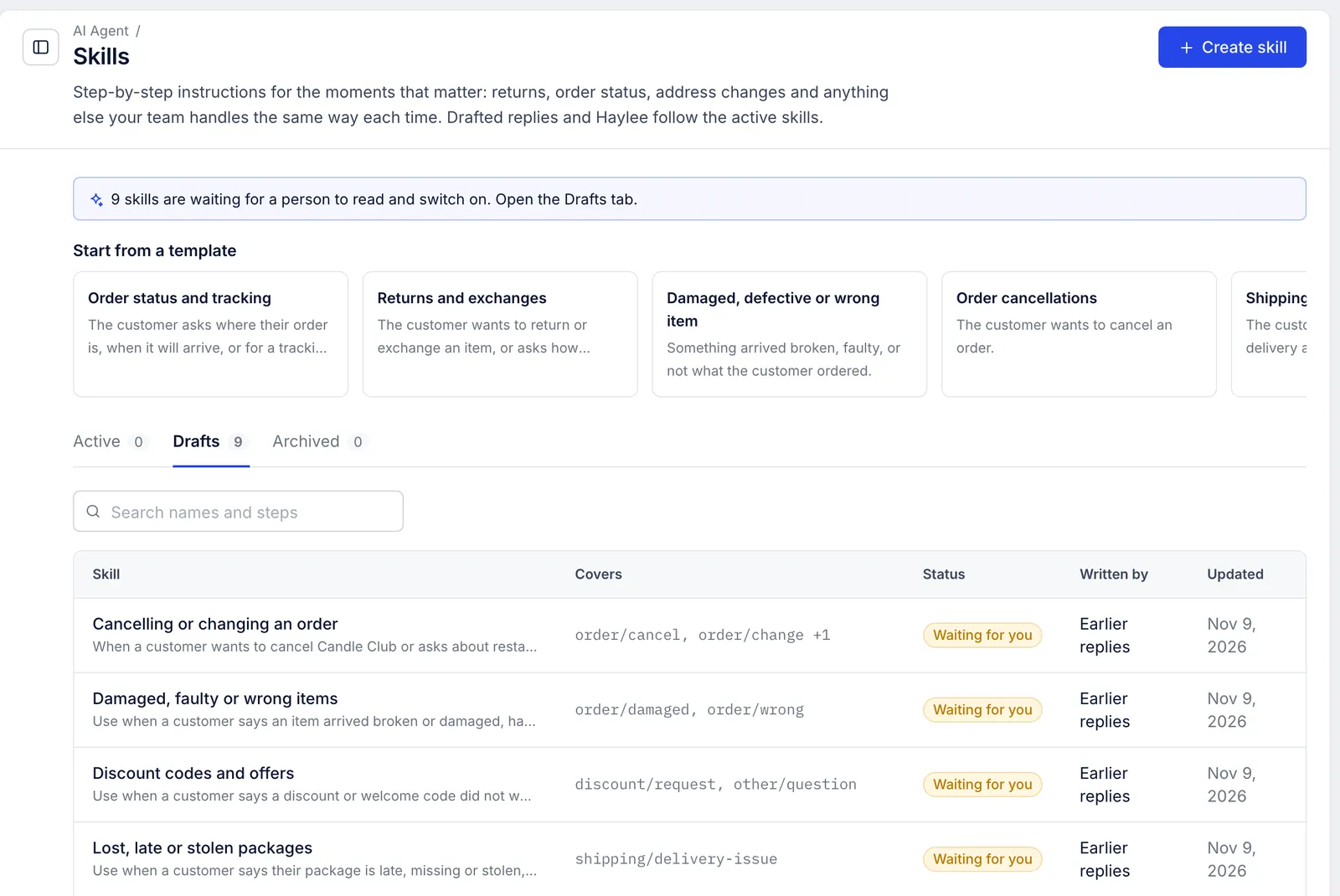
Find them under AI Agent > Skills. The page has three tabs, Active, Drafts and Archived, a search box that looks through names and steps, and ten templates to start from.
 2. Skills for Haylee, your AI agent
What a skill holds#
| Part | What to put in it |
|---|---|
| Name | A short, plain name, such as "Returns and exchanges". Two skills that are not archived cannot share a name, whatever the capital letters. Up to 120 characters. |
| Steps | Numbered steps, each written as "If ..., then ...". Anything specific to your store goes in [BRACKETS] until you fill it in. Up to 12,000 characters. |
| When to use it | The situations the skill is for, in your own words. Drafting compares tickets with this text, so it matters more than any other field. Up to 1,000 characters. |
| Intents it covers | Up to 12 request types, such as return/request or shipping/status. Each one adds a few common words to the matching. |
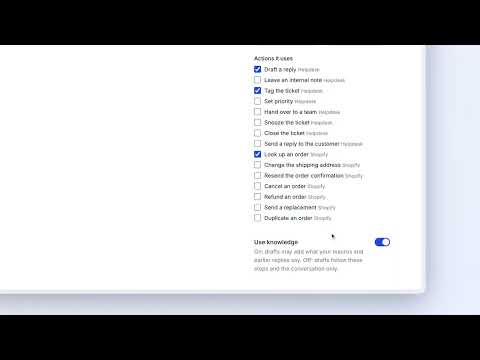
| Actions it uses | The actions the steps call for, such as Look up an order or Tag the ticket. See Actions and what Haylee may do. |
| Use knowledge | On: drafts may add what your macros and earlier replies say. Off: drafts follow these steps and the conversation only. |
Statuses#
| Status | What it means |
|---|---|
| Active | Switched on. Drafts and Haylee follow it. |
| Draft | Saved but not followed yet. |
| Waiting for you | A draft Haylee wrote, one drawn from your team's earlier replies, or a proposed change to an active skill. A lead agent or admin reads it and switches it on. |
| Archived | Put away. Drafts no longer follow it, and its history is kept. |
The Skills page and the AI Agent overview both say how many skills are waiting.
Who can do what#
| Role | Write and edit drafts | Switch skills on or off, archive active ones | Edit an active skill |
|---|---|---|---|
| Admin, lead agent | Yes | Yes | Changes it straight away |
| Agent | Yes | No | Saved as a proposal |
| Basic agent, lite agent, observer | No, they can read skills | No | No |
| Haylee | Yes | Only if an admin allows it | Saved as a proposal |
Create a skill from a template#
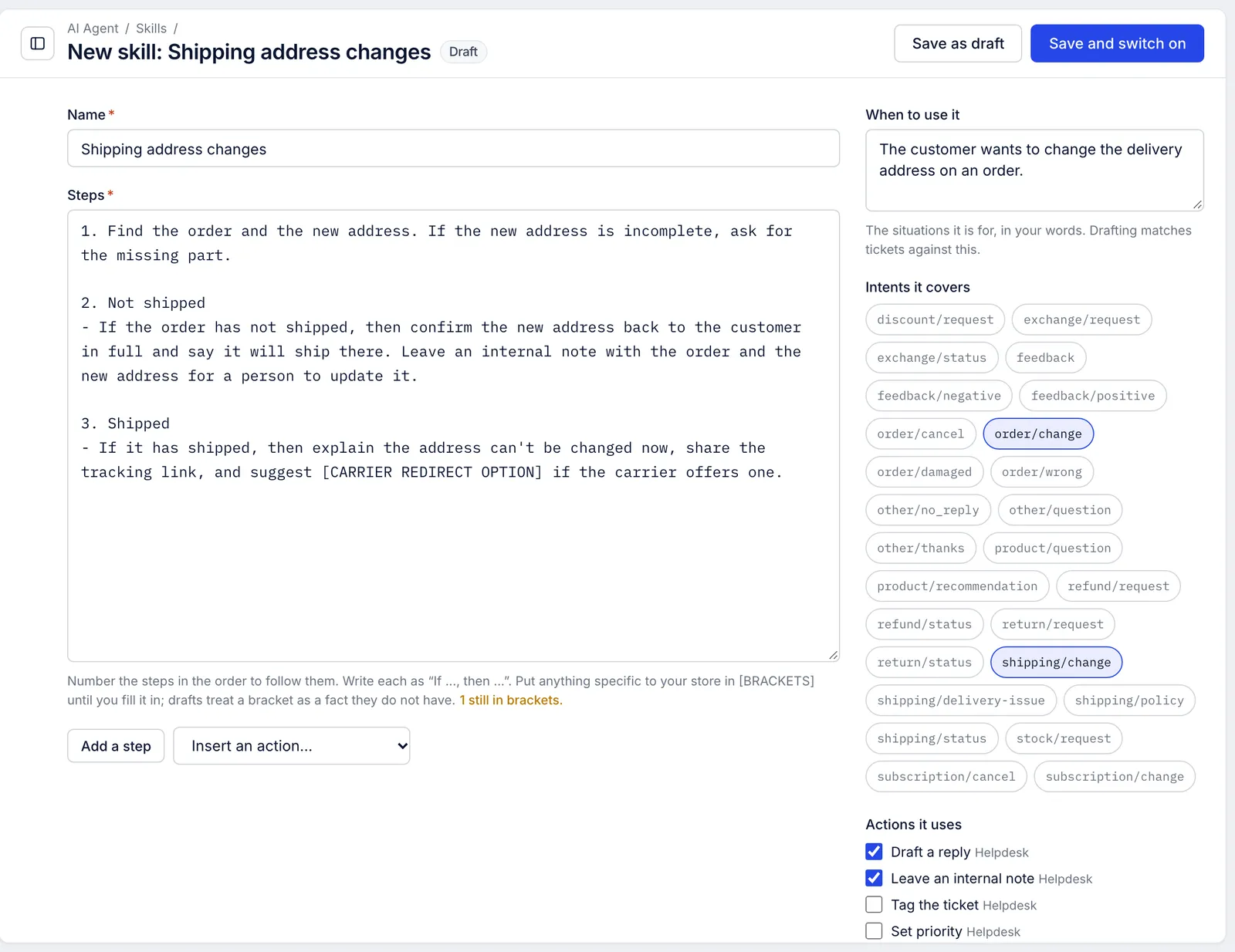
The ten templates cover order status and tracking, returns and exchanges, damaged or wrong items, cancellations, address changes, refund status, lost or stolen packages, discount codes, subscription changes and product questions. Each one leaves your own policy in brackets.
Open AI Agent > Skills and click a template under Start from a template.
Read the steps and replace every
[BRACKET]with your policy: your return window, your processing time, the team that takes escalations. The count under the steps, such as "1 still in brackets.", shows how many are left.Adjust When to use it so it uses the words your customers use.
Click Save as draft to keep working on it later, or Save and switch on if you are a lead agent or admin and it is ready.
Create a skill from a blank page#
Click Create skill.
Give it a Name and write the Steps. Add a step adds the next number; Insert an action… puts the action's name into the steps where your cursor is and ticks it under Actions it uses.
Fill in When to use it, pick the Intents it covers and check Use knowledge.
Click Save as draft or Save and switch on.
You can also ask Haylee to write one, in Slack or from Ask Haylee: "write a skill for how we handle orders that arrive damaged". Her skill arrives in the Drafts tab marked Waiting for you.
Read and switch on a skill that is waiting#
Open the Drafts tab and click the skill.
Read the steps as if you were a new teammate following them. Fill in any brackets and fix anything that is not how you work.
Click Save and switch on. Drafts follow it from the next one.
The right-hand side of a skill shows who wrote it, when it was created and last updated, who switched it on, its version number, and for a skill drawn from earlier replies, how many replies it was drawn from.
Change an active skill#
Open the skill, edit it and click Save. What happens next depends on who you are:
A lead agent or admin changes the skill straight away.
An agent, or Haylee, sees the button as Propose change. The change is saved as a separate draft, marked Waiting for you, and the active text keeps working. When a lead agent or admin opens the proposal, they see The active text this would replace above it and click Accept change to put the new text into the original skill. The skill keeps its place in reports, and the proposal is archived.
Switch off, archive and restore#
Switch off turns an active skill back into a draft. Lead agents and admins only.
Archive puts a skill away. Anyone who writes skills can archive a draft; archiving an active skill needs a lead agent or admin. Open proposals for it are archived with it.
Restore as draft brings an archived skill back as a draft, for a lead agent or admin to switch on again.
Skills are never deleted for good. Archive the ones you no longer use.
History#
Open History at the bottom of a skill to see every saved version: created, edited, change proposed, switched on, switched off, archived, restored and change accepted, each with who did it and when.
The page lists the versions but does not show an earlier version's text or put it back. To go back to an older wording, edit the skill and type it in again; the REST API's skill revisions endpoint returns each version in full if you need the old text.
See whether a skill is used#
AI Agent > Performance lists the skills your drafts followed, with how many of those drafts were used or discarded. Under any draft, What this draft was written from shows in bold the skills it followed. See AI Agent performance report.
Related articles
- Writing skills that workHow drafts choose a skill, how to word the steps so drafts follow them, and what to check when a draft ignores a skill or gets it wrong.
- Actions and what Haylee may doThe actions library, the 15 built-in actions in your helpdesk and Shopify store, and how to choose for each one whether Haylee does it, asks a person or leaves it alone.
- What drafts know about your businessEvery source a drafted reply reads, what it never sees, and how to give drafts the facts they are missing.
- AI Agent performance reportRead the AI agent report: how many drafts were written and used, which skills they followed, and everything Haylee changed in your helpdesk.
Still stuck?
Write to the Growth Dept team and a person answers. Say which helpdesk you work in and what you were trying to do.