Build an action
Put steps together into an action of your own, with the information Haylee collects first, conditions, the customer's agreement and a setting for what Haylee may do.
On this page
The built-in actions each do one thing. An action of your own runs several steps in order on a ticket. For example, a damaged-item return could tag the ticket, ask your returns app for a label, and leave the label link in a note for the team. Admins build actions in AI Agent > Actions: click Create action, or Customize beside a built-in action to start from it.
Name and description#
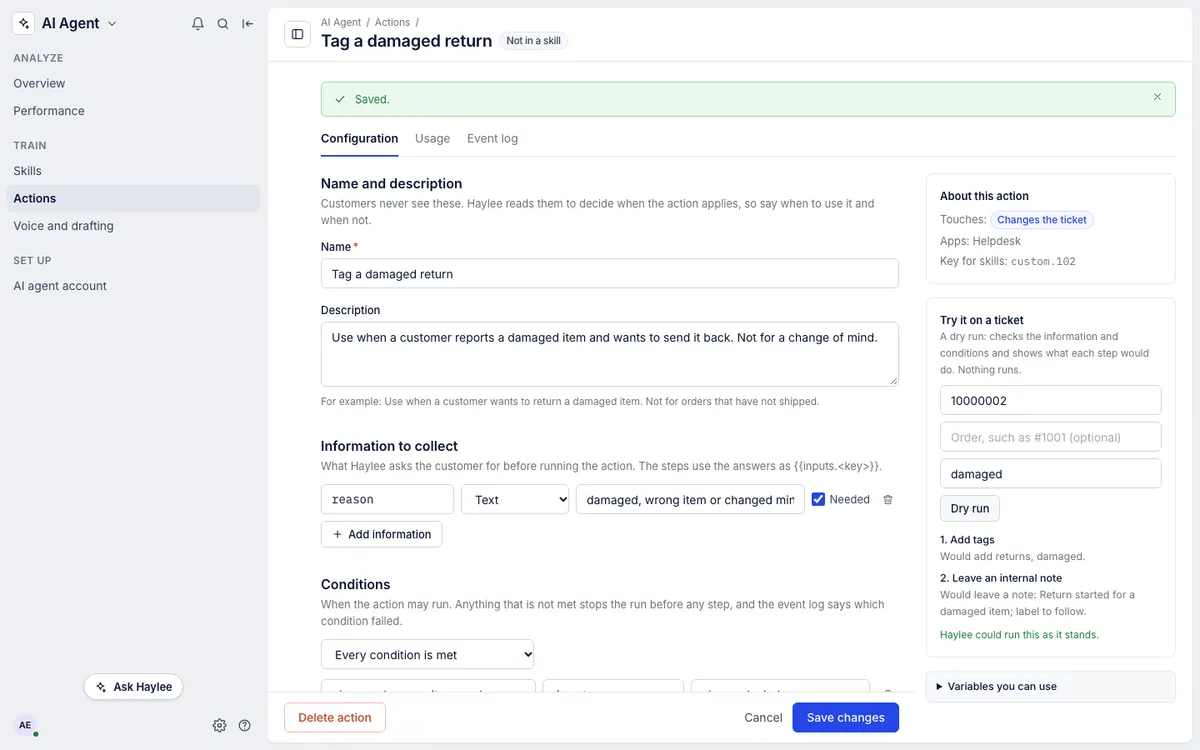
Customers never see either one. Haylee reads them to decide when the action applies, so write the description as an instruction to her: when to use it, and when not. "Use when a customer reports a damaged item and wants to send it back. Not for a change of mind." works better than "Returns".
Information to collect#
List what Haylee must learn from the customer before the action runs, such as the reason for a return or a new delivery date. Each piece of information has a key, a type and a line saying what to ask for:
| Type | What it accepts |
|---|---|
| Text | Anything written, such as a reason |
| Number | A number, such as a quantity |
| Yes or no | Yes, no, true or false |
| Date | A date, such as 2026-12-01 |
Tick Needed for information the action cannot run without. Haylee asks for it in a reply draft when the conversation does not already say it. The steps use the answer as {{inputs.reason}}, with the key you chose.
Conditions#
Conditions say when the action may run. Choose Every condition is met or At least one condition is met, then pick a value, a comparison and what to compare it with. For example, Fulfillment status is not fulfilled keeps an address change off orders that have shipped.
You can compare the ticket (subject, channel, tags, priority), the customer (email, name), the order the action is about (payment and fulfillment status, total, tags, tracking), the information collected, and what an earlier step returned. When a condition is not met, nothing runs, and the event log says which condition stopped it.
A single step can have its own condition too: Only run this step when… under the step. A step whose condition is not met is skipped and the others still run.
Steps#
Add steps with Add step: pick the app, then what to do.
| App | Steps |
|---|---|
| Helpdesk | Add tags, remove tags, set priority, hand over to a team, leave an internal note, close the ticket, snooze it for some hours, set a ticket field |
| Shopify | Look up the order, change the shipping address, resend the order confirmation, cancel the order, refund it, send a replacement, duplicate it |
| Your apps | Any HTTP step from the Steps page. See Steps and apps for actions |
Fill in each step's values. Any of them can use variables such as {{order.name}} or {{inputs.reason}}; Variables you can use beside the form lists them, including what each earlier step returned ({{steps.2.label_url}} is the label_url that step 2 read). Steps run from top to bottom. Move them with the arrows.
When a step fails, the steps after it do not run, and the helpdesk leaves an internal note on the ticket saying where the action stopped, so someone can finish by hand. Steps that already ran stay done.
Shopify steps act on one order. Haylee names it when she runs the action; a teammate types it in the run dialog. An action that changes an order never guesses which one.
Ask the customer first#
With Ask the customer first on, the action runs only after the customer has agreed in the conversation. Haylee asks in a reply draft, and runs the action once the customer's own message says yes; the helpdesk records that the customer agreed.
It is on by default when a step reaches the customer or moves money or stock: refunds and cancellations, for example. Turning it off for such an action asks you to confirm.
What Haylee may do#
| Setting | What happens |
|---|---|
| Does it | Haylee runs the action when a skill names it, or when its description fits the ticket |
| Asks a person | Haylee leaves an internal note with the action and the values she would use; a teammate runs it from the ticket |
| Off | Nobody runs it. Dry runs still work, for testing |
New actions start at Asks a person. Teammates can run any action that is not off from a ticket: More, then Run an action.
Try it before switching it on#
After saving, Try it on a ticket runs the action as a dry run: give a ticket number, an order if a step needs one, and the information. It checks the information and conditions and shows what each step would do or send. Nothing changes and nothing is sent. Dry runs appear in the event log under Dry runs.
Use it in a skill#
Open a skill, choose Insert an action… and pick your action. It appears in the step as [Action: Send a return label] and under Actions it uses. A skill gives Haylee the exact moment to use the action; without one, she relies on the description. See Skills.
When Haylee builds one#
You can ask Haylee to draft an action, for example from Ask Haylee. What she builds is saved Off, marked as drafted by her, and she can change it only while it stays off. An admin reads it, fixes what needs fixing and chooses the setting. Haylee cannot add apps or keys, test steps against your apps, or delete actions.
Change or delete an action#
Open the action, change it and click Save changes. Skills that name it use the new version at once. Delete action at the bottom removes it with its event log; a skill that names the action must drop it first. Built-in actions cannot be deleted; switch them off instead.
Related articles
- Actions and what Haylee may doThe actions library, the 15 built-in actions in your helpdesk and Shopify store, and how to choose for each one whether Haylee does it, asks a person or leaves it alone.
- Steps and apps for actionsConnect your returns, subscription or shipping app with its key, and write HTTP steps that call it and read values from its answer.
- Run actions and read the event logRun an action from a ticket, see every run with each step's request and answer, and see which skills use an action.
- SkillsCreate, switch on, change and archive the skills that tell drafted replies and Haylee how your team handles each kind of request.
Still stuck?
Write to the Growth Dept team and a person answers. Say which helpdesk you work in and what you were trying to do.