HTTP integrations
Partly availableCall your own service whenever a ticket is created, changes or gets a message, with the ticket's details in the request, signed so you can trust it.
On this page
An HTTP integration sends a request to a web address you choose each time something happens on a ticket. Use it to update an order system, add a row to a spreadsheet service, start a job in an automation tool, or post an alert to a chat tool such as Slack (Slack alerts for new tickets walks through that one).
The helpdesk only sends. It does not read the answer back into the ticket.
Only admins can add or change HTTP integrations. Other roles can see the list.
Add an integration#
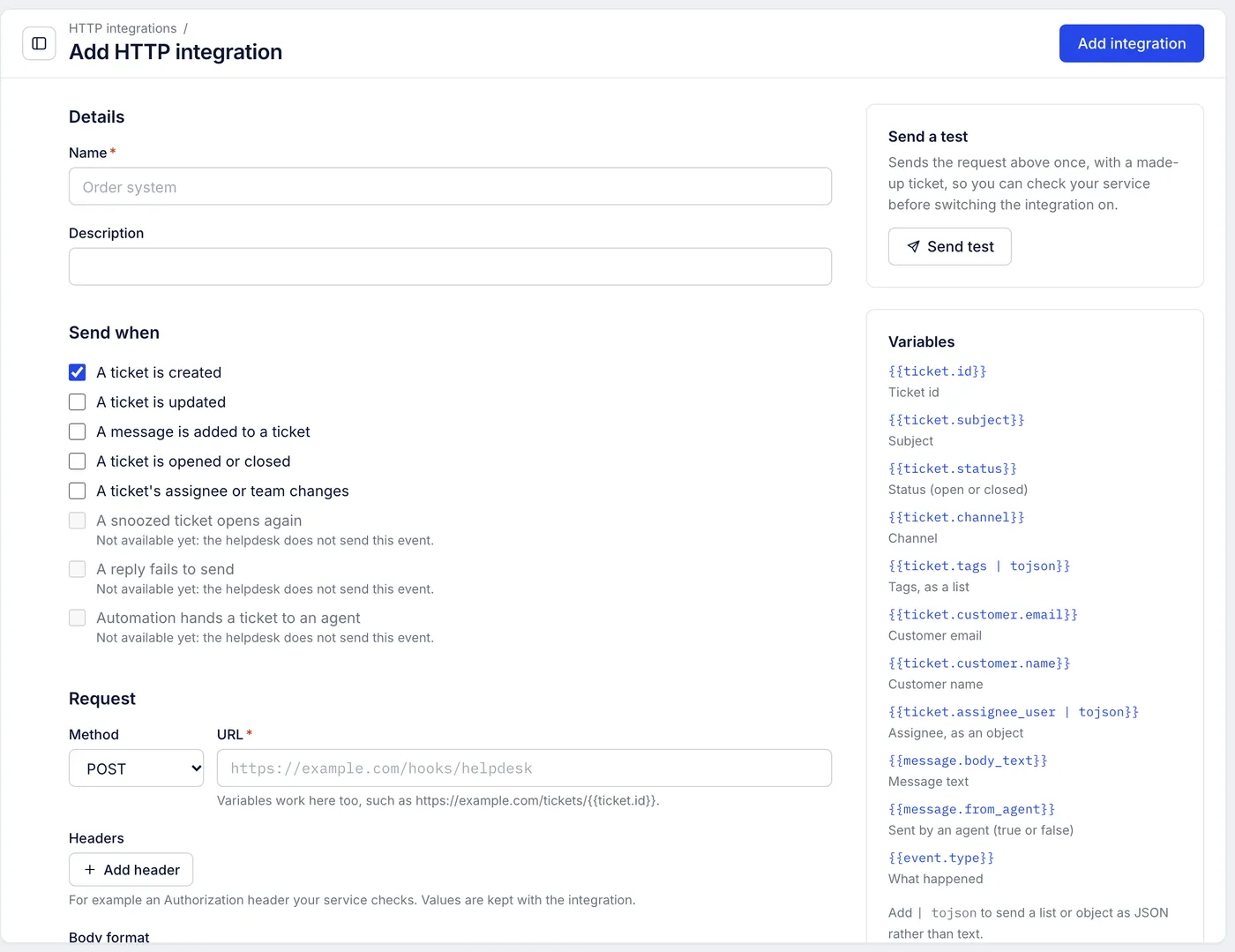
Open Settings > HTTP integrations and select Add integration.
Under Details, enter a Name, such as Order system. Description is optional.
Under Send when, tick the events that should send a request (see the table below).
Under Request, choose the Method (POST, PUT, PATCH, GET or DELETE) and enter the URL. It must start with
https://.Add Headers if your service needs them, for example an
Authorizationheader with a token. Select Add header for each one.Choose the Body format, JSON or Form data, and write the Body. A sample body is filled in to start from.
Select Send test to try it (see below), then select Add integration at the top to save it.
Events you can send on#
| Event | Sent when |
|---|---|
| A ticket is created | A new ticket opens, from an email, chat, a form, an agent or the API. |
| A ticket is updated | Its status, assignee, team, tags, priority, fields or other details change. |
| A message is added to a ticket | A customer message, a reply or an internal note is added. |
| A ticket is opened or closed | Its status changes either way. |
| A ticket's assignee or team changes | Someone or something reassigns it. |
Three more events are listed but greyed out: A snoozed ticket opens again, A reply fails to send and Automation hands a ticket to an agent. The helpdesk does not send them yet.
Tickets brought in by an import from another helpdesk or from older email never send requests.
Put ticket details in the request#
Variables in double braces are replaced with the ticket's values when the request goes out. They work in the body, the URL and header values. The Variables panel lists them with a copy button:
| Variable | Value |
|---|---|
{{ticket.id}} | Ticket number |
{{ticket.subject}} | Subject |
{{ticket.status}} | open or closed |
{{ticket.channel}} | Channel, such as email or chat |
{{ticket.tags | tojson}} | Tags, as a list |
{{ticket.customer.email}} | Customer's email address |
{{ticket.customer.name}} | Customer's name |
{{ticket.assignee_user | tojson}} | Assigned agent, as an object |
{{message.body_text}} | Text of the message that triggered it, or the latest one |
{{message.from_agent}} | true if an agent sent that message |
{{event.type}} | Which event fired |
In a JSON body, put each variable inside quotes, like "{{ticket.subject}}". Add | tojson to send a list or object as real JSON rather than text. If the body is not valid JSON, the page says so before you save.
Test before you switch it on#
Send test sends the request once with a made-up ticket. The result shows Delivered or Failed, the status code and your service's Response, so you can fix the URL or body. A test from an integration that has not been saved yet is not signed.
Check that a request came from your helpdesk#
Each integration has a signing secret. Every request carries these headers:
| Header | Contents |
|---|---|
X-Helpdesk-Signature | t= the time in Unix seconds, and v1= an HMAC-SHA256 of the time, a dot and the raw body, made with the secret |
X-Helpdesk-Event | The event, such as ticket-created |
X-Helpdesk-Delivery | An id for this delivery, the same on every retry |
Your service should compute the same HMAC with the secret, compare the two, and refuse anything older than five minutes. The secret is shown once, when it is made; copy it into your service then. Make a new secret replaces it, and the old one stops matching straight away.
Deliveries, retries and switching off#
Your service has 15 seconds to answer. Any 2xx status counts as delivered. Redirects are not followed, so a 3xx answer counts as a failure.
A failed request is tried again after 1 minute, 5 minutes, 30 minutes and 2 hours.
If ten events in a row fail every attempt, the helpdesk switches the integration off and records why. Fix the problem, then switch Integration on back on.
A URL that points at a private or internal network address is refused and never sent.
The Delivery log tab lists every request, tests included, with when it was sent, the event, the result, the status code and how long it took.
Switch Integration on off to pause an integration without losing its settings, or select Delete to remove it.
Not available yet#
Showing data from your service in the ticket sidebar, or buttons there that call it, is not available.
An HTTP request step inside a chat flow is not available.
An integration cannot be limited to some tickets, such as one channel or tag. It sends on every event you ticked; filter on your service's side using the ticket details in the body.
Developers can also create HTTP integrations through the API with POST /api/integrations; see Webhooks in the API reference.
Related articles
- Slack alerts for new ticketsPost a message to a Slack channel whenever a ticket arrives, using a Slack incoming webhook and an HTTP integration.
- The REST API and API keysFind your API address, create and revoke keys, and connect your own scripts and tools to the helpdesk, including tools written for Gorgias.
- Connected apps and the app directorySee which mailboxes and integrations are connected to your helpdesk, connect a new one, and check which apps are not available yet.
- Audit logSee who changed what in your helpdesk and when, from sign-in settings and API keys to rules, macros, tags and tickets, and export the entries.
Still stuck?
Write to the Growth Dept team and a person answers. Say which helpdesk you work in and what you were trying to do.