Customer fields
Keep facts about each customer on their profile, such as a membership tier or ring size, and use them in rules and views.
On this page
A customer field is a fact you keep on a customer's profile rather than on one ticket: their membership tier, their birthday, their ring size, whether they buy wholesale. The answer follows the customer, so every agent sees it beside every ticket from that person, today's and next year's.
Admins set customer fields up under Workflows > Customer fields. Other roles can open the page but not change it. Everyone except observers can fill in the answers on a profile.
A new helpdesk has no customer fields, and there is no limit on how many you can have.
Create a customer field#
Go to Workflows > Customer fields and select Create field.
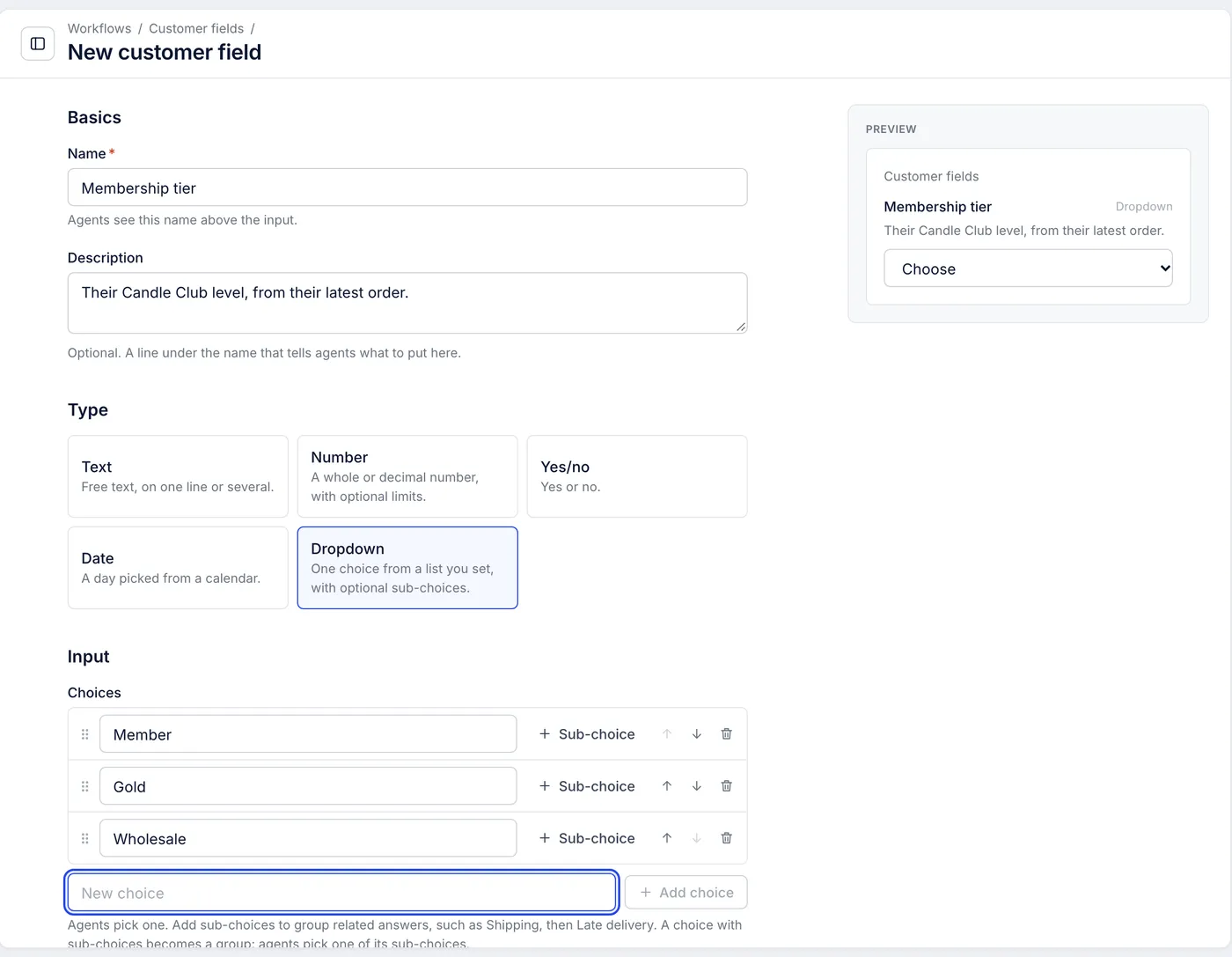
Enter a Name. Agents see it beside the input. No two customer fields can share a name, archived ones included, though capital letters make a difference (
Tierandtierare two names).Add a Description if agents need a hint. It shows under the name in the preview, and when someone points at the field's name on a profile.
Choose a Type (see below). You cannot change it later, because saved answers already have that type.
Fill in the Input settings for that type.
Select Create field.
The Preview on the right shows the input as agents will see it while you edit. The new field appears on every profile at once, empty until someone fills it in.
Customer fields are always optional. Unlike ticket fields, they have no requirement setting, because nothing closes a customer.
Field types#
| Type | What agents enter | Input settings |
|---|---|---|
| Text | Free text, up to 1,000 characters | Allow several lines for a taller box; an optional Placeholder |
| Number | A whole or decimal number | Optional Lowest value and Highest value; an optional Placeholder |
| Yes/no | Yes or No | None |
| Date | A day picked from a calendar | None |
| Dropdown | One choice from your list | Choices, with optional sub-choices |
For a dropdown, type each choice in the New choice box and press Enter or select Add choice. + Sub-choice puts more specific answers under a choice, such as Partner, then Affiliate and Wholesale; agents then pick one of the sub-choices, not the heading. Drag a choice by its handle or use the arrows to reorder, and the bin removes it. A dropdown goes two levels deep, holds up to 1,000 choices, and its choice names cannot contain ::.
Importing choices from a CSV file is not available. Add them one at a time, or create the field through the REST API with all of its choices in one request.
Fill in a customer field#
On a ticket: in the right-hand panel, select Customer fields under the customer's email, phone and note to open the list. The panel remembers whether you left it open.
On the customer's page: the fields are listed under the customer's name.
Pick or type the answer. A choice saves as soon as you pick it, and a typed answer saves when you press Enter or click elsewhere. Whatever you enter shows on every ticket from that customer.
When two customers are merged, the answers move to the customer you keep. Where both had answered the same field, the kept customer's answer stays.
Edit, reorder, archive or restore a field#
Edit: select a field's row, change its name, description, input settings or choices, and select Save field. The type cannot change.
Reorder: on the Active tab, drag a field by its handle or use the arrows. Profiles show fields in this order, and it saves as soon as you drop the field.
Archive: select Archive on the field's row or its page, then confirm. The field leaves every profile and can no longer be filled in. The answers already saved are kept.
Restore: open the Archived tab and select Restore. The field comes back with its saved answers.
Deleting a customer field outright is not available; archive it instead.
Use customer fields in rules and views#
Rules: each active customer field is a condition under Customer fields, with operators that suit its type, such as "Membership tier is Gold" to route your best customers to a senior team. See Rule conditions and actions.
Views: filter a ticket view on the customer's answer, for example every open ticket from a wholesale customer. See Filters for views and search.
Rules and macros cannot fill in a customer field; the macro action sets ticket fields only. Agents fill in customer fields by hand.
Related articles
- Ticket fieldsRecord facts on every ticket, such as the contact reason or the product, make some of them required before closing, and use them in rules, macros and views.
- Customer profilesFind, create, edit and delete customers, keep a private note on each one, and read a customer's page with their tickets, details and orders.
- Rule conditions and actions referenceEvery field a rule can check, the operators each one offers, how matching works, and every action a rule can take.
- Filters for views and searchEvery condition a view's filter can use, what each operator means, and how to combine conditions with all, any and groups.
Still stuck?
Write to the Growth Dept team and a person answers. Say which helpdesk you work in and what you were trying to do.