The inbox: views, the ticket list and the ticket panel
What each part of the inbox shows, what the built-in views contain, how the ticket list sorts and refreshes, and the two list layouts.
On this page
The inbox is three columns side by side. On the left, the navigation panel lists your views. In the middle is the list of tickets in the view you picked. On the right is the ticket you opened, with the customer and their orders beside it.
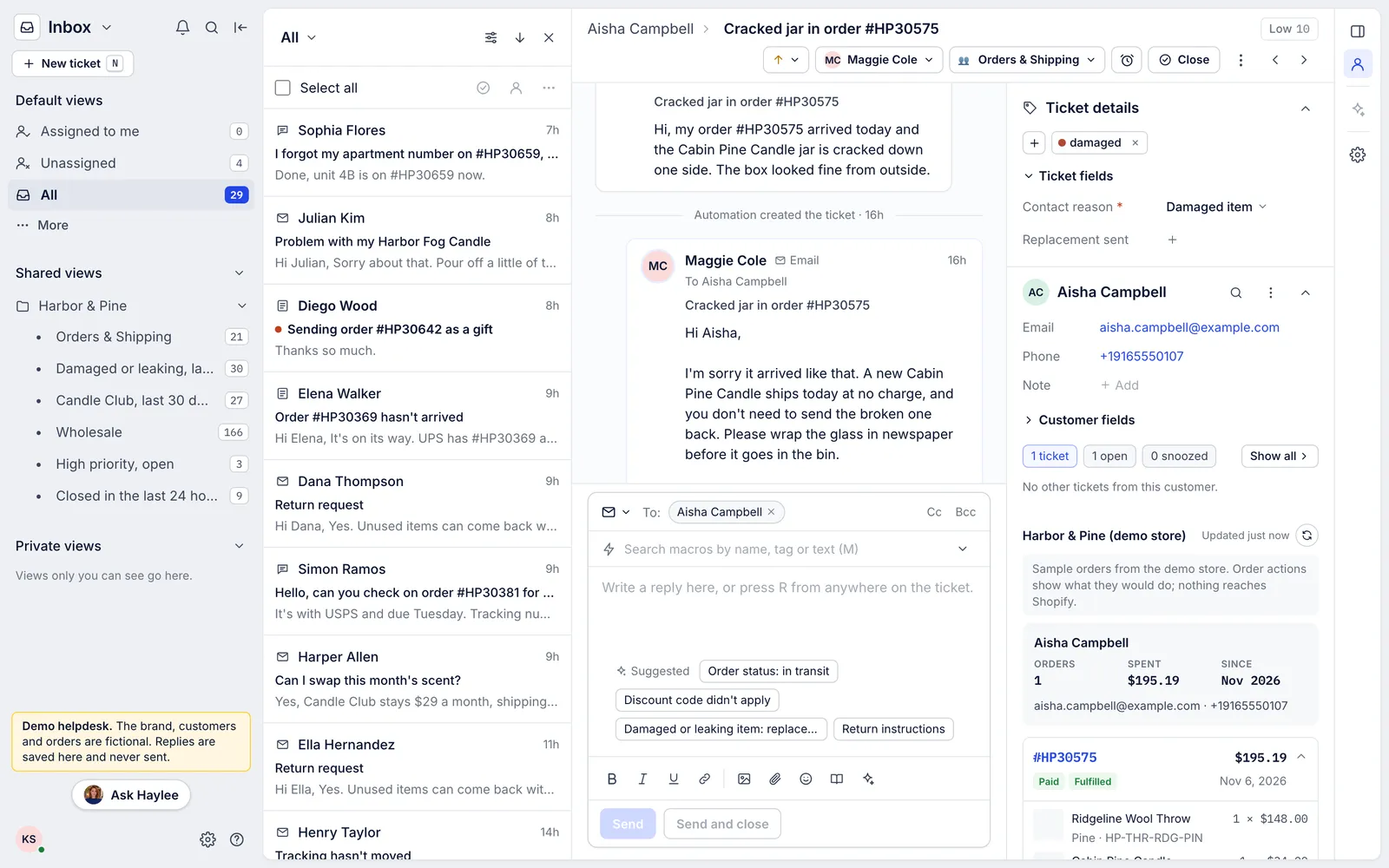
The navigation panel#
From top to bottom:
The area menu (Inbox with an arrow) to move to Customers, Workflows, Analytics and the rest, or to another helpdesk.
The bell for tickets recently assigned to you or your teams, the magnifier for search, and a button that hides the panel. [ hides and shows it too.
New ticket (N). It reads Resume draft while a ticket you started but did not send is saved in your browser.
Your views, described below.
Ask Haylee, which opens a conversation with your helpdesk's AI agent, and your initials, which open your status, profile and Sign out.
Default views#
These exist in every helpdesk and cannot be edited.
| View | What it lists |
|---|---|
| Assigned to me | Your open tickets |
| Unassigned | Open tickets with no agent, whether or not a team is set |
| All | Every open ticket |
| Snoozed, under More | Snoozed tickets assigned to you |
| Closed, under More | Closed tickets, including snoozed ones |
| Spam, under More | Tickets marked as spam |
| Trash, under More | Tickets moved to the trash |
Spam and trashed tickets stay out of every other view. To pick which of these sit at the top instead of under More, hover over Default views and use the sliders button; that choice is saved in your browser only.
Shared and private views#
Shared views are built by lead agents and admins for the whole team, or for chosen teams, and can be grouped into sections you open and fold. Private views are yours alone; any agent can make them. Create one with the + beside either heading. See Views.
The number beside each view is how many tickets it holds. Counts refresh every 30 seconds and after any change you make; large counts are shortened, as in 1.2k, and a + means there are at least that many.
The ticket list#
The list beside the open ticket shows the view's tickets, most recent activity first. Each row has:
the channel icon (envelope for email, speech bubble for chat, form for contact forms),
the customer's name and how long ago the last message came in,
the subject, in bold with a red dot while the ticket is unread,
the start of the last message,
an Urgent or High label when the helpdesk scores the ticket as needing attention first. See Priority and urgency.
The list loads more tickets as you scroll and checks for new ones every 20 seconds.
Controls along its top:
The view's name, with an arrow, to jump to another view.
Sort and view options (the sliders): sort by Urgency (AI triage), Last message, Last message received, Created, Updated, Closed or Snoozed until, and open Edit view or Save as a new view, which starts a new view from this one's filters.
The arrow to switch between newest first and oldest first.
Close the list, which switches to the table layout.
Under them, Select all and the row checkboxes start bulk actions.
The table layout#
Close the list and views open as a full-width table instead, with no ticket beside it. Use it to scan a long view or to work on many tickets at once.
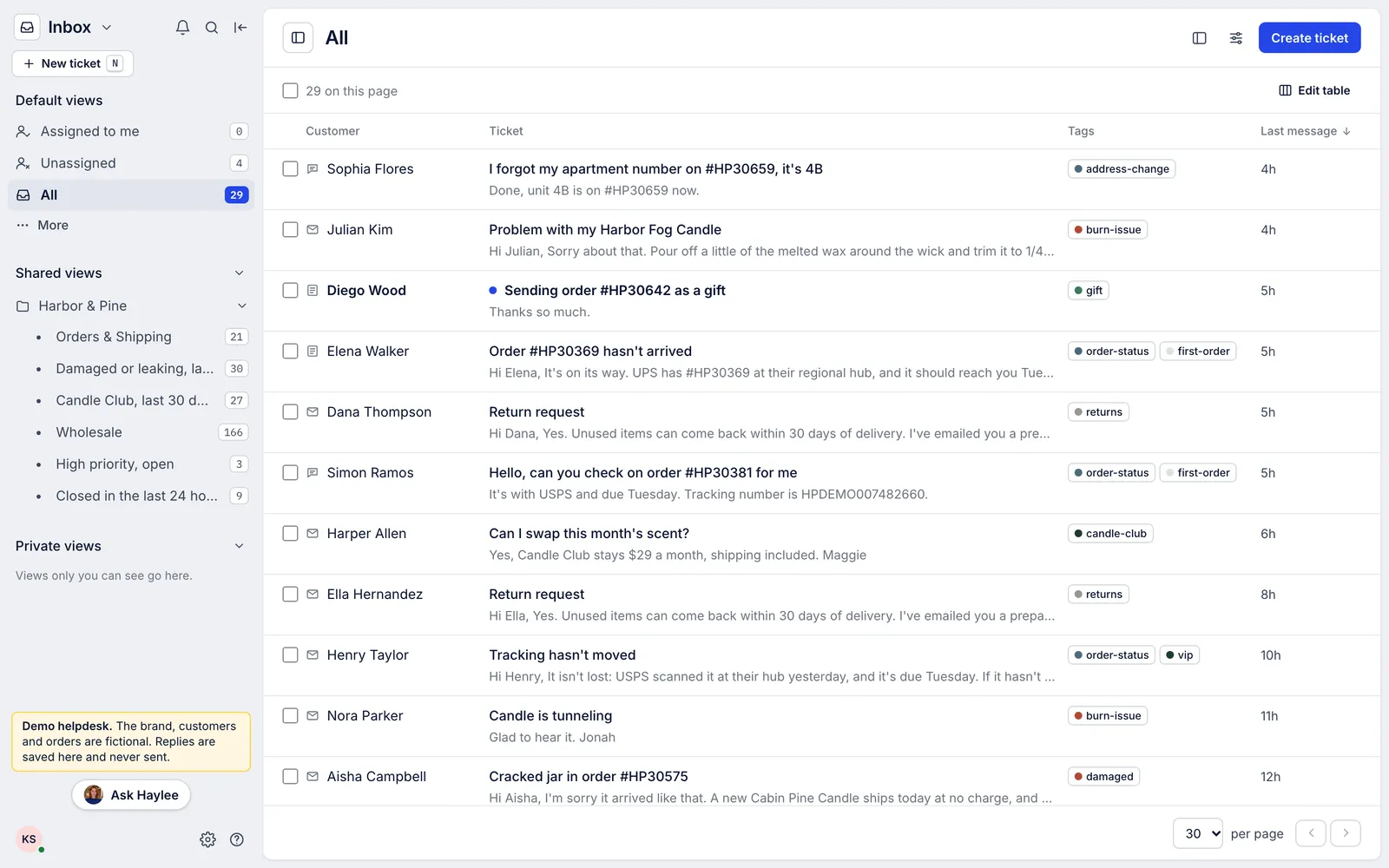
In the table:
Edit table chooses the columns: customer, ticket, tags, agent, team, channel, priority, status, number of messages, and dates such as created, updated, last received, closed and snoozed until. The choice is saved in your browser, for that view.
Click a column heading to sort by it, where the column allows sorting.
Choose 10 to 100 tickets per page at the bottom, and use the arrows to page.
View options adds Copy link to view, so you can send a teammate straight to the view.
Show the list beside tickets goes back to the usual layout.
The layout you pick is remembered on that browser for every view.
The ticket panel#
An open ticket fills the right side with:
The header: the customer and subject (click the subject to rename it), then priority, agent, team, snooze, Close and the ⋮ menu, and arrows to the previous and next ticket in the view. The urgency score sits at the top right.
The conversation, oldest message first, with the reply box under it. See Work a ticket from first read to close.
The details panel: the ticket's tags and fields, any promises your team made on this ticket, the customer with their other tickets, and their orders when your store is connected. See See a customer's history from a ticket.
The person icon at the far right, or [[]]], hides and shows the details panel to give the conversation more room.
On a phone#
On a narrow screen the inbox shows one column at a time: the views, then the list, then the ticket. The back arrow at the top left of a ticket returns to the list, and the details panel opens as a sheet you close with Done.
Related articles
- Work a ticket from first read to closeReading the conversation and its events, the four ways to answer, Cc and attachments, sending, closing and reopening, and the spam, trash, print and link actions.
- Views and sectionsBuild the ticket queues in the inbox sidebar, decide who sees each one, group them into sections, and choose which built-in views each agent keeps in sight.
- Act on many tickets at onceSelect tickets in a view and close, reopen, assign, tag, apply a macro, change priority, mark read, mark as spam or trash them together.
- Keyboard shortcutsEvery key the helpdesk responds to, for moving through views, working a ticket and sending replies without the mouse.
Still stuck?
Write to the Growth Dept team and a person answers. Say which helpdesk you work in and what you were trying to do.