Satisfaction surveys
Partly availableEmail customers a one-question survey after their ticket closes, choose which tickets get one, and find the scores and comments they send back.
On this page
When a ticket closes, the helpdesk can email the customer a link to a short survey: a score from 1 to 5 and room for a comment. Scores and comments appear on the ticket, at the bottom of the survey settings page and in the satisfaction report.
Set it up on Workflows > Satisfaction survey. Admins change the settings; other roles can read them. Press Save changes at the bottom when you are done.
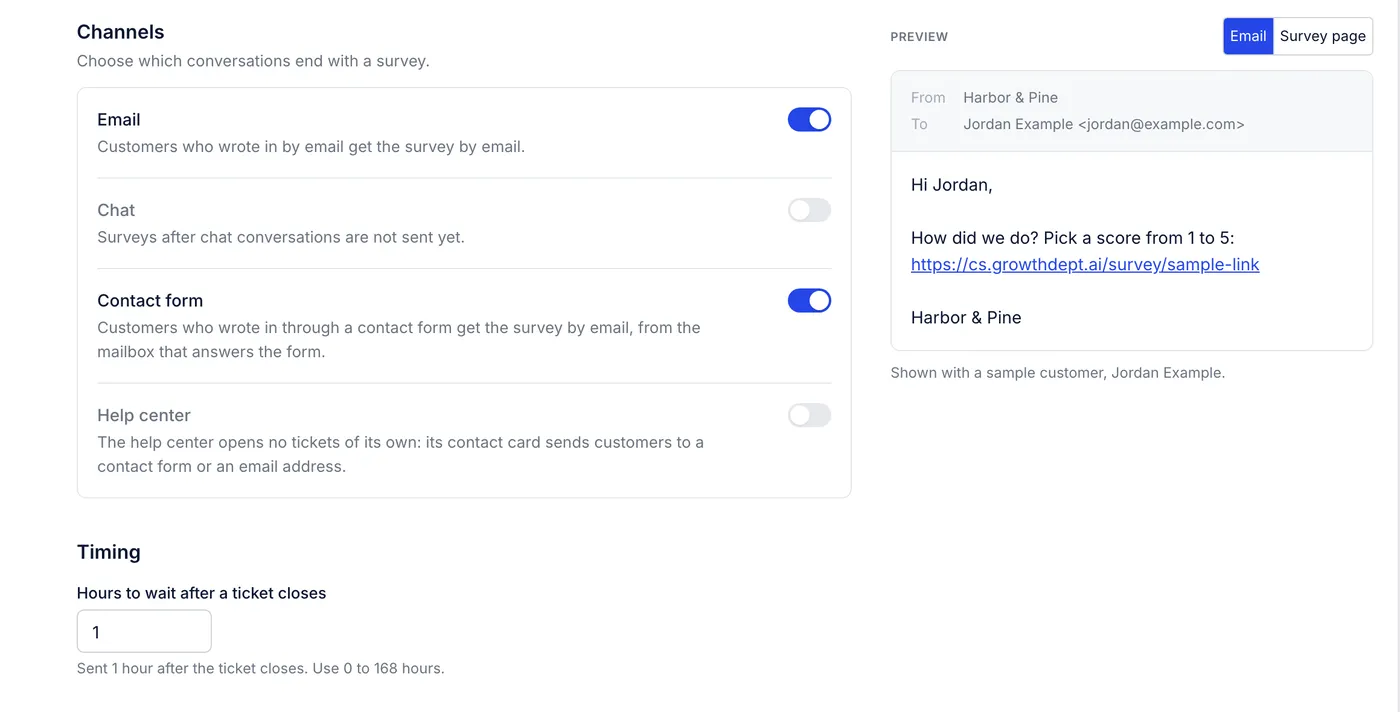
Choose which tickets get a survey#
Under Channels, switch on the conversations that should end with a survey:
| Channel | What happens |
|---|---|
| Customers who wrote in by email get the survey by email | |
| Contact form | Customers who used a contact form get the survey by email, from the mailbox that answers that form |
| Chat | Not available yet |
| Help center | The help center opens no tickets itself. Its contact options send people to a contact form or an email address, which are covered above |
Under Skip these tickets, add tags that should never get a survey, such as spam or a tag you use for internal tests.
Set the timing#
Hours to wait after a ticket closes takes 0 to 168 (one week). With 0 the survey goes as soon as the ticket closes. A wait gives your team time to reopen a ticket closed by mistake: a ticket that is open again when its survey is due gets no survey.
Write the email#
The email is plain text. Use the Insert buttons to add variables where the cursor is:
| Button | Variable | Fills in |
|---|---|---|
| Survey link | {{satisfaction_survey_url}} | The customer's own survey link. It must stay in the email; the page will not save without it |
| Customer first name | {{ticket.customer.firstname}} | The customer's first name |
| Customer full name | {{ticket.customer.name}} | The customer's full name |
| Ticket number | {{ticket.id}} | The ticket's number |
| Helpdesk name | {{ticket.account.name}} | Your helpdesk's name |
The Preview on the right shows the email with a sample customer, Jordan Example. Switch it to Survey page to see what the link opens.
The survey email is sent as a reply on the ticket, from the ticket's mailbox, by the Automation account. It shows in the conversation like any other reply, and the ticket's events note "Satisfaction survey sent".
Write the survey page#
Question: what the customer answers. The default is "How would you rate the help you received?"
Comment prompt: the line above the comment box. Leave it empty to hide the box.
Thank-you message: what the customer sees after sending.
The customer picks a score, optionally writes a comment and sends. Each survey can be answered once. Opening the link again shows the score they gave.
When a survey is not sent#
A ticket gets one survey at most. Closing it a second time before the survey goes out only moves the send time; once it has been sent or answered, closing it again sends nothing new.
No survey goes out when, at the moment it is due, the ticket:
is open again;
is marked as spam, in the trash or deleted;
was copied in from another helpdesk;
has no customer;
carries one of your Skip these tickets tags;
was excluded by a rule (below);
came from a channel that is switched off, or from chat;
has no mailbox to send from;
has an automatic message as the customer's latest, such as an out-of-office reply or a bounce, since nobody would read a survey there.
When a ticket qualifies but is skipped for one of these reasons, its events record the skip.
Leave tickets out with a rule#
Rules have a Skip the satisfaction survey action for tickets a tag list cannot catch. It works any time before the survey is sent. Two examples:
Internal tests: event A ticket is created; condition Customer email ends with
@yourstore.com; action Skip the satisfaction survey.An agent's call: event A ticket is updated; condition Tags includes any of
no-survey; action Skip the satisfaction survey. Agents add the tag to any ticket where a survey would land badly.
Macros cannot skip the survey yet; give agents a tag and a rule as in the second example. See Rule conditions and actions.
Read the answers#
On the ticket: the events show "The customer rated this conversation 4 out of 5", for example.
Recent answers, at the bottom of the survey page: the latest scores with the ticket, when it was answered and the comment.
Analytics > Satisfaction: average score, satisfaction rate, response rate, surveys sent and scores received over time, with the split of scores and the latest comments. See Satisfaction report.
Notifications: each agent can choose to hear when a customer gives a score of 1 or 2, in Settings > Notifications. See Notifications.
If you merge two tickets, a survey moves with the messages into the ticket you keep, unless that ticket already has one.
Not available yet#
| You may want | Here |
|---|---|
| Surveys after chat conversations | Not sent yet |
| The survey in each customer's language | One email text and one survey page for the whole helpdesk |
| Scores to click straight from the email | The email carries one link; the score is chosen on the survey page |
| Customers changing their score later | A survey is answered once |
| Editing or removing a customer's answer | Not possible from the helpdesk |
Related articles
- Satisfaction reportRead your average survey score, the share of happy customers, how many answered the survey, the split of scores from 1 to 5 and their latest comments.
- Rule conditions and actions referenceEvery field a rule can check, the operators each one offers, how matching works, and every action a rule can take.
- NotificationsThe bell, the emails you can get about tickets and mentions, the daily summary of open tickets, and what admins set for new agents.
- Service level targets (SLAs)Set how fast your team should first reply to and resolve each kind of ticket, and see where those targets already shape the urgency of open tickets.
Still stuck?
Write to the Growth Dept team and a person answers. Say which helpdesk you work in and what you were trying to do.