Create and manage macros
Write a saved reply once, apply it from any ticket, and keep the macro list tidy with search, filters, archiving and duplicates.
On this page
A macro is a saved reply. When an agent picks one in a ticket, its text drops into the reply box with the customer's name, order number and other details filled in, and it can also tag, assign, snooze or change the ticket when the reply goes out.
Lead agents and admins create, edit, archive and delete macros. Haylee, the AI agent, can also create and edit macros when you ask her to, but she cannot delete them. Every agent who can reply to tickets can apply them. Observers can open the macro list but cannot change it or use a macro.
 7. Creating macros
Create a macro#
Open the menu at the top left and choose Workflows, then Macros under Automate.
Click Create macro.
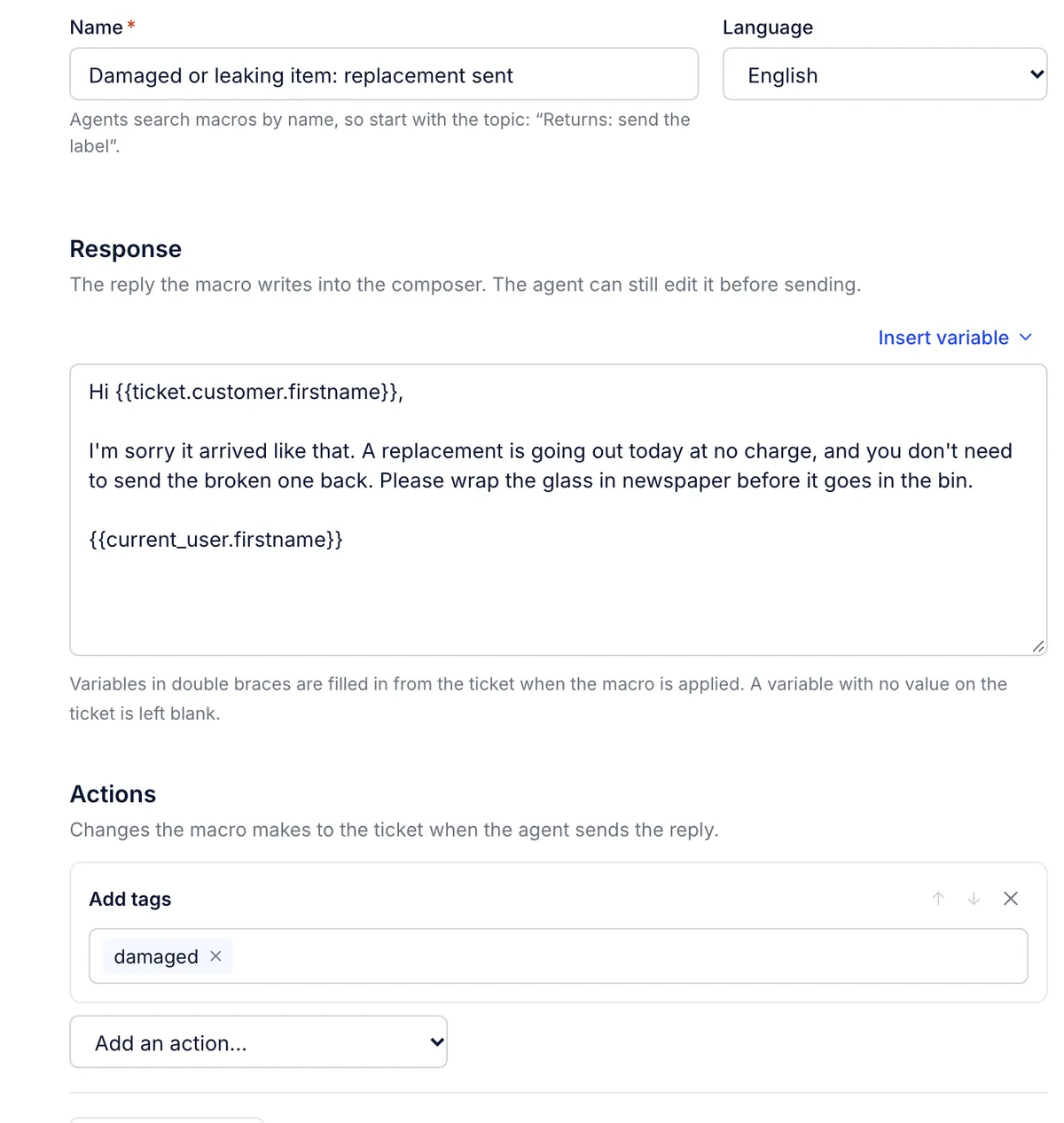
Fill in Name. Agents find macros by name, so lead with the topic: "Returns: send the label" sorts and searches better than "Label email".
Pick a Language if the reply is written in one. Leave it on Any language for a macro with no text, such as one that only adds tags.
Write the reply under Response. Use Insert variable to add details from the ticket, such as
{{ticket.customer.firstname}}. The full list is in Variables in macros.Under Actions, choose from Add an action… for anything the macro should change on the ticket, such as adding a tag or setting the status. See Macro actions.
Check the Preview on the right. It renders your reply on a made-up ticket from Jordan Example with order #1042, and lists what the macro will change.
Click Save macro.
A macro needs a name and either a reply or at least one action. If something is missing, a red box above the form lists what to fix before it will save.
Use a macro in a ticket#
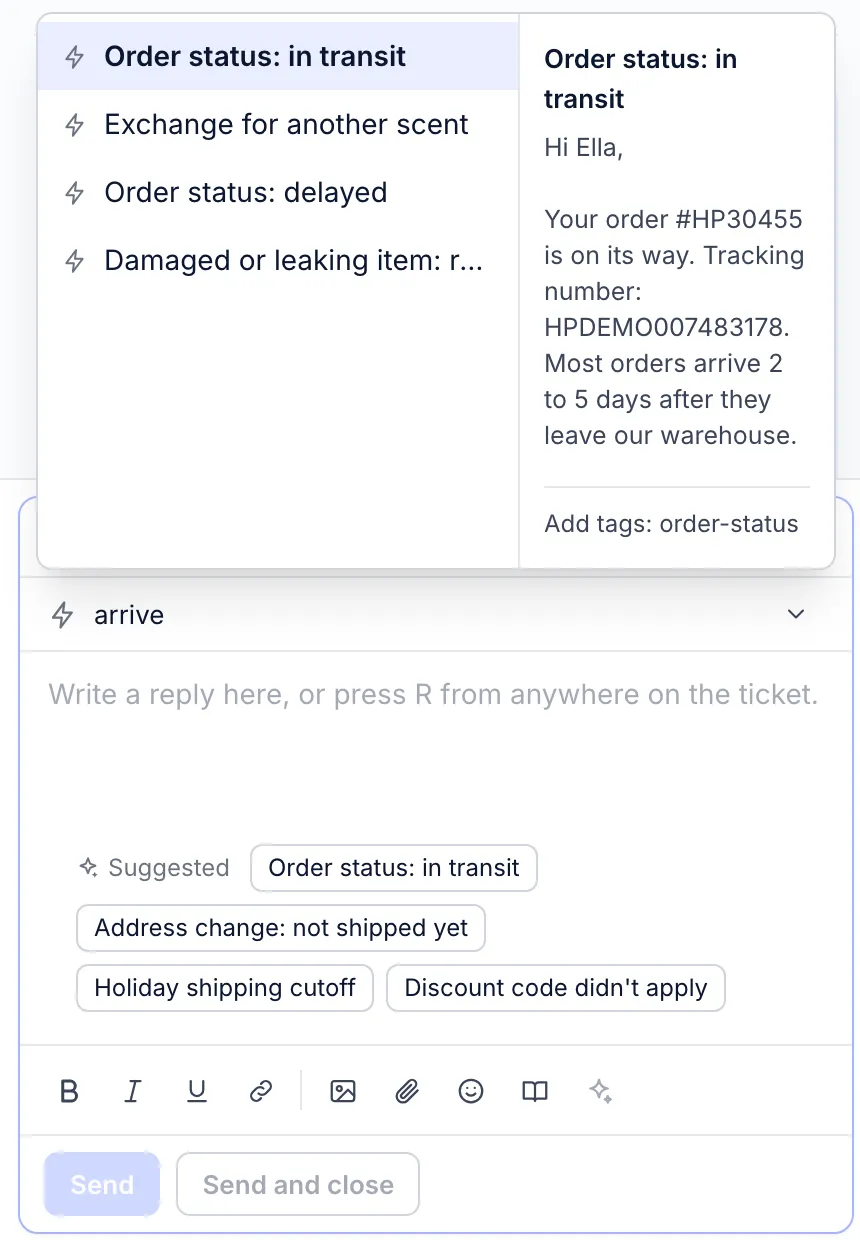
In the ticket, click the box that reads Search macros by name, tag or text (M) above the reply, or press M.
Type a word from the macro's name, its reply or one of its tags. Move through the results with ↑ and ↓; the panel beside the list shows the reply and the changes for the highlighted macro.
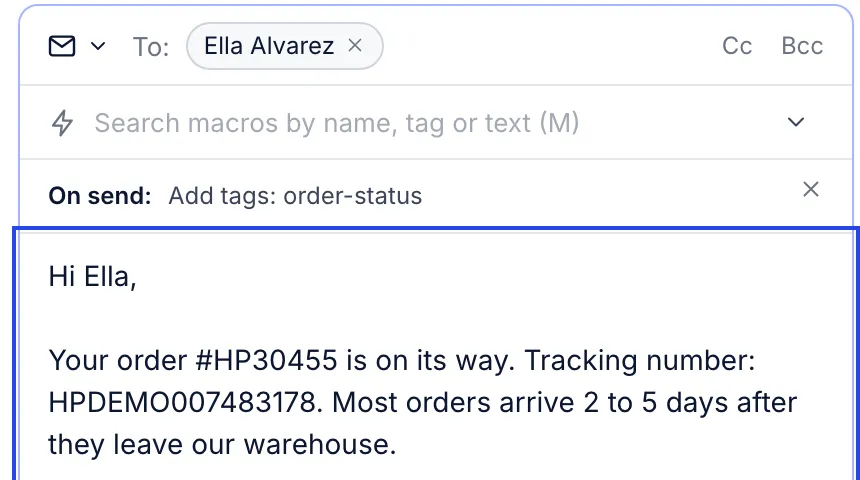
Press Enter or click the macro. Its reply goes into the reply box, after anything you already wrote.
Edit the reply as you like. The line On send: above it lists what the macro will change, for example Add tags: order-status. Click the × at the end of that line to drop the macro's changes and keep only the text.
Click Send or Send and close. The changes happen only when the message goes out.
When the reply box is empty, up to four Suggested macros appear under it. They are ranked against the customer's latest message, with the macros your team sends most often breaking ties. Click one to apply it the same way. Suggestions do not show on a phone-sized screen.
Some details worth knowing:
You can apply more than one macro to the same reply. Each one's text goes below the last, and their changes add up. If two macros set the same thing, such as the priority, the one you picked last wins.
Send and close closes the ticket even when a macro sets the status to open. A macro that snoozes the ticket snoozes it instead of closing it.
If a macro's tag or field change fails, the reply is still sent and an error says which change did not go through.
Archived macros never appear in search or suggestions.
To use one macro on many tickets at once, select them in the ticket list and choose Apply macro. See Act on many tickets at once.
Find a macro in the list#
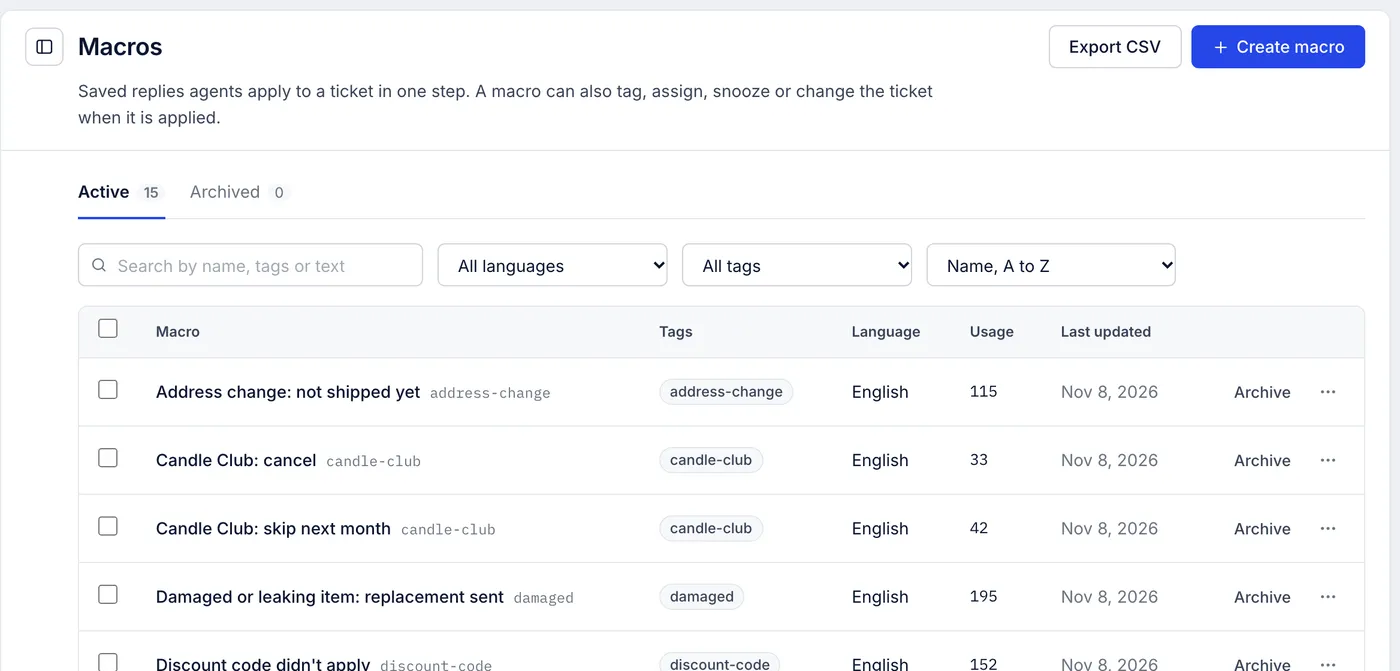
Workflows > Macros has two tabs, Active and Archived, each with a count. Above the table:
| Control | What it does |
|---|---|
| Search by name, tags or text | Finds macros whose name, reply or added tags contain every word you type |
| All languages | Shows only macros set to one language |
| All tags | Shows only macros that add a given tag |
| Sort | Name, A to Z, Most used or Recently updated |
The table shows each macro's name, the tags it adds (the first three, then a count), its language, its usage and when it last changed. Usage goes up by one each time an agent sends a message written with the macro, and each time a rule applies it.
Some macros brought over from another helpdesk show a short intent in grey after the name, such as refund/request. It is kept from the import; there is nothing to set here.
Edit, duplicate, archive or delete#
Edit: click the macro's row, change it, then Save macro. Cancel leaves without saving.
Duplicate: open the ⋯ menu on the row, or the ⋯ button in the editor, and choose Duplicate. The copy is named "Copy of" plus the original name and opens for editing.
Archive: click Archive on the row, or tick several rows and use the Archive button that appears above them. Archived macros leave ticket search but keep their history, and Unarchive brings them back.
Delete: choose Delete from the ⋯ menu and confirm. The macro is gone for everyone and cannot be restored. Tickets it was used on keep their replies.
Languages#
The Language list has 55 languages, from Afrikaans to Welsh. Setting one lets you filter the list by language. The macro search in a ticket does not narrow results to the ticket's language, so if you keep the same reply in several languages, put the language in the name too, for example "Returns: send the label (French)".
What is not here yet#
A macro cannot forward a ticket or attach files yet. Both buttons show in the editor but are greyed out. Macros imported with those actions keep them under Also in this macro, and saving does not remove them.
Macros cannot refund, cancel or edit Shopify orders. Do that from the order beside the ticket; see Refund, cancel, duplicate and replace orders.
There is no personal setting to hide suggested macros or open macro search by default.
Related articles
- Variables in macrosEvery variable the macro editor offers, the store fields you can type yourself, and the filters that format dates and fill gaps.
- Macro actionsWhat a macro can change on a ticket when the reply goes out, how to set each action up, and what to use for jobs a macro cannot do.
- Macros worth writing firstA starter set of macros for a Shopify store, with reply text and actions you can copy, adapt to your policies and save.
- Act on many tickets at onceSelect tickets in a view and close, reopen, assign, tag, apply a macro, change priority, mark read, mark as spam or trash them together.
Still stuck?
Write to the Growth Dept team and a person answers. Say which helpdesk you work in and what you were trying to do.