Create a help center
Set up a public help center for your customers, from its name and address to the first articles, its look and switching it live.
On this page
A help center is a public site of answers: a home page with search and categories, a page for each article, and a card at the bottom that sends customers who are still stuck to your contact form. It lives at https://cs.growthdept.ai/hc/yourhelpdesk/address, can be written in English, French, German and Spanish, and takes your logo and colours. Admins create and edit help centers; everyone else can read their settings and link articles in replies.
Create it#
Open Settings > Help center and click Create help center.
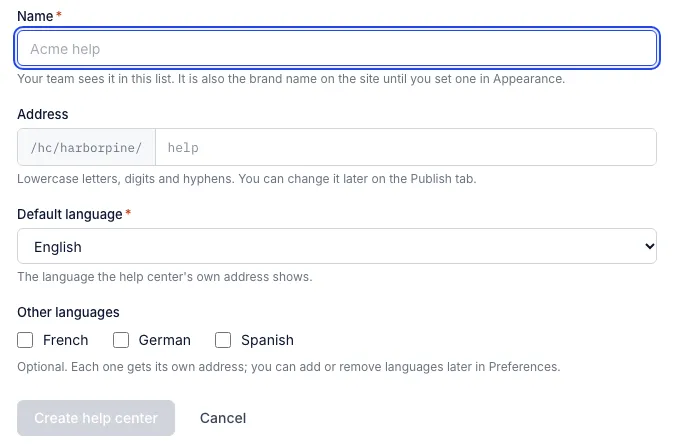
Fill in:
Name: your team sees it in the list. It is also the brand name on the site until you set one under Appearance.
Address: the last part of the help center's address, made from the name until you edit it. Lowercase letters, digits and hyphens, such as
help. You can change it later on the Publish tab, though that breaks links to the old address.Default language: the language the help center's own address shows.
Other languages: optional. Each gets its own address, such as
…/help/fr.
Click Create help center. It opens on its Articles tab, not live yet, so customers cannot see it while you write.
Then, in this order#
Write a few articles. Start with what customers ask most: shipping times, tracking, returns, cancellations, sizing or care. Group them in categories such as "Shipping and delivery" and "Returns". See Write and organize articles.
Make it look like your store. On Appearance, add your logo, favicon and accent colour; on Customization, link the logo to your store and add header and footer links. See Customize your help center.
Give stuck customers a way out. On Contact, point the contact card at a contact form or a mailbox. See Contact options on your help center.
Check search engine texts. On Preferences, write the heading above the search box and the title and description search engines show.
Switch it live. On Publish, turn on Help center is live. The page shows the address with a copy button for each language.
Link to it from your store's menu, order emails and replies. See Link to or embed your help center.
A help center that is live but has no published article shows customers an empty page, and the Publish tab warns you.
The tabs#
| Tab | What it holds |
|---|---|
| Articles | Categories and articles, drafts and published, in each language |
| Contact | The card at the bottom of each page |
| Appearance | Brand name, logo, favicon, light or dark header and footer, accent colour |
| Preferences | Languages, the home page heading, search engine texts, and whether search engines may list it |
| Customization | Where the logo links, header links and footer links |
| Publish | The live switch, the address, and deleting the help center |
| Self-service | Order tracking and guided answers on the help center, which are not built yet |
More than one help center#
A helpdesk can have several, each with its own address, articles and look: one per brand or market, or a separate one for wholesale customers. In the Help centers list, Duplicate makes a copy with the same settings, categories and articles under a new address. The copy is not live, and every article in it is a draft.
The list shows each help center's address, languages, whether it is live, how many articles are published and the date of the last change.
Starting points#
There are no ready-made article templates, and articles cannot be generated by AI here yet. If you already answer these questions in macros, the macro text is a good first draft: copy it into an article and rewrite it for someone reading without a ticket in front of them.
Delete a help center#
On Publish, Delete help center deletes it with all its categories and articles, and its address stops answering. This cannot be undone. Links to its articles in old replies stop working too, so switching it off with Help center is live is usually the better choice.
Related articles
- Write and organize articlesWrite help center articles, group them in categories, keep edits as drafts until you publish, translate them, and link them in replies.
- Customize your help centerBrand the help center with your name, logo, favicon and colour, set its languages and search engine texts, and add header and footer links.
- Contact options on your help centerSet up the card that sends customers who did not find an answer to your contact form or mailbox, and what it says in each language.
- Link to or embed your help centerPut your help center where customers look for help, in your store's menus, order emails, replies and chat, and why it cannot be embedded in a store page.
Still stuck?
Write to the Growth Dept team and a person answers. Say which helpdesk you work in and what you were trying to do.