Agent availability and statuses
Partly availableSee who is free to take tickets and chats, set a teammate away when they forgot, and create the away statuses agents choose from.
On this page
Settings > Agent availability shows each agent's status and holds the list of away statuses your team picks from. Every agent can change their own status here or from the account menu at the bottom of the sidebar; Your status and availability covers that side. Admins can also change anyone else's status and edit the list of statuses.
The three kinds of status#
| Status | What it means |
|---|---|
| Available | Ready to take tickets and chats. Auto-assignment can give them tickets, and they count toward chat being live. |
| Away | Stepped away under one of your statuses, such as Lunch or In a meeting. Shown as "Away: Lunch" and, for a status with a length, until when. |
| Offline | Not working. |
An available agent counts as online for live chat only while they have the helpdesk open in a browser tab. The status alone is not enough, so a team that went home without changing status does not leave chat looking staffed. Chat outside business hours explains how this decides whether visitors can chat.
Change a teammate's status#
Admins see a status menu on each row of the Agents table. Pick Available, one of the away statuses, or Offline. Use it when someone left for lunch still marked available, or is off sick and cannot change it themselves. Your own row has no menu here; set yours under Your status, above the table.
Create an away status#
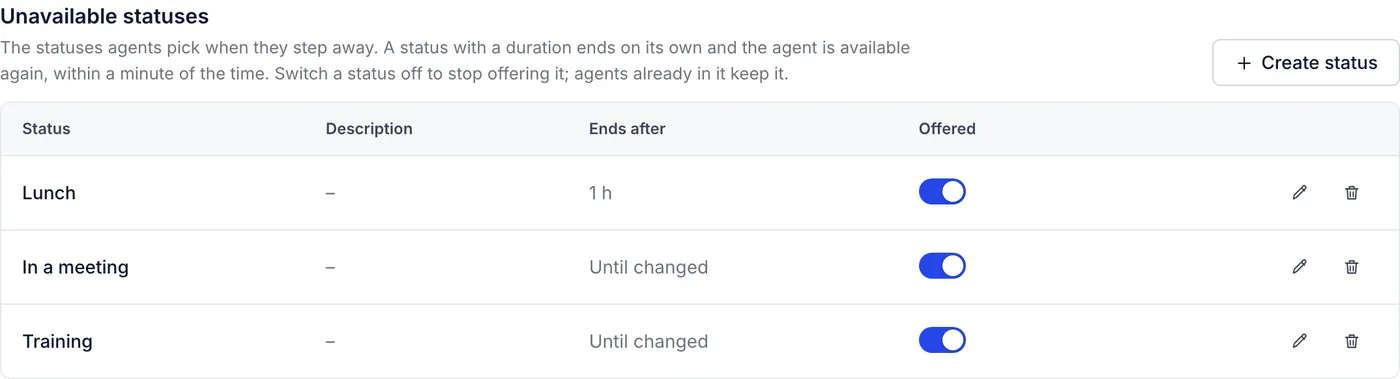
Under Unavailable statuses, select Create status.
Give it a Name, such as Lunch or Training. Agents see this in the account menu.
Add a Description if it helps, for example "Back within the hour".
Choose Ends after: Until the agent changes it, a length from 15 minutes to 8 hours, or Another length for any number of minutes from 5 to 1,440 (one day).
Select Create status. Agents can pick it at once.
When a status with a length runs out, the agent becomes available again on their own, within a minute of the time.
Edit, switch off or delete a status#
Edit a status from its row to rename it or change its length.
Switch off Offered to stop agents choosing it. Anyone already in that status keeps it.
Delete removes it. Agents in it stay away under its name until they change their status or its time runs out.
With no statuses at all, agents can still set themselves away or offline; they just cannot say why.
What availability changes elsewhere#
Auto-assignment gives new tickets only to available agents. To send an agent's open tickets back to their team when they go away or offline, switch on Unassign when an agent becomes unavailable on the auto-assignment page. See Automatic assignment.
Live chat is live only while at least one agent is available and online, if the widget is set that way.
Settings > Users shows each person's availability in its own column.
Not available yet#
Setting someone away automatically after a period without activity is not available: the helpdesk does not track agent activity, so the Automatic status setting stays off. Ask agents to set themselves away, or change their status for them.
Related articles
- Your status and availabilitySet yourself available, away or offline, step away for lunch or a meeting, and what your status changes in the helpdesk.
- Automatic assignmentHow tickets reach the right agent today, with rules and the first reply, and what the Auto-assignment settings will do once round robin is switched on.
- Chat outside business hoursWhen the chat is live, who counts as available, what visitors see when nobody is, and how their offline messages reach you and get answered by email.
- Business hours and holidaysSet the hours your team answers customers and the days you are closed, which chat, SLAs, urgency and response-time reports all follow.
Still stuck?
Write to the Growth Dept team and a person answers. Say which helpdesk you work in and what you were trying to do.