Put chat on your store
Partly availableCreate a chat, paste its one-line script into your store's theme, limit it to your own sites, and test it before customers see it.
On this page
A chat puts a button in the corner of your store. Visitors who press it can talk to your team while someone is available, and leave a message for an email answer the rest of the time. Every conversation becomes a ticket on the Chat channel, answered from the ticket page like any other.
Before you start#
You need the admin role to create or change a chat. Everyone else can look at the settings.
Set your business hours. By default the chat is live only inside them, while an agent is available.
Connect a mailbox in Settings > Email, with Gmail or forwarding. Offline messages and replies to visitors who have left go out by email from it. Without one, offline messages still arrive but cannot be answered by email.
Create the chat#
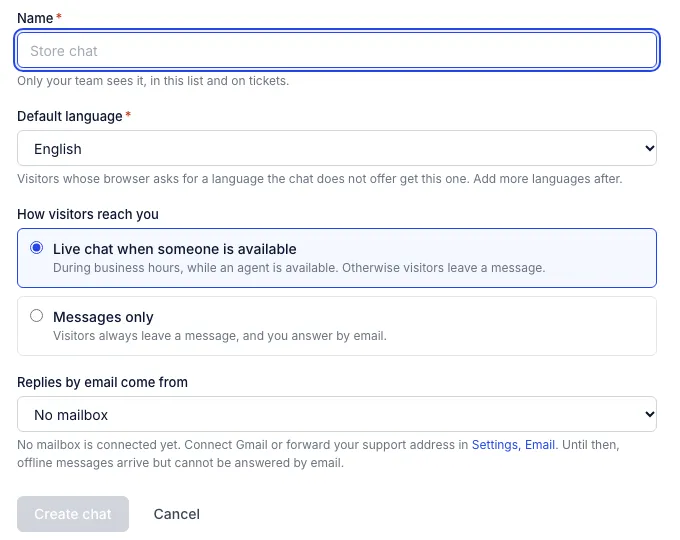
Open Settings > Chat and click Create chat.
Fill in:
Name: only your team sees it, in the list of chats and on tickets. "Store chat" will do.
Default language: what visitors get when their browser asks for a language the chat does not offer. You can add more languages after.
How visitors reach you: Live chat when someone is available, or Messages only, where every visitor leaves a message and you answer by email.
Replies by email come from: the mailbox for email answers.
Click Create chat. The chat opens on its Appearance tab.
The chat has five tabs:
| Tab | What you set there |
|---|---|
| Appearance | Colour, logo, the launcher button and its corner, how agents' names show. See Chat appearance and preferences. |
| Preferences | When the chat is live, where it shows, what visitors fill in first, the reply mailbox. See Chat outside business hours. |
| Languages | Languages and the texts in each. See Chat languages and privacy notice. |
| Automate | Guided flows, order lookups, article suggestions and help center articles in the window. See Flows and Order self-service. |
| Installation | The script, the hosted link, the sites list, and deleting the chat. |
A preview of the real chat window sits beside the Appearance, Preferences and Languages tabs and follows your changes before you save. Sending is switched off in the preview.
Add it to your store#
Open the chat's Installation tab and copy the line under Script. It looks like
<script src="https://cs.growthdept.ai/chat/yourhelpdesk/…/widget.js" async></script>.Paste it just before the closing
</body>tag of every page that should show the chat.Save the page or theme and open your store. The button appears in the corner you chose.
On Shopify, the place that covers every page is the theme's layout file:
In Shopify admin, go to Online Store > Themes.
On your live theme, open the … menu and choose Edit code.
Under layout, open
theme.liquid.Paste the script on the line above
</body>and click Save.
If you switch or reinstall your theme later, paste the script into the new theme too. To show the chat on a few pages only, paste it into those page templates instead of theme.liquid.
Allow only your own sites#
Under Sites the chat may run on, list the addresses your store answers on, one per line, written like https://yourstore.com. Each subdomain needs its own line, so add https://www.yourstore.com as well if customers use it, and your myshopify.com address if you share it. Up to 20 sites.
With sites listed, the chat refuses to open anywhere else, so nobody can copy your script onto another site and send you conversations from it. With the list empty, the script works on any site. The hosted link and the preview in Settings always work.
If your site sends its own Content-Security-Policy header, allow https://cs.growthdept.ai for scripts and frames, or the browser blocks the chat. Shopify's own storefront header does not restrict scripts or frames, so this matters only on sites with a stricter policy.
Test it#
Hosted chat on the Installation tab is a link to the chat window on a page of its own. Open it to try a conversation without touching your store, or share it in emails and social profiles.
The Preferences tab says whether the chat is Live now or Offline now, and why: outside business hours, no agent online, or messages only.
Start a conversation as a visitor, then answer it from the inbox. The ticket page shows the visitor typing, and whether they are still on your site.
Delete a chat#
At the bottom of the Installation tab, Delete chat removes the button from every site, and the hosted link then says the chat is no longer in use. Conversations it opened stay in the inbox. Remove the script from your theme afterwards.
Related articles
- Chat appearance and preferencesMatch the chat to your store's colours and logo, place its button, choose how your team is named, and decide what visitors fill in before chatting.
- Chat outside business hoursWhen the chat is live, who counts as available, what visitors see when nobody is, and how their offline messages reach you and get answered by email.
- Chat questions and limitsWhy the chat button can vanish, how long visitors keep their conversation, attachments, videos, page speed, and what you cannot control with your own code.
- Flows: guided answers in chatBuild a flow of buttons, short answers and questions that walks chat visitors to an answer or hands them to your team with the path they took.
Still stuck?
Write to the Growth Dept team and a person answers. Say which helpdesk you work in and what you were trying to do.