Filters for views and search
Every condition a view's filter can use, what each operator means, and how to combine conditions with all, any and groups.
On this page
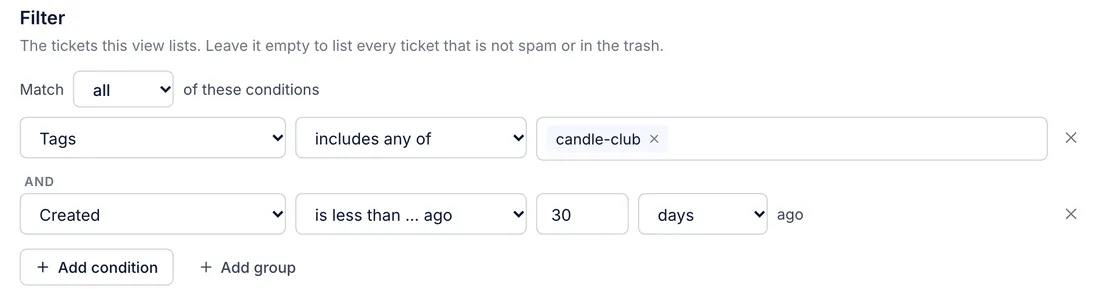
A view's filter decides which tickets it lists. It is made of conditions, and each condition has three parts: a field (Status), an operator (is) and a value (Open). You build the filter in the view editor under Filter; see Views and sections for the rest of the editor. Rules use the same builder, with a few extra fields about the incoming message.
Combine conditions#
Select Add condition, then choose the field, the operator and the value.
Add more conditions the same way.
Set Match to all when a ticket must meet every condition, or any when one is enough.
For a mix of the two, select Add group. A group has its own all or any and counts as one condition of the filter.
For example, Match all with Status is Open and a group matching any of Tags includes any of returns, and Channel is Chat lists open tickets that are either about returns or came in by chat.
Remove a condition with the × at the end of its row. A view with no conditions lists every ticket.
Tickets in the trash or marked as spam are left out of every view, unless its filter mentions Moved to trash or Spam. That is how the built-in Trash and Spam views find them.
Operators#
The operator menu changes with the field: it only offers what makes sense for that kind of value.
| Operator | A ticket matches when the field... |
|---|---|
| is | holds exactly this value |
| is not | holds anything else, or nothing at all |
| is one of | holds any value from your list |
| is not one of | holds no value from your list |
| contains, does not contain | has, or lacks, this text anywhere in it |
| starts with, ends with | begins, or ends, with this text |
| contains any of | has at least one of the words or phrases you list |
| contains all of | has every word or phrase you list |
| contains none of | has none of them |
| does not contain all of | lacks at least one of them |
| includes any of, includes all of, includes none of, does not include all of | the same four tests on a list such as Tags: at least one, every one, none, or not every one of the tags you name |
| is more than, is at least, is less than, is at most | is a number above, at or above, below, or at or below the value |
| is after, is on or after, is before, is on or before | is a date after or before the day you pick |
| is more than … ago, is at least … ago | is a date further back than a length of time, such as 2 days |
| is less than … ago, is at most … ago | is a date within that length of time, such as the last 4 hours |
| is empty, is not empty | has no value, or has one |
| is not set, is set | (Assignee and Team) has nobody, or somebody, assigned |
Lengths of time are a number with minutes, hours, days or weeks. Created is less than 30 days ago means created in the last 30 days. Last message from the customer is more than 4 hours ago means the customer has been waiting longer than 4 hours.
Text tests such as contains and starts with ignore capital letters. So do is and is one of on email addresses and tags. On other text, is compares the text exactly.
Fields you can filter on#
Each field below lists the operators it offers, by these sets:
| Set | Operators |
|---|---|
| Choice | is or is not; is not one of or is one of |
| Yes/no | is or is not, with Yes or No as the value |
| Person | the Choice operators, plus is set or is not set |
| Number | is or is not; the four number comparisons; is not one of or is one of; is empty or is not empty |
| Code | is or is not; contains or does not contain; starts with or ends with; is not one of or is one of; is empty or is not empty |
| Words | contains or does not contain; the four any, all and none tests; is or is not; starts with or ends with; is empty or is not empty |
| Date | the four "… ago" tests; the four date comparisons; is empty or is not empty |
Ticket#
| Field | What it checks | Set |
|---|---|---|
| Status | Open or Closed | Choice |
| Priority | Low, Normal, High or Critical | Choice |
| Channel | Email, Chat, Contact form, Help center, SMS, Phone, API, Facebook, Messenger, Instagram comment, Instagram message or WhatsApp | Choice |
| Created via | How the ticket was made, as the helpdesk records it, such as email or helpdesk | Code |
| Subject | The ticket's subject line | Words |
| Language | The language recorded on the ticket, as a two-letter code such as fr | Code |
| Spam | Whether the ticket is marked as spam | Yes/no |
| Started by an agent | Whether someone on your team started the conversation | Yes/no |
| Unread | Whether the customer has written since someone on your team last opened or answered the ticket | Yes/no |
| Number of messages | How many messages the ticket holds | Number |
| Ticket id | The ticket number | Number |
| External id | An id another system gave the ticket, such as one copied from an import | Code |
| Assignee | The agent the ticket is assigned to. Views also offer Me (the agent viewing), so one view shows each agent their own tickets | Person |
| Assignee email, Assignee name | The assigned agent's address or name | Code, Words |
| Team | The team the ticket is assigned to | Person |
| Team name | The assigned team's name | Words |
| Tags | The tags on the ticket | The four includes tests; is empty or is not empty |
| Satisfaction score | The customer's survey score, from 1 to 5 | Number |
Ticket dates#
All of these use the Date set.
| Field | What it checks |
|---|---|
| Created | When the ticket was created |
| Updated | When anything on the ticket last changed |
| Opened | When someone on your team first opened or answered the ticket |
| Closed | When the ticket was closed |
| Last message | When the latest message arrived or was sent |
| Last message from the customer | When the customer last wrote |
| Last reply sent | When your team last replied |
| Snoozed until | When a snoozed ticket wakes up; empty when it is not snoozed |
| Moved to trash | When the ticket went to the trash; empty when it is not in the trash |
Ticket fields#
Every active ticket field appears under its own name, with operators for its type:
| Field type | Operators |
|---|---|
| Dropdown | is or is not one choice; is not one of or is one of several; is empty or is not empty |
| Text | is or is not; contains or does not contain; starts with or ends with; is empty or is not empty |
| Number | is or is not; the four number comparisons; is empty or is not empty |
| Yes/no | is or is not; is empty or is not empty |
| Date | the four date comparisons; is empty or is not empty |
See Ticket fields to set them up.
Customer#
| Field | What it checks | Set |
|---|---|---|
| Customer | The customer's id | Number |
| Customer email | The customer's email address | Code |
| Customer name, Customer first name, Customer last name | The customer's names | Words |
| Customer language | The language on the customer's profile, as a two-letter code | Code |
| Customer external id | An id another system gave the customer | Code |
Each customer field appears here too, under its own name, with the same operators as a ticket field of that type.
Not available in views#
Filtering on a store, on one particular mailbox or chat integration, on AI agent feedback or on quality scores is not available. Filter on Channel to split tickets by where they came from. New views always list tickets: lists of customers, such as the built-in All customers view, are not made in the editor.
When a view copied from another helpdesk has a filter the builder cannot show, the editor shows the filter as text with a note explaining why. You can edit the text there; it is checked when you save.
Filters on the search page#
Search keeps its own, simpler filters. After you search for some words, select Add filter to narrow the results by Status (Open, Snoozed or Closed), Channel, Agent, Tag or Priority. These filters only narrow the results you are looking at and are not saved. See Search tickets and customers.
Related articles
- Views and sectionsBuild the ticket queues in the inbox sidebar, decide who sees each one, group them into sections, and choose which built-in views each agent keeps in sight.
- Search tickets and customersFind any ticket or customer from anywhere in the helpdesk, how words are matched, and advanced search with filters.
- Rule conditions and actions referenceEvery field a rule can check, the operators each one offers, how matching works, and every action a rule can take.
- Ticket fieldsRecord facts on every ticket, such as the contact reason or the product, make some of them required before closing, and use them in rules, macros and views.
Still stuck?
Write to the Growth Dept team and a person answers. Say which helpdesk you work in and what you were trying to do.