Work a ticket from first read to close
Reading the conversation and its events, the four ways to answer, Cc and attachments, sending, closing and reopening, and the spam, trash, print and link actions.
On this page
A ticket moves through the same few steps whoever works it: read what the customer wrote and what already happened, make sure it has the right owner and labels, answer, then close it or set it aside until something changes. This page goes through each step and every control on the way.
Video coming: Using Growth Dept Helpdesk day to day: a full walkthrough. A working session from the first ticket of the day to the last one closed.
Read the conversation#
Messages run from the oldest at the top to the newest at the bottom. Each one shows who wrote it, the channel, who it was addressed to and when. Long email threads hide the earlier quoted text behind a small ⋯ button; click it to show it.
Between the messages, grey lines record what happened to the ticket: who created it, who assigned it, which rule tagged it, when it was snoozed or closed. Hide events, just above the first message, folds them away; Show events brings them back, and the helpdesk remembers your choice. A message a rule wrote carries a Rule label.
A line under one of your team's replies tells you when something went wrong with it:
| Line | Meaning |
|---|---|
| Sending | The reply is waiting to go out. It normally clears within a minute |
| Not sent, with a reason | The mailbox refused it. Fix the cause (often a disconnected mailbox) and send it again |
| Delivery problem, with a reason | It left, but the receiving server later reported a problem, such as a wrong address |
You can be told by email when a reply cannot be delivered; see Notifications.
Check the ticket before answering#
Owner. If nobody has it, choose Assign to me in the agent menu under the subject, or press A. Replying to an unassigned ticket assigns it to you anyway. See Assign tickets.
Tags and fields. Under Ticket details, add a tag with + or T, and fill in the ticket fields your team uses. Fields marked with an asterisk must be filled in before the ticket can close.
What happened before. The customer's other tickets and orders are in the details panel, and promises your team already made on this ticket are listed above the customer. See See a customer's history.
Priority. The arrow button under the subject sets Low, Normal, High or Critical. See Priority and urgency.
Choose how to answer#
The button at the left edge of the reply box picks what you are writing.
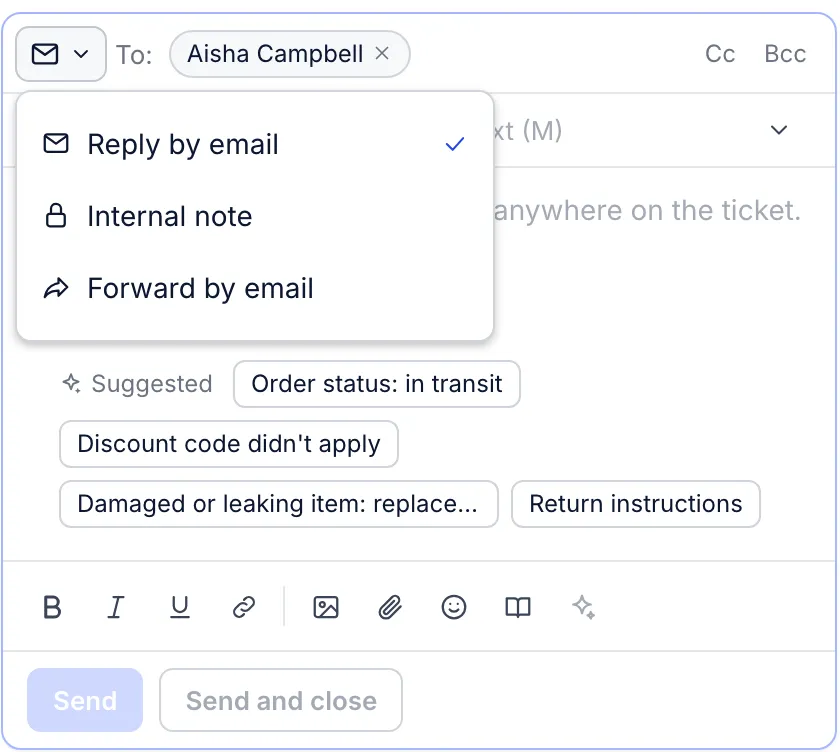
| Choice | Who sees it | Key |
|---|---|---|
| Reply by email | The customer, by email, plus anyone in Cc and Bcc | R |
| Reply in chat | The chat visitor, in the chat window. Only on chat tickets | R |
| Internal note | Your team only. The box turns yellow | I |
| Forward by email | Someone outside the helpdesk, such as your warehouse, with the conversation below your message | F |
To answer one particular message, hover over it and use its Reply or Forward button.
Email replies#
To holds the customer. Add more people with Cc and Bcc at the right of that line; type an address and press Enter. The reply goes out from the mailbox the ticket arrived on. For a contact form ticket, it goes from the mailbox the form answers from; if that mailbox is disconnected, a yellow line above the text says which address will be used instead.
Tick Signature in the toolbar to add the mailbox's signature under your text. If the ticket has no customer email address, Reply by email is greyed out.
Chat replies#
A line above the text says where your reply will land:
| Line says | What happens |
|---|---|
| The visitor is on the site and sees your reply at once | They are still on your store with the chat open |
| The visitor left … Your reply also goes to their email | They gave an address, so the reply is emailed too |
| They gave no email address, so they see your reply when they open the chat again | It waits in their chat window |
| Left as an offline message | They wrote while nobody was available; your reply goes by email |
Forwarding#
Forward needs at least one recipient. Write a short message above the forwarded conversation, then Forward, or Forward and close if that ends your part.
Write the reply#
Most replies start from a macro. Search macros in the line above the text (M) by name, tag or words in the reply, or click one of the Suggested macros. A macro fills in the text and can also tag, assign, set fields or snooze the ticket when you send; the line above the text lists those changes, and the × there removes them. See Create and manage macros.
The toolbar under the text has:
Bold, Italic, Underline, Link, bulleted and numbered lists and Quote.
Insert an image, placed in the text.
Attach files, each up to 25 MB. Attached files are listed under the text; the × on one removes it.
Emoji.
Insert a help center article, which adds a link to an article from your help center.
Write with AI, which opens the drafted reply when drafts are on. See Voice and drafting.
Translating a reply and recording a video message are not available yet; their buttons stay greyed out.
What you type is saved in your browser as you go, separately for each ticket and each kind of message, and Draft saved appears beside the buttons. It is there when you come back on the same browser, but your teammates and your other devices do not see it.
Send#
Send, or ⌘ Enter (Ctrl Enter on Windows).
Send and close, or ⌘ Shift Enter, sends the reply, closes the ticket and opens the next one in the view.
For an internal note the button reads Add note.
Close and reopen#
Click Close or press C once the customer has what they need. If a required ticket field is empty, the helpdesk refuses with a message naming the field; fill it in and close again.
A closed ticket shows a Closed label under the subject, and Close becomes Reopen (O). You rarely need it: when the customer writes again, the ticket reopens by itself, comes back as unread and appears in your open views. Your own reply on a closed ticket does not reopen it.
To set a ticket aside until a date instead of closing it, snooze it.
Read and unread#
A ticket is unread when a customer's message has come in that nobody has opened yet: the list shows it in bold with a red dot. Opening it marks it read for the whole team, and so does replying. To flag it again for later, choose Mark as unread in the ⋮ menu.
The ⋮ menu#
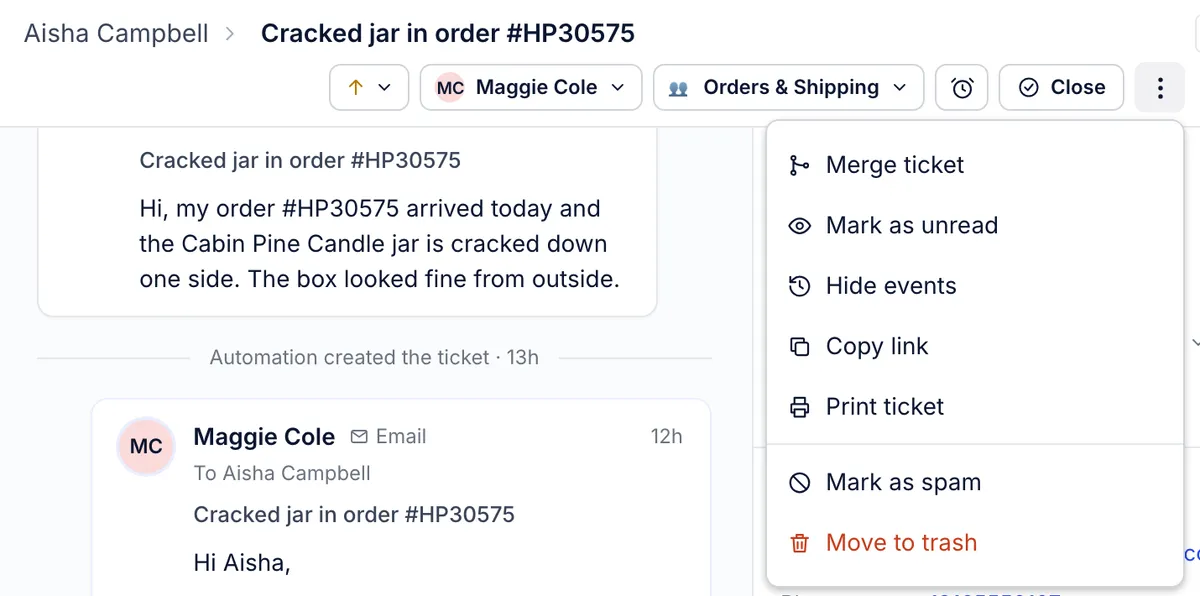
| Item | What it does |
|---|---|
| Merge ticket | Folds this ticket into another one from the same customer. See Merge two tickets |
| Mark as unread | Puts it back in bold for the team |
| Show all events / Hide events | The same switch as the one above the first message |
| Copy link | Copies the ticket's address to send to a teammate |
| Print ticket | Opens your browser's print dialog for the ticket, where you can also save it as a PDF |
| Mark as spam / Not spam | See below. Key ! |
| Move to trash / Restore ticket | See below. Key # |
Spam and trash#
Mark as spam takes the ticket out of every view except Spam, under More in the views panel, and shows a Spam label on the ticket. Not spam in the same menu puts it back.
Move to trash asks you to confirm, then moves the ticket to Trash and labels it In the trash. The notice that appears has an Undo button. Later, open the ticket from the Trash view and choose Restore ticket. Tickets in the trash stay there until someone restores them; deleting a ticket for good is only possible through the REST API.
If you cannot change anything#
When the reply box shows a grey message instead of a cursor and the buttons do nothing, your role can read tickets but not change them, or you are a member of Growth Dept's staff viewing your helpdesk. Hover over a greyed button to see why. An admin can change your role; see Roles and what each can do.
Related articles
- The inbox: views, the ticket list and the ticket panelWhat each part of the inbox shows, what the built-in views contain, how the ticket list sorts and refreshes, and the two list layouts.
- Internal notes and mentionsLeave a note on a ticket that only your team can read, mention a teammate so they are told, and where else notes come from.
- Snooze a ticketSet a ticket aside until a time you choose, what brings it back early, where snoozed tickets are listed, and how to wake one up.
- Create and manage macrosWrite a saved reply once, apply it from any ticket, and keep the macro list tidy with search, filters, archiving and duplicates.
Still stuck?
Write to the Growth Dept team and a person answers. Say which helpdesk you work in and what you were trying to do.