How rules work
Build a rule from When, If, Then and Otherwise, set the order rules run in, and find what a rule did on a ticket.
On this page
A rule changes tickets without anyone touching them. Each time something happens to a ticket, the helpdesk checks your rules in order; a rule whose conditions match tags, assigns, replies to or changes the ticket.
Admins create, edit, reorder and switch rules on and off. Other roles can open Workflows > Rules and read every rule but cannot change them.
Haylee, the AI agent, can draft rules for you. A rule she creates is saved switched off, and only a person can switch it on. She can edit her rules while they are off, but not a rule that is on, and she cannot delete rules. Read what she built in the editor, then switch it on in the On column.
 8. Creating rules
The parts of a rule#
| Part | What it decides |
|---|---|
| When | Which events wake the rule: a new ticket, a change to a ticket, or a new message |
| If | The conditions the ticket must meet. Leave it empty and the rule acts on every ticket the event brings in |
| Then | The actions to take when the conditions match, in the order listed |
| Otherwise | Optional actions for when the conditions do not match |
For example, a rule for refund requests can wake on new tickets, check whether the message text contains "refund" or "money back", and then add the tag refund and hand the ticket to your billing team.
Create a rule#
Open the menu at the top left, choose Workflows, then Rules.
Click Create rule, or Start from a template to begin from a filled-in rule (see Start a rule from a template).
Give it a Name and, if it helps the next admin, a Description of what it is for.
Under When, tick one or more events.
Under If, click Add condition. Choose a field, an operator and a value, for example Channel is Email. Add more conditions, and choose whether the rule needs all of them or any of them in the line Match … of these conditions.
Under Then, pick actions from Add an action… and fill them in. The arrows on each action move it; the × removes it.
If you added conditions, you can add Otherwise actions for the tickets that do not match.
Leave Rule is on switched on, and click Save rule.
If anything is missing, such as a condition without a value or a rule with no actions, a red box at the top lists it and nothing is saved.
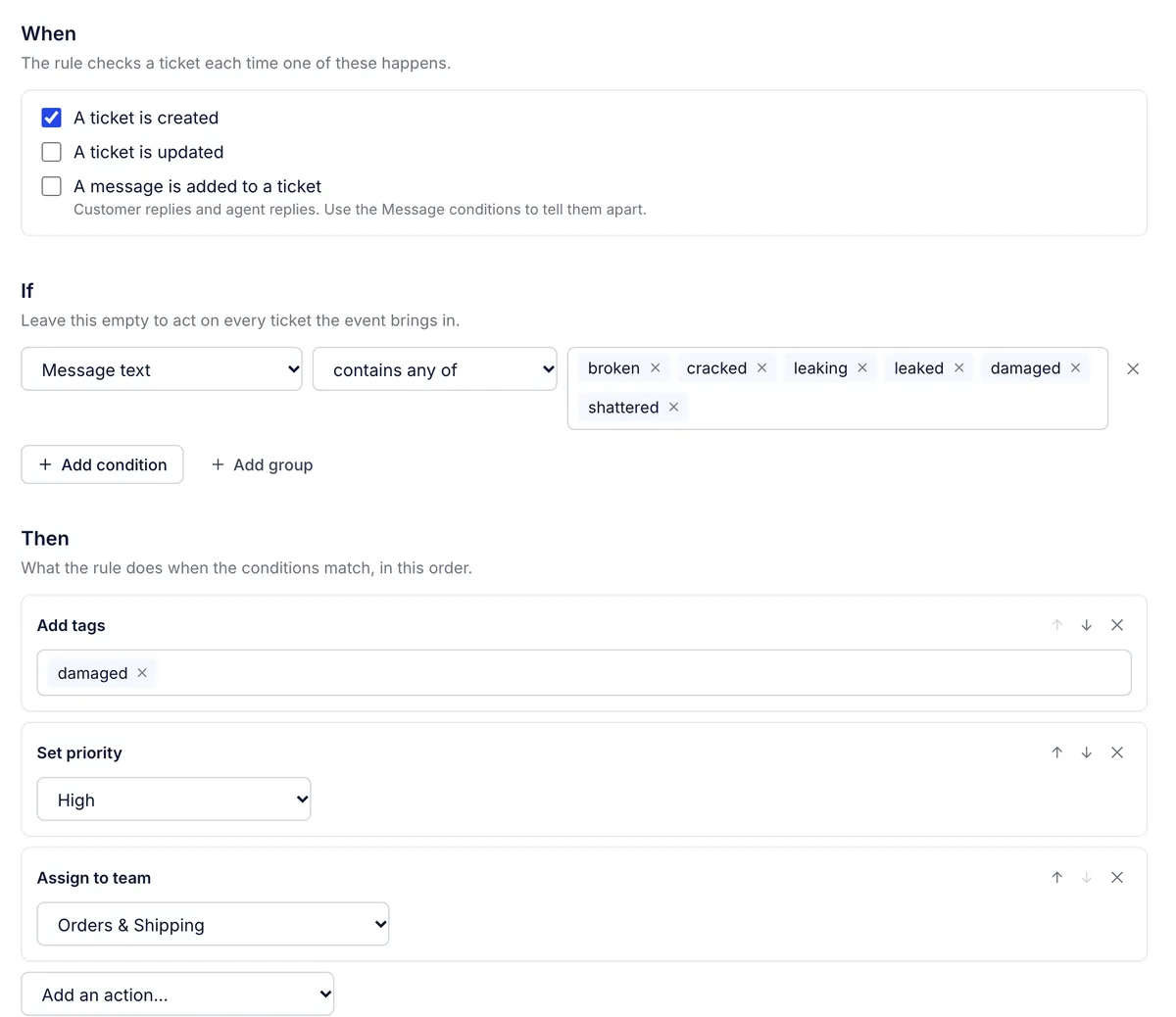
Every field, operator and action is listed in Rule conditions and actions reference.
When: the three events#
A ticket is created runs once per ticket, when it arrives or an agent starts it.
A ticket is updated runs after almost any change: status, tags, agent, team, priority, a ticket field, the subject, the customer, a snooze starting or ending, spam or trash, a merge, or a new message that changes the ticket. Opening or reading a ticket does not count.
A message is added to a ticket runs for every later message, from the customer or from an agent, including internal notes. The first message of a new ticket counts only as A ticket is created. Add the condition Sent by an agent is No to act only on customer messages.
Tick more than one event when the same check should happen at several moments. Ticking both A ticket is created and A message is added to a ticket catches a refund request whether it is in the first email or a later reply.
If: all, any and groups#
With two or more conditions, the line Match all of these conditions means every one must hold, and any means one is enough. Add group adds a box of conditions with its own all or any, for mixed logic such as "Channel is Email and (Tags include any of vip or Priority is High)".
The visual editor handles one level of groups. For deeper logic, such as an if inside an if, switch to code (below).
Order: which rule runs first#
The rules list runs top to bottom, and the page says so: "Rules run in this order: the top rule runs first." To change the order, drag a rule by its row, or use the arrows in the Order column. Searching the list hides the arrows; clear the search to reorder.
Each rule sees the ticket as the rules above it left it. If the first rule adds the tag vip, a later rule with the condition Tags includes any of vip matches on the same run. Every rule judges the same message: the one that started the run, not a reply or note an earlier rule added.
Switch a rule off, copy or delete it#
On column: the switch turns a rule off or on straight from the list. A rule that is off keeps its place in the order and does nothing.
Duplicate (the copy icon on the row) makes "Copy of" the rule, switched off, so the same actions do not run twice while you edit it.
Delete (the bin icon) removes the rule after you confirm. Changes it already made to tickets stay. Rules marked Built in can be switched off but not deleted.
Rules copied from Gorgias by the import arrive switched off, with a note in the import results about anything that did not carry over. Read each one, then switch it on.
See what a rule did on a ticket#
Rules act as your helpdesk's Automation account.
A reply or internal note a rule wrote shows Automation as the sender and a grey Rule label beside the channel.
Click Show events above the conversation to see each rule that ran, as Rule "Damaged or leaking items: high priority" ran, and each change it made, such as Automation added damaged.
To change or stop the rule, search for its name on Workflows > Rules.
What rules do not do#
Rules never answer automatic mail: out-of-office replies, bounces and bulk mail get no rule reply, though the rule's other actions still happen.
One rule failing does not stop the rules after it.
History copied in by an import does not run rules.
There are no events for "assigned to an agent", "snooze ended" or "satisfaction survey answered". Snooze ending and assignment are ticket updates, so A ticket is updated rules see them; Rules questions shows how to use that.
Rules as code#
The visual editor writes each rule in a short rule language. Click Show the code under Code to read it, for example:
if (containsAny(message.text, ['broken', 'cracked', 'leaking', 'damaged'])) {
    Action('addTags', { tags: 'damaged' })
    Action('setPriority', { priority: 'high' })
}
Edit as code turns the editor into a text box, and Use the visual editor turns it back when the code fits. A rule whose code the visual editor cannot show, such as one imported with nested ifs, opens as code with the reason at the top. The code is checked when you save, and a mistake stops the save with a message that says where it is.
Related articles
- Rule conditions and actions referenceEvery field a rule can check, the operators each one offers, how matching works, and every action a rule can take.
- Start a rule from a templateThe seven rule templates, what each one does as it opens, and recipes for other common rules you can build in a few minutes.
- Writing rules that behaveHow to name, order and test rules so they tag, route, close and reply to the right tickets and leave the rest alone.
- Rules questionsAnswers about rule order, rules that did not run, running once per ticket, closing automatic mail, contact form subjects and other common questions.
Still stuck?
Write to the Growth Dept team and a person answers. Say which helpdesk you work in and what you were trying to do.