Connect your Shopify store
Link your Shopify store with the Growth Dept Helpdesk app, a custom app's token or Growth Dept's own connection, then turn on order actions.
On this page
Connect the store in Settings > Store. From then on, every ticket's right-hand panel shows what the customer bought, what they spent and where their parcels are, and once you turn on order actions your team can refund, cancel and copy orders without opening Shopify.
Only helpdesk admins can connect, change or disconnect a store. Other roles see the store's card on the same page, without the buttons.
There are three ways to connect:
| Way | When to use it |
|---|---|
| The Growth Dept Helpdesk app | You, or the store owner, can approve an app in the store's Shopify admin. This is the usual way. |
| A custom app's access token | You prefer to create an app in your own Shopify admin and paste its token. |
| Growth Dept's connection | Growth Dept already runs the store for your brand. Growth Dept links it and you have nothing to install. |
Install the Growth Dept Helpdesk app#
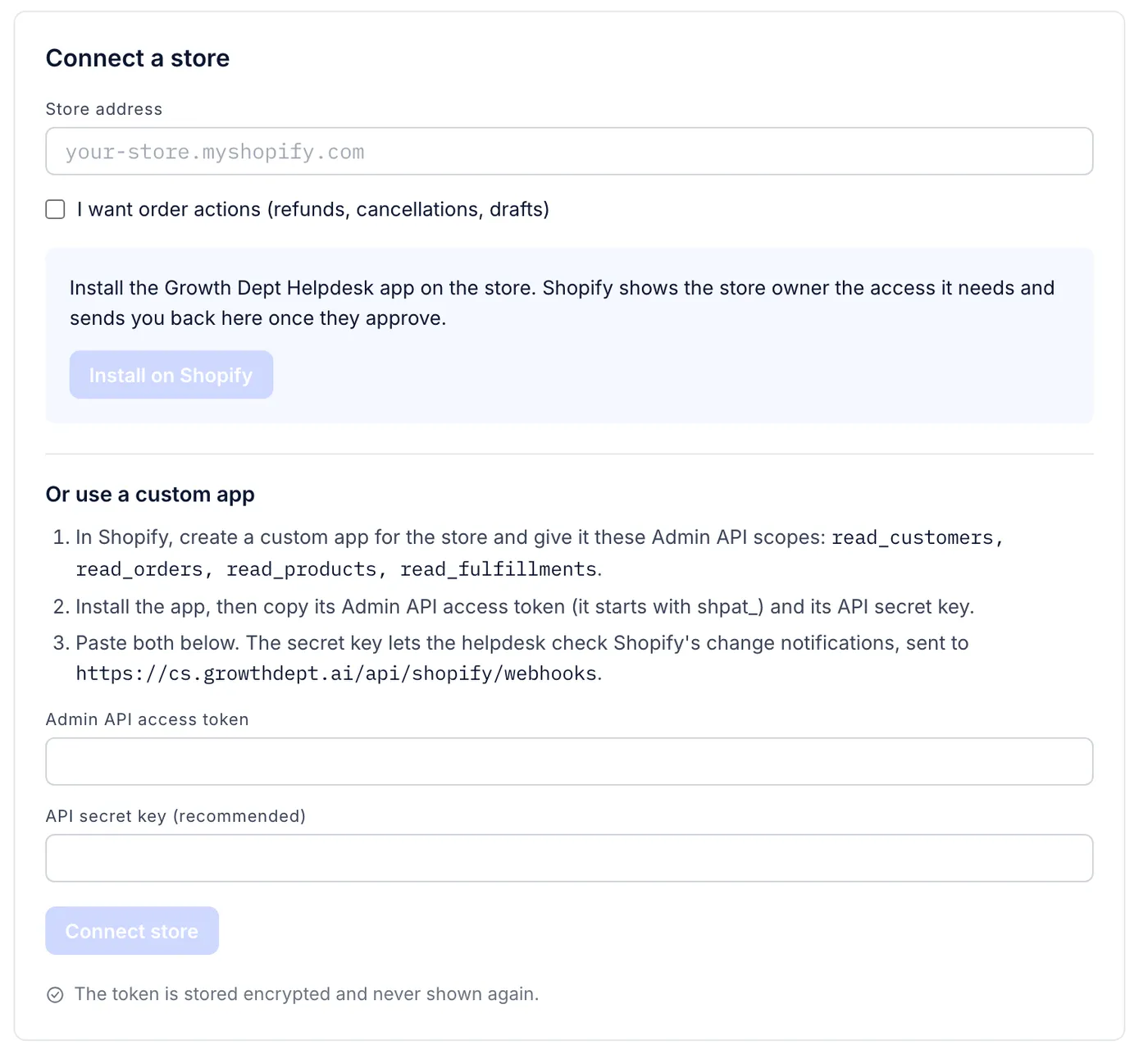
Go to Settings > Store.
In Store address, type the store's myshopify address, such as
your-store.myshopify.com. The part before.myshopify.com, or the store'sadmin.shopify.com/store/...address, works too.Tick I want order actions (refunds, cancellations, drafts) if your team will act on orders from tickets. Without it the app asks Shopify for read access only, and you would install again later to add the rest.
Select Install on Shopify. Shopify opens and shows the store owner what the app may read and change.
Approve it in Shopify. You land back on Settings > Store with a line saying the store is connected.
The person who approves in Shopify must be allowed to install apps on that store.
Start from your Shopify admin instead#
If you added Growth Dept Helpdesk from the Apps section of your Shopify admin, open it there and choose Link to your helpdesk. A new tab opens on the helpdesk: sign in, pick the helpdesk that should show this store's orders and select Link the store. Only an admin of that helpdesk can link a store to it. The link works once and runs out after ten minutes; open the app in Shopify again for a fresh one.
If the app asks you to pick a plan first, choose one on Shopify's plan page, then come back to the app to link the store.
What the app asks Shopify for#
| Shopify permission | What the helpdesk uses it for |
|---|---|
read_customers | Finding the Shopify customer who matches the person writing in |
read_orders | Their orders, payment status and refunds |
read_products | The products on each order, with their pictures |
read_fulfillments | Shipments and tracking numbers |
write_orders | Refunds, cancellations, address changes and resending the order email. Asked for only with order actions |
write_draft_orders | Duplicates and free replacements, which are made as draft orders. Asked for only with order actions |
read_locations | Telling Shopify where restocked items go. Asked for only with order actions |
Connect with a custom app#
Use this when you would rather not install the Growth Dept Helpdesk app. The same page has the form under Or use a custom app.
In your Shopify admin, create a custom app for the store. Give it the Admin API scopes the helpdesk lists in step 1 of the form. The list grows by three when I want order actions is ticked.
Install the custom app in Shopify. Copy its Admin API access token, which starts with
shpat_, and its API secret key.In the helpdesk, type the Store address, paste the token into Admin API access token and the key into API secret key (recommended).
Select Connect store. The helpdesk checks the token with Shopify before it saves anything.
The token is stored encrypted and never shown again.
The secret key is optional, but it matters. With it, the helpdesk subscribes to Shopify's notifications about new orders, changed orders and changed customers, and keeps the panel current on its own. Without it, the helpdesk cannot check that a notification really came from Shopify, so it does not subscribe, and a customer's orders are read again only when someone opens their ticket or profile.
If the store will not connect#
| The helpdesk says | What to do |
|---|---|
| This does not look like an Admin API access token | Paste the Admin API access token (it starts with shpat_), not the app's API key |
| Shopify did not accept this token | Copy the token again from an app installed on this same store |
| This token belongs to another store | Check the store address you typed |
| The token cannot read everything the sidebar needs | Give the app the scopes the message lists, then connect again |
| The store is connected to another helpdesk | A store can belong to one helpdesk at a time. Disconnect it in the other helpdesk first |
Stores Growth Dept links for you#
When Growth Dept runs your brand's store, your helpdesk reads it through Growth Dept's connection. Nobody installs an app or pastes a token. Until the link is made, Settings > Store says Growth Dept links this store for you; ask Growth Dept to link it.
Once it is linked, the card reads Connected with: Growth Dept's connection and names your brand. On this kind of connection the helpdesk looks for new and changed orders every few minutes, and Change checks on the card says when it last looked.
Order actions start switched off here too. They need write_orders, write_draft_orders and read_locations on your brand's Shopify app at Growth Dept. If any is missing, the card names it: ask Growth Dept to add it, then select Check again. When the card says Growth Dept's connection needs attention, Growth Dept has to link the store again with a new key.
Admins also see the custom app form below the notice, for a brand that would rather connect its own app.
The store's card#
Each connected store gets a card in Settings > Store.
| On the card | What it tells you |
|---|---|
| The badge at the top right | Connected, or what is wrong: App uninstalled in Shopify, Shopify refuses the token, Store data erased, Disconnected or Growth Dept's connection needs attention |
| Connected with | The Shopify app, a custom app's access token, or Growth Dept's connection |
| Plan | App installs only. The store's Growth Dept Helpdesk plan in Shopify with a Change plan link, or No plan yet with Choose a plan in Shopify |
| Checked | When the helpdesk last checked what the store lets it do |
| Change notifications | Whether Shopify tells the helpdesk about changes: On, with the number of kinds, or Off |
| Change checks | Growth Dept's connection only. How recently the helpdesk looked for changes, and why the last look failed if it did |
| Missing access | Read permissions the store has not granted |
| Problem | The last error, while the store is not connected |
Open Shopify admin opens the store in Shopify. Check again asks Shopify which permissions the helpdesk has now; use it after you change an app's scopes in Shopify.
Turn on order actions#
Two switches at the bottom of the card control what your team can do to orders:
Order actions lets the team prepare refunds, cancellations, duplicates, replacements, address changes and order emails from a ticket. The switch stays greyed out until the store has granted
write_orders,write_draft_ordersandread_locations, and the text under it names any that are missing.Agents can run money actions is off to begin with. While it is off, only admins can run refunds, cancellations and free replacements; everyone else can prepare one and stop at the last step. Switch it on to let agents and lead agents run them as well.
Refund, cancel, duplicate and replace orders explains each action and which roles can run it.
Add order actions to a store you already connected#
Connected with the app: in Settings > Store, type the same store address under Connect another store, tick I want order actions (refunds, cancellations, drafts) and select Install on Shopify. Approve the extra access in Shopify. You come back to a line saying the store was reconnected; then switch on Order actions.
Connected with a custom app: add
write_orders,write_draft_ordersandread_locationsto the app's scopes in Shopify, select Check again on the card, then switch on Order actions.Connected by Growth Dept: ask Growth Dept to add the three scopes, then select Check again and switch on Order actions.
Do the same for read access when the card shows Missing access.
More than one store#
A helpdesk can connect several stores. Once one is connected, the form is headed Connect another store. Each ticket's panel then has a section per store, and each store has its own card and switches. One store belongs to one helpdesk at a time.
Disconnect a store#
Select Disconnect on the store's card.
Read the warning and select Disconnect again, or Keep it to back out.
The helpdesk switches order actions off, removes its change notifications from Shopify, forgets the token and deletes the copies of orders it kept on each customer. Tickets and customers stay as they are. A store Growth Dept linked has to be linked by Growth Dept again.
Disconnecting does not uninstall the Growth Dept Helpdesk app from Shopify. Remove it from your Shopify admin's apps when you are done with it. If someone uninstalls the app in Shopify first, the card shows App uninstalled in Shopify and the helpdesk drops the token and its copies of orders on its own. To come back, connect the store again; Order actions stays off until an admin switches it on.
What the connection gives you#
Each customer's orders, spend and tracking beside their tickets and on their profile: Orders beside each ticket.
Refunds, cancellations, address changes, draft copies and free replacements from the ticket: Refund, cancel, duplicate and replace orders.
Order details in macro replies, through variables such as the latest order's number or tracking link: Variables in macros.
Order lookups and order actions for Haylee, the AI agent, within the limits you set: Actions and what Haylee may do.
Discount codes, Shopify metafields and syncing customer notes or tags back to Shopify are not available; Shopify questions says what to do instead.
Related articles
- Orders beside each ticketRead a customer's Shopify orders, payment and shipping status, tracking and refunds in the ticket's side panel, and know how fresh they are.
- Refund, cancel, duplicate and replace ordersRefund, cancel, copy or replace a Shopify order, change its address or resend its email from the ticket, with Shopify's own figures shown before anything runs.
- Shopify questionsShort answers about order history, how quickly Shopify changes show up, several stores, metafields, discount codes and headless storefronts.
- Billing and usageSee your plan and this month's usage, and where to go for invoices, payment details, plan changes and cancelling.
Still stuck?
Write to the Growth Dept team and a person answers. Say which helpdesk you work in and what you were trying to do.