Internal notes and mentions
Leave a note on a ticket that only your team can read, mention a teammate so they are told, and where else notes come from.
On this page
An internal note is a message on a ticket that stays inside your team. Use it to ask a colleague something, record what you checked ("refund issued in Shopify, 3 to 5 days"), or hand the ticket over with the context the next person needs. Customers never see notes, and notes are never emailed to them.
Add a note#
Open the ticket and press I, or click the button at the left edge of the reply box and choose Internal note.
The box turns yellow. Write the note.
Choose Add note, or press ⌘ Enter (Ctrl Enter on Windows).
The note appears in the conversation with the yellow background, in time order with the replies. Adding a note does not assign the ticket to you, does not change whether it is read, and has no Send and close; close the ticket separately if you are done.
Formatting, images, attachments and emoji work in notes as they do in replies. A note cannot be edited or deleted after you add it, so read it through first.
Mention a teammate#
In a note, type @ at the start of a line or after a space. A list of your colleagues opens.
Keep typing a name or email address to narrow it.
Pick the person with a click, or with the arrow keys and Enter or Tab. Their name is inserted, highlighted. Esc closes the list.
Add the note.
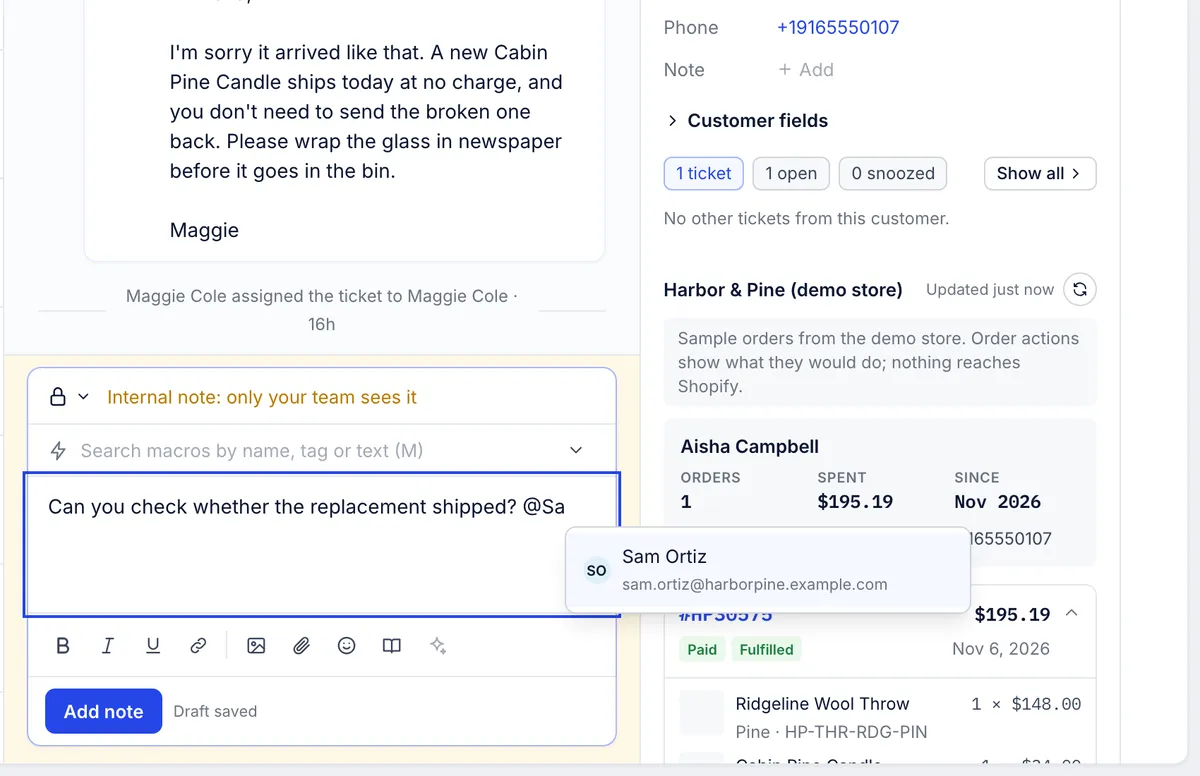
Each person you mention is emailed a link to the ticket, unless they have switched that email off in Settings > Notifications. Mentions work in internal notes only, and only for people; you cannot mention a whole team. See Notifications.
Mentioning someone does not assign the ticket to them. If they should take it over, assign it as well. See Assign tickets.
Other places notes come from#
A new ticket that is only a note: choose Internal note as the channel on the New ticket page, for work that involves no customer yet. See Start a new ticket.
Macros can add a note along with the reply, for example to remind the next agent what to check. See Macro actions.
Rules can add a note when a ticket arrives, such as "VIP customer: answer within the hour". See Rule conditions and actions.
Haylee leaves a note when she would like a person to do something she is not allowed to do herself, saying what she would do and why. See Actions.
Imports from Gorgias and Zendesk bring old notes across with the tickets.
Related articles
- Work a ticket from first read to closeReading the conversation and its events, the four ways to answer, Cc and attachments, sending, closing and reopening, and the spam, trash, print and link actions.
- NotificationsThe bell, the emails you can get about tickets and mentions, the daily summary of open tickets, and what admins set for new agents.
- Start a new ticketWrite to a customer first, log a phone call or open a ticket for your team only, and pick up a ticket you started but did not send.
- Macro actionsWhat a macro can change on a ticket when the reply goes out, how to set each action up, and what to use for jobs a macro cannot do.
Still stuck?
Write to the Growth Dept team and a person answers. Say which helpdesk you work in and what you were trying to do.