AI Agent performance report
Partly availableRead the AI agent report: how many drafts were written and used, which skills they followed, and everything Haylee changed in your helpdesk.
On this page
Open AI Agent > Performance, or Analytics > AI agent; both lead to the same report. It counts drafted replies and what your team did with them, the skills those drafts followed, and the changes Haylee made, in the date range you pick. Everyone in the helpdesk can read it.
 4. Analytics for AI and automation
Pick the dates#
Choose a range from the date button at the top (the last 30 days to start with) and a comparison: Compare: previous period, Compare: same dates last year or No comparison. Everything is counted by when the draft was made or the change happened, in your helpdesk's time zone. Today is still filling in, and the comparison runs up to the same time of day.
The channel, tag, agent and team filters other reports have do not apply here.
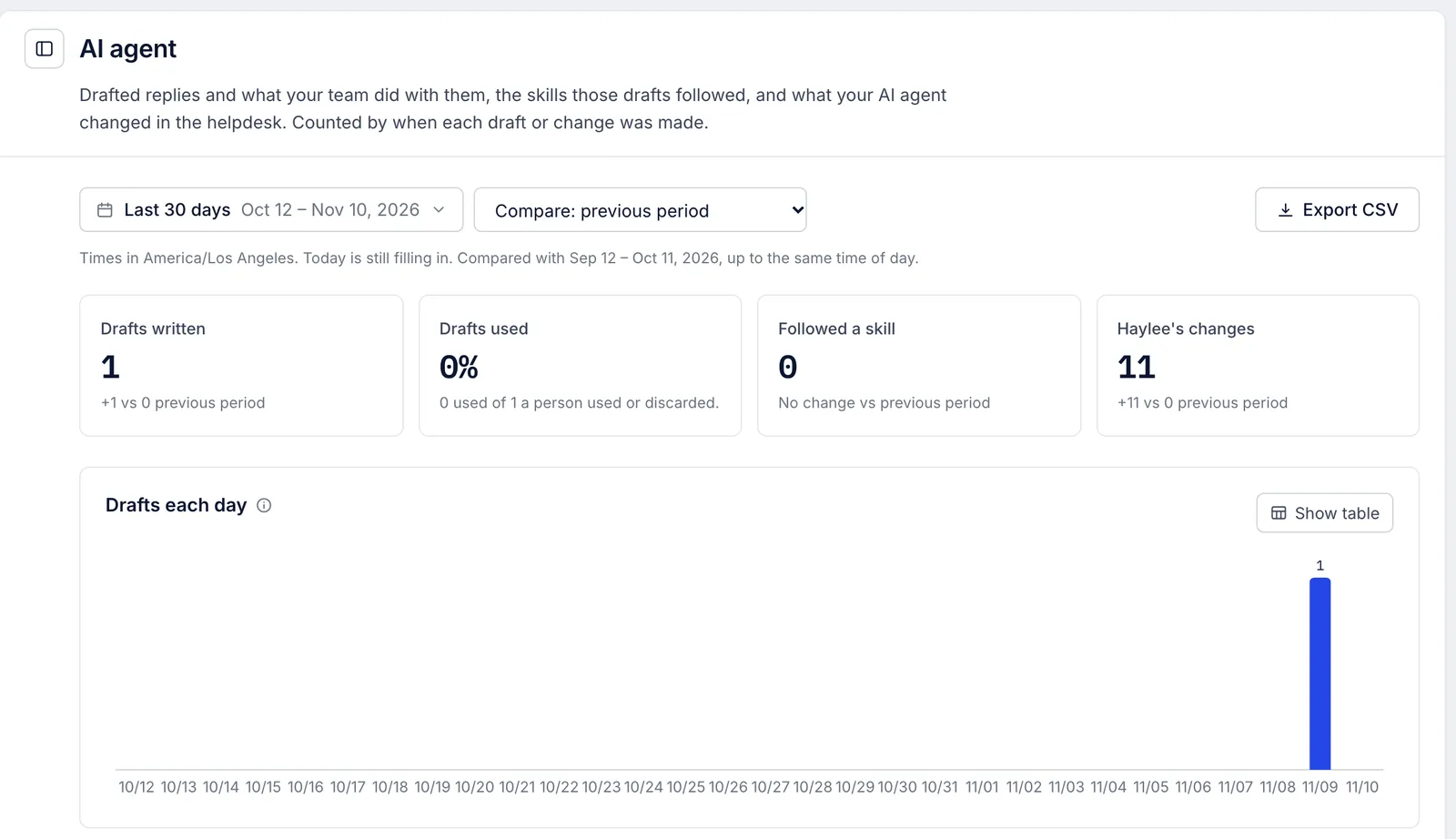
The four figures#
| Figure | What it counts |
|---|---|
| Drafts written | Drafts made in the range, from Haylee and from built-in drafting. Hover over the label for the split. |
| Drafts used | Of the drafts someone either put into a reply or discarded, the share put into a reply. Drafts nobody acted on are left out. |
| Followed a skill | Drafts that followed at least one skill. Hover over the label for the share of all drafts. |
| Haylee's changes | Everything her account did in the helpdesk: drafts, notes, tags, priority, assignments, closes, snoozes and skills. |
Under the figures you see the change against the comparison period; under Drafts used, how many drafts that share is based on.
Drafts each day#
A bar for each day of the range. Show table lists, per day, the drafts written, how many were Haylee's and how many were used.
Skills the drafts followed#
One row per skill that drafts followed in the range, with the number of drafts that followed it and how many of those were used and discarded. A skill with many discards is worth rereading; Writing skills that work has the usual fixes.
What happened to the drafts#
| Line | Meaning |
|---|---|
| Put into a reply | Someone clicked Insert into reply. What they changed before sending is not tracked. |
| Discarded | Someone clicked Discard, or Haylee withdrew her own draft. |
| Replaced before anyone used them | A newer draft, or a teammate's own reply, overtook it. |
| Flagged for a person to check | Drafts the drafter marked as needing a person's check. Every draft Haylee leaves counts here. |
| Tickets with a draft | Tickets that had at least one draft in the range. |
What Haylee changed#
Her changes, counted by type: drafts written, notes or messages written, tags added and removed, tickets updated, handed to a team, assigned, closed and snoozed, skills written, changes proposed, skill drafts edited, skills switched on and archived. Below the list you see how many skills were written in the range and how many were switched on.
Export#
Export CSV downloads one row per skill with the drafts that followed it, how many were used and how many discarded, and a last row for all drafts. See Filter, compare and export reports.
The AI Agent overview#
AI Agent > Overview shows four of these figures for the last 30 days, with no date picker: active skills (and how many more are in drafts), drafts written, the share used, and Haylee's changes.
What the report does not show#
Automation rate, coverage by request type and suggested improvements. The helpdesk does not sort tickets into request types for reporting, so there is no table of which types the AI Agent covers, and no list of suggested fixes. Use Skills the drafts followed and the Tags report instead.
Clicking a figure to see its tickets. Figures cannot be opened to list the tickets behind them.
Automatic AI tags and views. The helpdesk does not tag tickets the AI Agent touched. If you want a view of them, have your skills tell Haylee to add a tag, and build a view on that tag; see Views.
For rules, macros, flows and other automation, see the Automation report.
Related articles
- SkillsCreate, switch on, change and archive the skills that tell drafted replies and Haylee how your team handles each kind of request.
- Writing skills that workHow drafts choose a skill, how to word the steps so drafts follow them, and what to check when a draft ignores a skill or gets it wrong.
- Automation reportSee how many chat conversations flows and suggested articles settled without your team, how each flow ends, and what customers asked about their orders in chat.
- Filter, compare and export reportsPick a date range and a comparison, narrow a report to one channel, tag, agent or team, count business hours only, share the view and download it as CSV.
Still stuck?
Write to the Growth Dept team and a person answers. Say which helpdesk you work in and what you were trying to do.