Forward a support address from any mail provider
Set up forwarding from Outlook, Zoho or any other provider, see how replies are sent, and why no DNS records or domain verification are needed.
On this page
Forwarding works with any mail provider and never gives the helpdesk access to your mailbox. The helpdesk gives you an address of its own; you tell your mail provider to forward your support address there, and every forwarded message becomes a ticket.
Use it when your support address is not on Google, or when you would rather not let the helpdesk sign in to the mailbox. If the address is on Gmail or Google Workspace you can choose either; connecting Gmail also brings in past mail and sends replies from your own address.
Set it up#
You need the admin role.
Open Settings > Email.
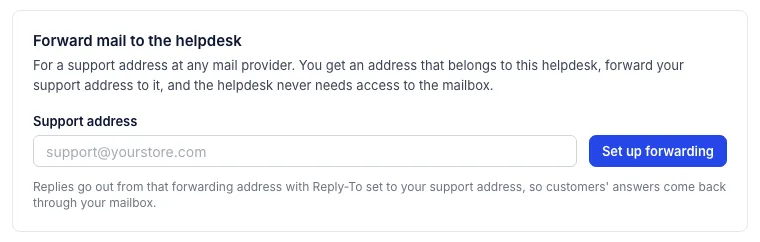
Under Forward mail to the helpdesk, type the address customers write to in Support address, for example
support@yourstore.com.Click Set up forwarding. A card for the address appears, with the helpdesk's forwarding address under Forward mail to and a copy button beside it.
In your mail provider, add a forwarding rule that sends a copy of every message for your support address to that forwarding address. Keep a copy in the original mailbox if you like; the helpdesk does not need it.
Send a test message to your support address from a personal account. It should appear in the inbox as a ticket within a minute or two, and the card's status changes from Waiting for mail to Receiving.
The forwarding address looks like yourhelpdesk.k7q2xm@cs.growthdept.ai: your helpdesk's name, a dot and six random characters. It belongs to this helpdesk only, and nobody can guess another helpdesk's address to slip mail into it.
Gmail and Google Workspace ask for a confirmation#
Before Gmail forwards anything, it sends a confirmation message to the forwarding address. That message arrives as a ticket tagged bulk, and the forwarding card shows Gmail's confirmation code with an Open the confirmation link. Click the link inside the message, or type the code into Gmail's forwarding settings, and forwarding starts.
Other providers may send a similar message; it arrives the same way, and the card links to it.
Where to find forwarding in your provider#
| Provider | Where forwarding lives |
|---|---|
| Gmail and Google Workspace | Settings, Forwarding and POP/IMAP, Add a forwarding address. Workspace admins can also set routing for a whole domain in the Admin console. |
| Outlook.com and Microsoft 365 | Settings, Mail, Forwarding; or a mailbox forwarding rule set by your Microsoft 365 admin. Some organisations block forwarding to outside addresses until an admin allows it. |
| Other providers and web hosts | Look for forwarding, aliases or redirects in the mailbox or domain settings. |
Providers move these menus now and then. If you cannot find the setting, search your provider's own help for "automatic forwarding".
How replies are sent#
Replies go out from the forwarding address, with your Sender name in front of it and Reply-To set to your support address. A customer sees something like Harbor & Pine <harborpine.k7q2xm@cs.growthdept.ai>, and pressing Reply in their mail program writes to support@yourstore.com. Your provider forwards that answer back, and it joins the same ticket. A customer whose mail program ignores Reply-To writes straight to the forwarding address, which reaches the same helpdesk.
On the card, Sender name and signature opens the sender name, Replies show as (the sender name alone, or the agent's name first), Make this the default mailbox and the signature. Save mailbox settings keeps changes.
Why no domain verification is needed#
Mail services check that a message really comes from the domain in its From address, using DNS records called SPF, DKIM and DMARC. Because forwarded-mail replies are sent from an address on cs.growthdept.ai, they are checked against Growth Dept's domain, which Growth Dept has verified for sending on behalf of every helpdesk. Nothing changes in your domain's DNS, you do not need a DMARC record for the helpdesk, and records you already have for Klaviyo, Shopify or your mail provider stay as they are.
The trade-off: the From address is the forwarding address rather than your own. Sending as support@yourstore.com itself would need your domain verified with the helpdesk, which is not built yet. If you want replies to come from your own address today, use a Google mailbox and connect it: Gmail sends those replies and Google signs them for your domain.
Several addresses#
Set up forwarding once per address. Each support address gets its own card, forwarding address, sender name and signature. A ticket remembers which address it came in on and replies from it. See Email, your store and several mailboxes.
An address can be connected one way at a time. If the address is already connected as a Gmail mailbox in this helpdesk, the helpdesk refuses to set up forwarding for it.
Switch from a Gmail connection to forwarding#
If you want older conversations, import them first. Forwarded addresses only receive new mail, and the import needs the Gmail connection.
In Settings > Email, click Disconnect on the Gmail mailbox and confirm. Its tickets stay.
Set up forwarding for the same address as above.
Add the forwarding rule in Gmail and confirm it.
Tickets that came in through Gmail keep their history. Replies on them go out from the forwarding address from then on.
Stop forwarding#
Click Disconnect on the address's card. The helpdesk stops receiving and sending for it; tickets stay. Then remove the forwarding rule in your mail provider, or mail keeps going to an address that no longer accepts it.
The forwarding address is kept for this helpdesk. Setting the same support address up again brings back the same forwarding address and settings, so you do not have to change the rule in your provider.
Troubleshooting#
| Problem | What to check |
|---|---|
| The card still says Waiting for mail | The rule in your provider is off, unconfirmed, or forwards to a mistyped address. Copy the address again with the copy button. |
| Some mail never arrives | Most providers do not forward what they file as spam. Check the support mailbox's spam folder and mark the message as not spam. |
| The card says Mail not fetched | The helpdesk could not collect the last forwarded message. It usually clears on its own when the next one arrives; if it stays, tell Growth Dept support. |
| Customers answer the forwarding address | Their mail program ignores Reply-To. Their answers still reach the right ticket. |
| A reply was refused or bounced | See When an email reply is not delivered. |
Related articles
- Connect a Gmail or Google Workspace mailboxConnect your support mailbox so its mail arrives as tickets within a minute and replies go out from Gmail in the customer's own thread.
- When an email reply is not deliveredWhat the red line under a reply means, the reasons a reply is refused or bounces, how you are told, and what to check before sending again.
- Email signaturesGive each mailbox a signature that is added under every email reply, with the sending agent's name filled in for you.
- Outlook and Microsoft 365 mailboxesConnecting an Outlook or Microsoft 365 mailbox directly is not available yet. Forward your support address to the helpdesk instead; it takes a few minutes.
Still stuck?
Write to the Growth Dept team and a person answers. Say which helpdesk you work in and what you were trying to do.