Start a new ticket
Write to a customer first, log a phone call or open a ticket for your team only, and pick up a ticket you started but did not send.
On this page
Choose New ticket at the top of the navigation panel, or press N anywhere in the helpdesk. To start one for a customer you are already looking at, open the ⋮ menu beside their name and choose New ticket for this customer, or use Create ticket on their customer page.
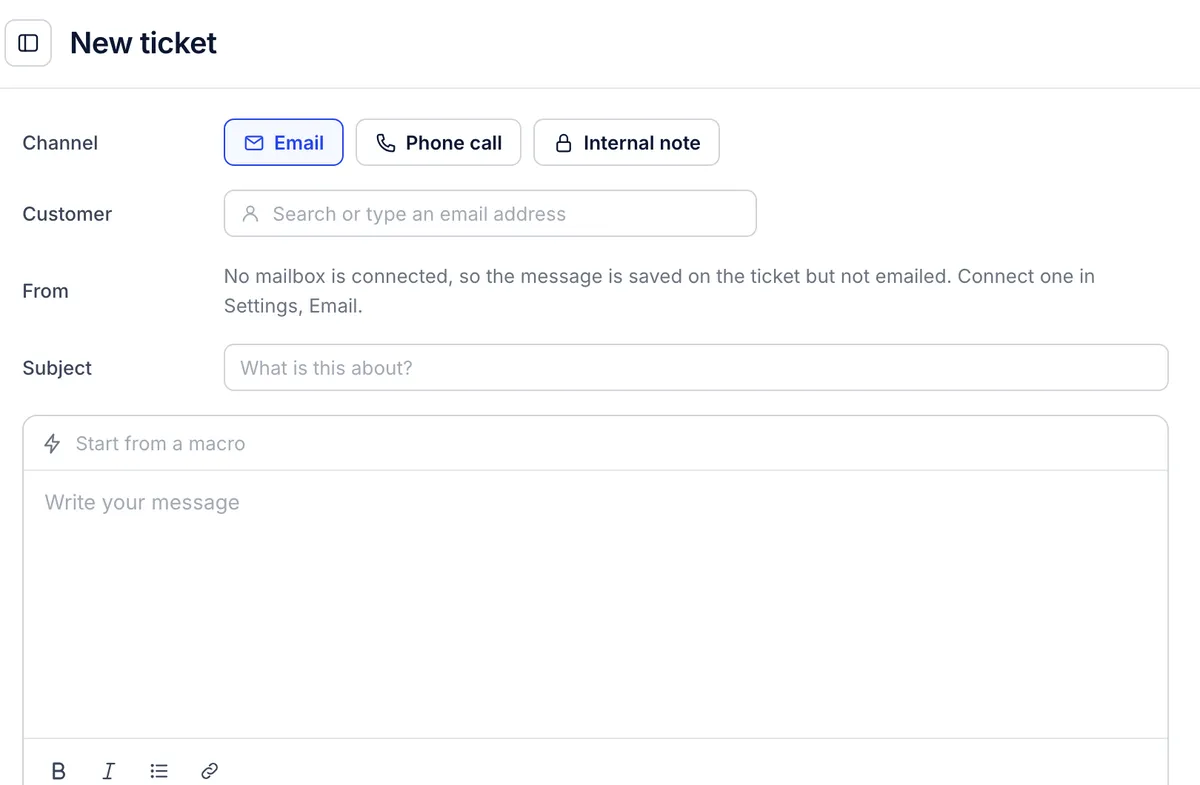
Fill it in#
Channel. Pick what the ticket is:
Email sends your message to the customer.
Phone call records a call you had. Nothing is sent; write a summary of the call as the message.
Internal note opens a ticket only your team sees, for example to track a supplier problem.
Customer. Type part of a name or email address and pick the customer. For someone who has never written in, type their full email address and choose the New customer: line that repeats it; the customer is created when you send. Choose another customer clears your choice.
From. For email, pick which mailbox sends it if several are connected. If no mailbox is connected, the page says the message will be saved on the ticket but not emailed.
Subject. Required.
The message. Start from a macro with Start from a macro, or write your own. Bold, italic, lists and links are in the toolbar.
Tags and agent. Add tags with Add tags. The ticket is assigned to you unless you choose another agent or a team.
Once you choose a customer, the right side shows their details, other tickets and orders, so you can check an order number while you write.
Send or create it#
| Channel | Buttons |
|---|---|
| Send opens the ticket and emails the customer. Send and close does the same and closes it, for a one-off message that needs no answer | |
| Phone call, Internal note | Create ticket opens it. Create closed records it already closed, for a call that is finished |
When the customer replies to an email you started, the reply joins the same ticket.
Unfinished tickets#
The page keeps what you type in your browser. If you leave it, New ticket at the top of the navigation panel changes to Resume draft; click it to carry on where you stopped. Cancel takes you back without deleting the draft. To throw a draft away, clear the subject and the message.
The draft is kept only in that browser. Teammates do not see it, and it is not on your other devices.
Related articles
- Work a ticket from first read to closeReading the conversation and its events, the four ways to answer, Cc and attachments, sending, closing and reopening, and the spam, trash, print and link actions.
- Assign tickets to agents and teamsGive a ticket an owner and a team, take one yourself, hand it back, assign many at once, and what assigns tickets without anyone choosing.
- Connect a Gmail or Google Workspace mailboxConnect your support mailbox so its mail arrives as tickets within a minute and replies go out from Gmail in the customer's own thread.
- Create and manage macrosWrite a saved reply once, apply it from any ticket, and keep the macro list tidy with search, filters, archiving and duplicates.
Still stuck?
Write to the Growth Dept team and a person answers. Say which helpdesk you work in and what you were trying to do.