Merge customers
Partly availableJoin two profiles of the same person into one, choose which name, note and emails to keep, and know what to do if you merged the wrong pair.
On this page
One person often ends up with two profiles: they wrote once from a work address and once from a personal one, or started a chat without giving an email address and then emailed you. Merging joins the two, so all of their tickets and orders show in one place.
Merge two customers#
Open a ticket from the customer you want to keep, or their customer page. The profile you start from is the one that stays.
In the customer panel, open the ⋮ menu beside the name and choose Merge with another customer.
Type at least two letters of the other profile's name or email address.
Select Merge beside the duplicate.
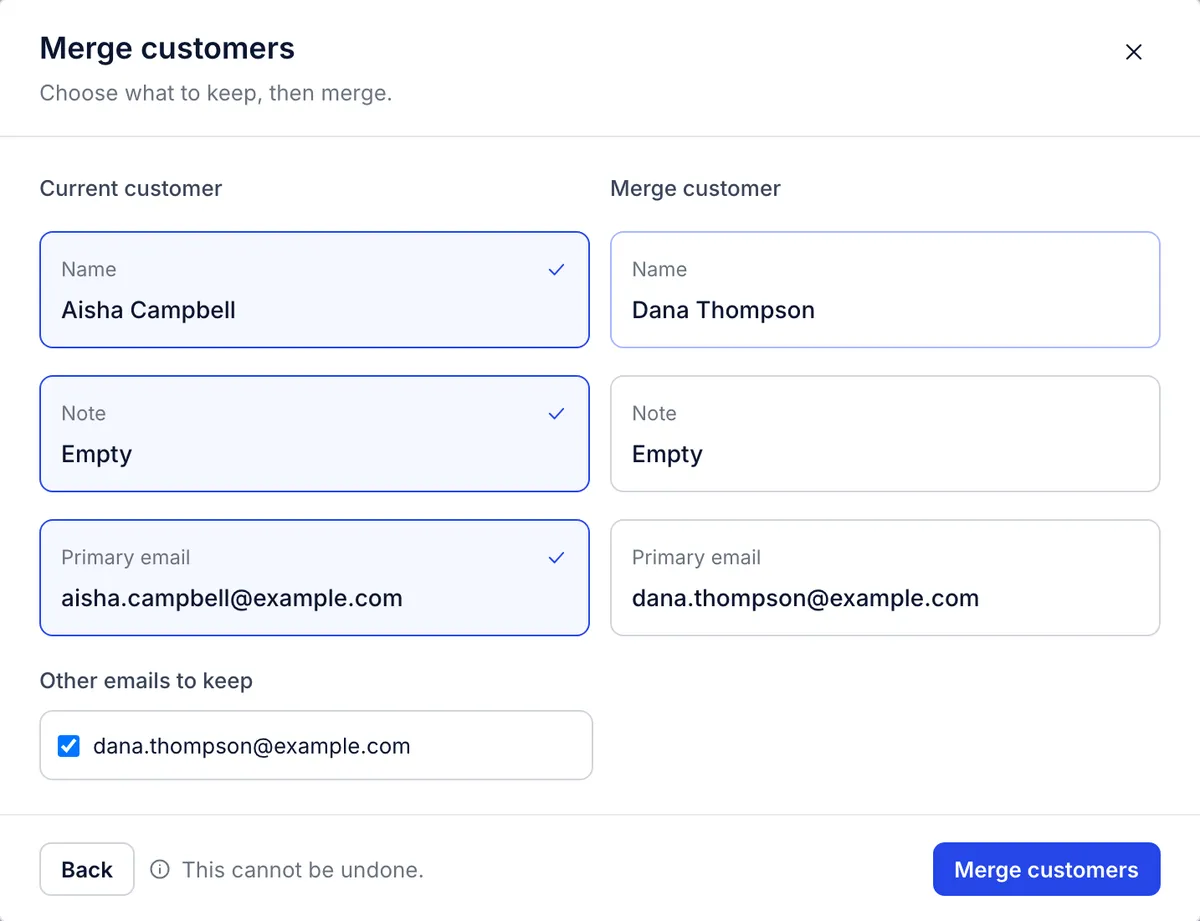
Choose what to keep. For Name, Note and Primary email, select the card on the left (Current customer) or on the right (Merge customer). Under Other emails to keep, untick any address you want dropped.
Select Merge customers.
Back returns you to the search to pick someone else, and Cancel on the first step closes the window without changes.
What moves and what stays#
The customer you started from keeps their ID and page. From the other profile, these move across:
every ticket and message, and any satisfaction survey answers;
the email addresses you left ticked, and every phone number;
customer field values, except where the kept customer already has a value for that field, which wins;
the language and time zone, when the kept customer has none;
their store data.
The note you did not choose is dropped. If both notes matter, copy the one you will lose into the other before you merge. Unticked email addresses are removed: the next message from one of them starts a new profile.
The other profile then disappears from the customer list and from search. Through the REST API, its old customer ID still answers and points to the kept customer.
Who can merge: every role except observer.
If you merged the wrong customers#
A merge cannot be undone, and there is no unmerge. To pull one person back out:
On a ticket of the merged customer, note the email addresses, phone numbers and note text that belong to the other person.
In the customer panel, Remove each of those addresses. An address can only belong to one profile, so this has to come first.
Go to Customers, select Create customer and enter that person's name and addresses.
Open each ticket that is theirs and switch it to the new profile; see Change who a ticket belongs to.
Fill in their note and customer fields again.
Things to know#
The helpdesk does not suggest likely duplicates or merge profiles on its own. Search Customers for a name to spot two profiles of one person.
Merging customers is different from merging tickets. To join two conversations into one ticket, see Merge two tickets.
Merging in the helpdesk does not touch Shopify. The store section looks up one Shopify customer, trying the main email address first, then the other addresses, then phone numbers. If the person has two accounts in your store, it shows the first one it finds; merge them in Shopify to see every order in one place.
Related articles
- Customer profilesFind, create, edit and delete customers, keep a private note on each one, and read a customer's page with their tickets, details and orders.
- Change who a ticket belongs toMove a ticket to the right customer when it landed on the wrong profile, and choose the customer when you start a ticket yourself.
- How tickets find their customerHow the helpdesk picks each ticket's customer from an email address, when it makes a new profile, and how the store section finds the same person in Shopify.
- Merge two ticketsFold a duplicate ticket into another one from the same customer, which ticket survives, what moves across and which tickets cannot be merged.
Still stuck?
Write to the Growth Dept team and a person answers. Say which helpdesk you work in and what you were trying to do.