Flows: guided answers in chat
Partly availableBuild a flow of buttons, short answers and questions that walks chat visitors to an answer or hands them to your team with the path they took.
On this page
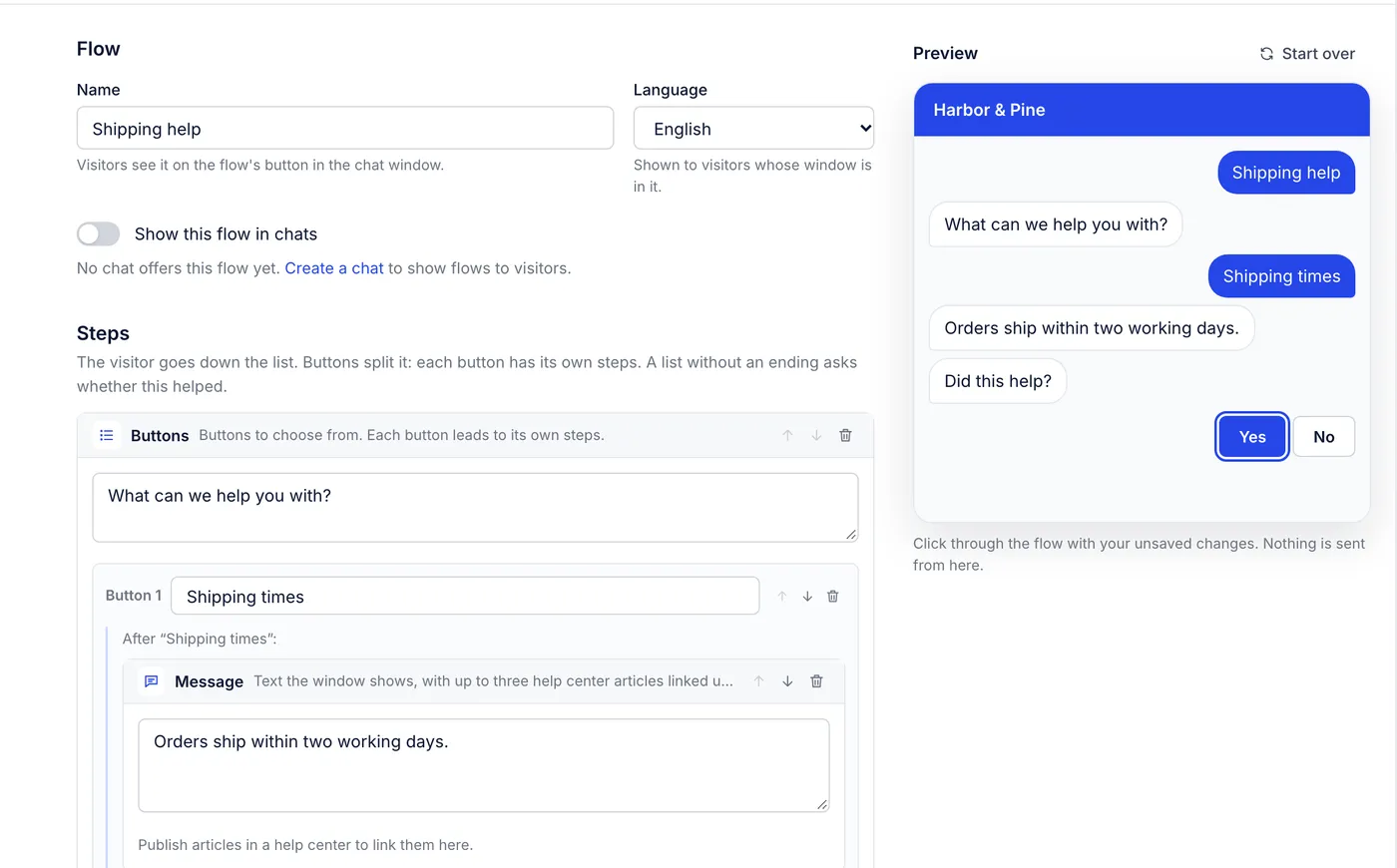
A flow is a short guided conversation in your chat window. The visitor presses a button such as "Shipping times", reads your answer and says whether it helped. If it did, nobody on your team has to touch it. If it did not, the visitor writes to you through the chat form and the ticket arrives with every button they pressed and every answer they typed.
Flows use no AI. Visitors see exactly the words you wrote, in the order you set.
Who can build flows#
Admins create, change, switch on and delete flows on Workflows > Flows, and choose which chats show them. Every other role can open flows and read them but not change them.
Build a flow#
Open Workflows > Flows and press Create flow.
Under Name, write the words visitors will see on the flow's button, such as "Shipping and delivery". Keep it short: it is the topic a visitor picks.
Choose the Language: English, French, German or Spanish. A chat shows a flow only to visitors whose chat window is in that language (more on this below).
Build the steps. A new flow starts with a small working example you can edit or delete: a Buttons step with two buttons. "Shipping times" shows a short answer and asks whether it helped; "Something else" hands the visitor to your team.
Click through the Preview on the right. It runs your unsaved flow exactly as the chat window will, and only you see it. Start over takes it back to the first step.
Turn on Show this flow in chats when it is ready, and press Save changes. New flows start switched off, so you can save a half-finished one safely.
Add the flow to a chat (see Show flows in a chat). A switched-on flow appears in no chat until you do.
The five kinds of step#
Under each list of steps, Add offers five buttons. The visitor goes down the list from the top.
| Step | What the visitor sees | What you set |
|---|---|---|
| Message | Your text, with up to three help center articles linked under it | The text (up to 1,000 characters) and the articles. A message can be only links, with no text |
| Question | Your question and a box to type the answer | Whether the answer is free text or an email address |
| Buttons | Your question and up to 8 buttons | The question above the buttons and each button's label (up to 60 characters). Each button gets its own list of steps |
| Ask if it helped | "Did this help?" with Yes and No | Other wording if you prefer. Leave it empty and the visitor sees "Did this help?" in their own language |
| Hand over to an agent | A short message, then the chat form | The message, and up to 5 tags for the ticket it creates |
A few rules keep every path finished:
Buttons, Ask if it helped and Hand over to an agent each end their list. Anything you want to show after a button goes inside that button's own list.
A list that ends on a message or a question, and a button with no steps under it, finish with "Did this help?" automatically.
Yes ends the flow as resolved and the visitor sees "Glad we could help." No hands the visitor to your team, just like a hand-over step.
A flow can hold up to 60 steps, and buttons can sit inside buttons up to 6 levels deep.
Use the arrows on a step's header to move it up or down its list, and the bin to remove it. If something is missing, such as a button with no label, the editor marks the step and says what to fix before it saves.
Linking articles#
On a message step, Link a help center article lists your published articles. The visitor sees each one as a link that opens the article. They see the article in their own language when it is published in that language, and in your help center's default language when it is not. Unpublished articles are not shown, so check the link again if you unpublish one.
Questions and their answers#
Use a question step when your team will need a fact before they can help, such as an order number. Answers are not checked against your store; they are carried to the ticket for an agent to read. When the flow hands over, the chat form is filled in for the visitor: the email question's answer goes into the email box and the last free-text answer into the message.
What your team receives#
When a visitor reaches a hand-over, or answers No, the window shows the usual chat form. Sending it starts an ordinary chat conversation, live or offline depending on who is available. The ticket:
carries the tags you set on the hand-over step (when the visitor came through one) from the moment it is created, so rules that run on new tickets and views filtered on those tags pick it up;
gets an internal note signed Automation that names the flow and lists each step in order, with the button pressed or the answer typed.
The visitor never sees that note. Once the conversation exists, the flow's copy of the answers is deleted; the ticket keeps them.
A visitor who resolves the flow with Yes creates no ticket at all.
Show flows in a chat#
Each chat chooses its own flows on its Automate tab (Settings > Chat, open the chat, then Automate):
Under Flows, pick flows from Add a flow…, up to 10 per chat, and use the arrows to put them in the order visitors should see them. Flows that are switched off show as "Off: not shown".
Choose how the window opens:
Topics first, with a button to write to us: visitors see "How can we help?" with a button per flow, and Write to us to go straight to the chat form.
Topics only: visitors reach your team only through a flow's hand-over or an order request. Give every flow a way to hand over before you choose this.
Save the tab.
A chat shows the flows written in the visitor's window language. When none of its flows is in that language, it shows the ones in the chat's default language. A visitor who already has a conversation open sees that conversation, and the topics appear again when they start a new one.
The flows list on Workflows > Flows shows each flow's language, the chats that offer it, its number of steps, when it changed and an On switch. That switch saves the moment you flip it.
Changing a live flow#
Edits apply to the next visitor who starts the flow. A visitor already part way through carries on from the step they are on, as long as that step still exists. Deleting a flow removes it from every chat; tickets it already created keep their note.
See how flows perform#
Analytics > Automation lists each flow with how many times it was started, how many visitors said it helped, how many were handed over and how many left before the end, plus the resolution rate (flows the visitor said helped, out of flows started). See the automation report. Step-by-step drop-off for each card in a flow is not available.
Flow ideas to start with#
Write the answers your team types most often. Some that fit one Buttons step with a message under each button:
| Button | Message idea |
|---|---|
| Shipping times | When orders leave your warehouse and how long each shipping method takes, with your shipping policy article linked |
| Returns | Your return window, what can come back, and a link to the returns article |
| Change or cancel an order | How long after ordering a change is possible, then a hand-over so the team can do it |
| Subscriptions | How to skip or cancel, linking the article that shows the steps |
| Discounts | Where current offers are announced and how to sign up for them |
End anything that needs a person with Hand over to an agent, and give that step a tag such as flow-returns so a view or rule can pick those tickets up. For order tracking, use order self-service instead of a flow: it reads the visitor's real orders.
What flows cannot do yet#
| You may want | Here |
|---|---|
| Flows on the help center or a contact form | Chat only. Link your help center articles from a flow's messages |
| Ask the customer to sign in or pick one of their orders | Not in flows. Track or change an order in the chat window does this with an emailed code |
| Call another app (HTTP request), store values from its reply, or branch on customer or order data | Not available. Hand over and let an agent check |
| Collect photos or files | Not available, and chat does not take attachments from visitors either. After the hand-over, an agent can ask the customer to email the photos to your support address |
| Images or embedded articles inside a step | Not available. A message links up to three articles |
| One flow in several languages | Build a separate flow for each language |
| A library of flow templates | Each new flow starts from the example above |
| End a flow with no way to reach the team | Not available: No on "Did this help?" always hands over. Topics only on the chat makes visitors go through a flow before they can write |
Related articles
- Order self-service in chatLet chat visitors confirm their email with a code, see their recent orders and tracking, and ask for a return, a cancellation or help with a problem.
- Article recommendations in chatSuggest up to three help center articles under a visitor's first chat message, and close the conversation when one of them answers the question.
- Put chat on your storeCreate a chat, paste its one-line script into your store's theme, limit it to your own sites, and test it before customers see it.
- Automation reportSee how many chat conversations flows and suggested articles settled without your team, how each flow ends, and what customers asked about their orders in chat.
Still stuck?
Write to the Growth Dept team and a person answers. Say which helpdesk you work in and what you were trying to do.