Search tickets and customers
Find any ticket or customer from anywhere in the helpdesk, how words are matched, and advanced search with filters.
On this page
Press / or ⌘ K anywhere in the helpdesk, or click the magnifier at the top of the navigation panel. Type at least two characters and results appear as you type.
Read the results#
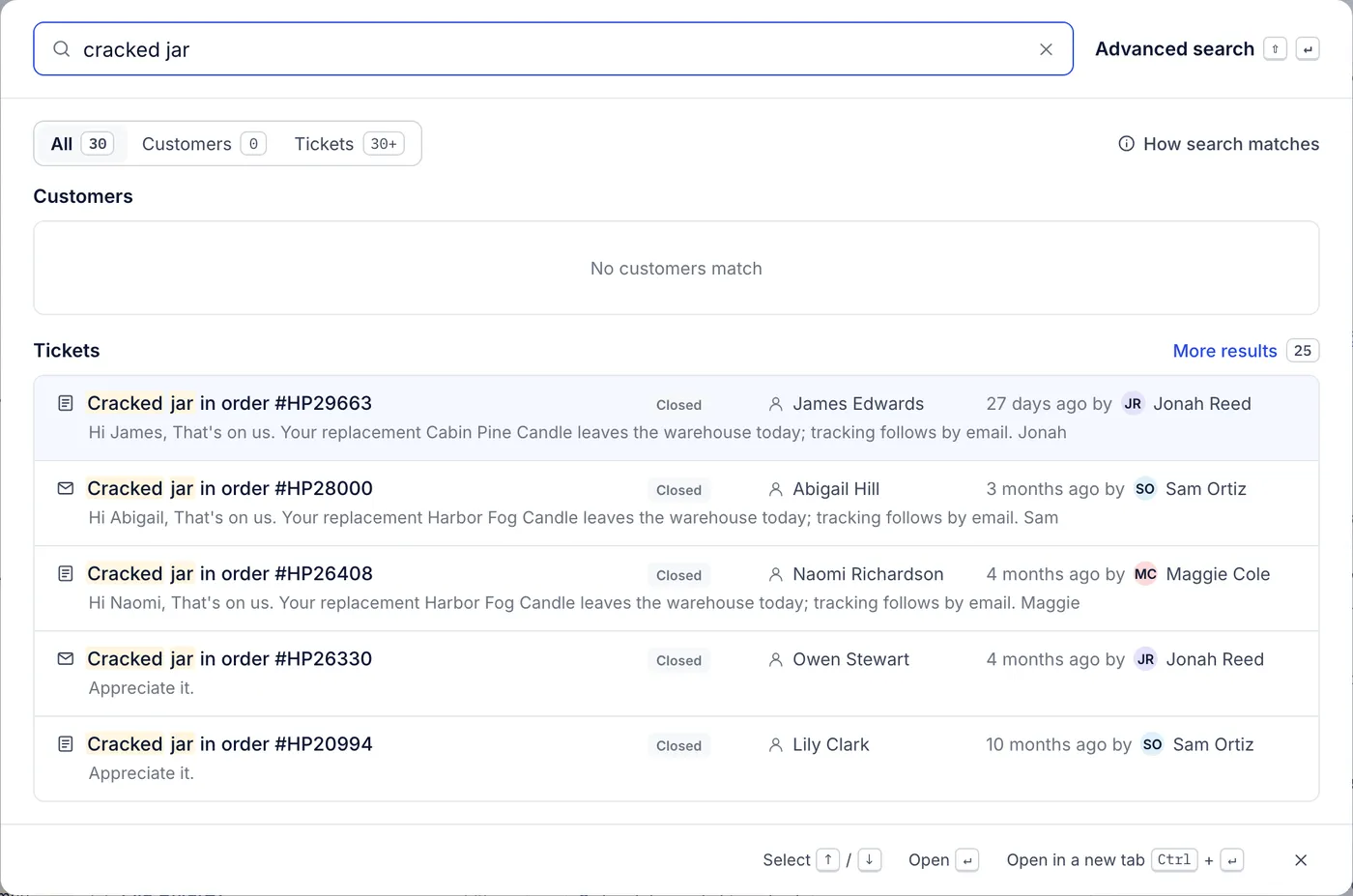
Results come in two groups, Customers and Tickets, with tabs at the top to show both or only one. The number on each tab is how many matched; 30+ means more than that.
Each ticket shows its channel, subject, status, customer, when the last message was written and by whom, and a line of the text that matched. Matching words are highlighted. More results under the tickets opens advanced search with the same words.
| Key | What it does |
|---|---|
| ↑ and ↓ | Move through the results |
| Enter | Open the selected result |
| ⌘ Enter or Ctrl Enter | Open it in a new browser tab |
| Shift Enter | Open advanced search with these words |
| Esc | Close search |
How words are matched#
Tickets are searched by subject, the text of their latest 50 messages and internal notes, and the customer's name, email addresses and phone numbers.
Customers are searched by name, email address, phone number and other addresses, and by the external id your store or another system gave them.
Each word matches the start of a word, so
refunfinds "refund" and "refunded".Every word you type has to match.
cracked jarfinds tickets with both words, in any order.Punctuation splits words, so
#HP30575finds the order number written as HP30575, and a tracking number finds the ticket that mentions it.A ticket number finds that ticket.
A whole email address matches only that address.
Upper and lower case make no difference.
Hover over How search matches in the search box for a reminder.
Advanced search#
Advanced search lists matching tickets as a table you can filter, sort and act on. Open it with Advanced search in the search box, with Shift Enter, or from More results.
Type your words in the box above the table.
Choose Add filter to narrow the results by Status, Channel, Agent, Tag or Priority. Add several to combine them; Clear removes them all.
Tick tickets to act on them, as in any view. See Act on many tickets at once.
Advanced search reads the best 100 matches for your words, then applies the filters to those. When the count says 100 or more tickets, add another word so the filters work on the tickets you want.
Search only customers#
Customers in the area menu has its own search box above the customer list, which matches names, email addresses and phone numbers. See Customer profiles.
Find the same tickets again and again#
Searches are not saved. For a list you check every day, such as open tickets tagged damaged, build a view instead: it keeps its filters, counts its tickets and sits in the navigation panel. See Views and View filters.
Related articles
- The inbox: views, the ticket list and the ticket panelWhat each part of the inbox shows, what the built-in views contain, how the ticket list sorts and refreshes, and the two list layouts.
- Views and sectionsBuild the ticket queues in the inbox sidebar, decide who sees each one, group them into sections, and choose which built-in views each agent keeps in sight.
- Filters for views and searchEvery condition a view's filter can use, what each operator means, and how to combine conditions with all, any and groups.
- Keyboard shortcutsEvery key the helpdesk responds to, for moving through views, working a ticket and sending replies without the mouse.
Still stuck?
Write to the Growth Dept team and a person answers. Say which helpdesk you work in and what you were trying to do.