Ticket fields
Partly availableRecord facts on every ticket, such as the contact reason or the product, make some of them required before closing, and use them in rules, macros and views.
On this page
Ticket fields are questions your team answers on every ticket: why the customer wrote in, which product it was about, whether a replacement went out. Agents fill them in from the ticket, rules and macros can fill them for you, and views can sort tickets by the answers. Admins set them up under Workflows > Ticket fields; other roles can open the page but not change it. Haylee, the AI agent, can also create and edit fields when you ask her to. Fields she makes or changes stay optional, and she cannot delete them; an admin decides whether a field is required.
 5. Setting up ticket fields
Create a field#
Go to Workflows > Ticket fields and select Create field.
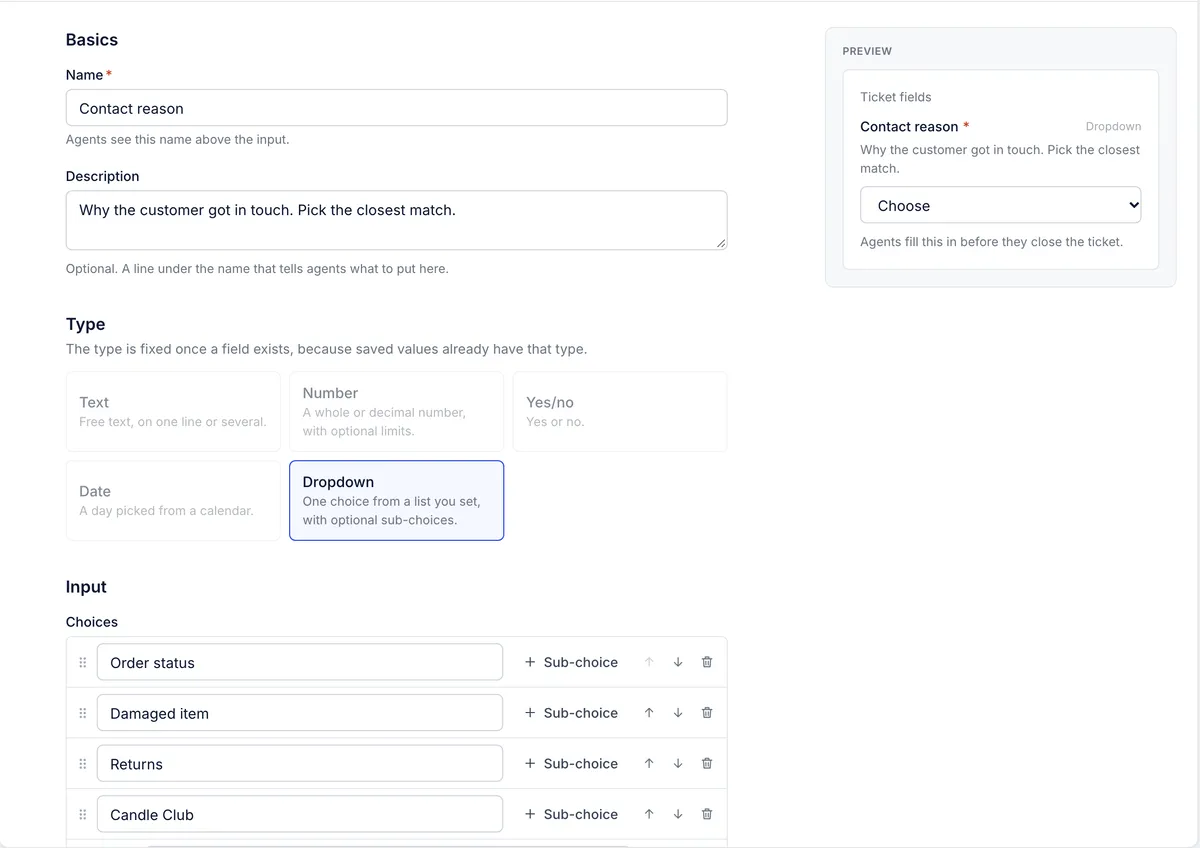
Enter a Name. Agents see it above the input, and no two ticket fields can share a name.
Add a Description if agents need a hint. It shows as a line under the name.
Choose a Type (see the table below). You cannot change the type later, because saved answers already have that type.
Fill in the Input settings for that type.
Choose a Requirement.
Select Create field.
The Preview on the right shows the input as agents will see it on a ticket while you edit. A new field appears on every ticket at once, old ones included, with no value until someone fills it in.
Field types#
| Type | What agents enter | Input settings |
|---|---|---|
| Text | Free text, up to 1,000 characters | Allow several lines for a taller box; an optional Placeholder |
| Number | A whole or decimal number | Optional Lowest value and Highest value; an optional Placeholder |
| Yes/no | Yes or No, or nothing unless the field is required | None |
| Date | A day picked from a calendar | None |
| Dropdown | One choice from your list | Choices, with optional sub-choices |
Dropdown choices#
Type a choice in the New choice box and press Enter or select Add choice. Then:
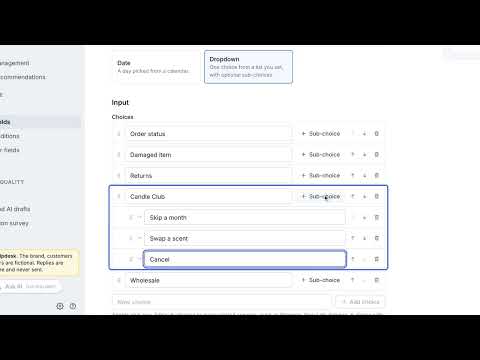
Select + Sub-choice on a choice to put more specific answers under it, such as Shipping, then Late delivery and Lost in transit. A choice with sub-choices becomes a heading: agents pick one of the sub-choices, never the heading itself.
Drag a choice by its handle, or use the arrows, to change the order. Sub-choices move with their heading.
Select the bin to remove a choice.
A dropdown goes two levels deep (a choice and its sub-choices) and holds up to 1,000 choices. Each choice needs a name, names cannot repeat at the same level, and a name cannot contain ::, which the helpdesk uses to join a choice to its sub-choice when it stores the answer.
Importing choices from a CSV file is not available. Add them one at a time as above, or create the field through the REST API with the whole list of choices in one request.
Required fields#
Every ticket field has one of three requirements:
| Requirement | What it means |
|---|---|
| Optional | Agents can leave it empty. |
| Required to close | Agents fill it in before they close the ticket. |
| Required when a condition matches | Agents fill it in before closing only when another field has a value you choose. |
On the ticket, a field that is always required has a red asterisk, and the Ticket fields heading shows how many required fields are still empty. If someone tries to close the ticket without them, the helpdesk refuses and names the fields to fill in first. This applies to people, whether they work in the helpdesk or through an API key. Rules can still close a ticket with an empty required field.
Required only in some cases#
Choose Required when a condition matches when the field only matters for some tickets, such as a refund amount when the contact reason is a refund:
Under Requirement, choose Required when a condition matches.
In Required when this field, choose the dropdown or yes/no ticket field the requirement depends on. Create that field first if it does not exist yet.
Tick the values that make this field required.
Save the field.
When the other field holds one of those values, the ticket cannot close until this field is filled in. The ticket does not mark a conditional field with an asterisk; the check happens when the ticket is closed.
Workflows > Field conditions lists every ticket field that has a condition, with the field it depends on and the values that trigger it. Conditions are edited on the field's own page: select a field's name, or Choose a field.
Fill in fields on a ticket#
Open a ticket and look in the right-hand panel under Ticket details. Select Ticket fields to open the list, then pick or type each answer. A choice saves as soon as you pick it; typed answers save when you press Enter or click elsewhere.
Change the order, archive or restore a field#
On the Active tab of Workflows > Ticket fields, drag a field by its handle, or use the arrows beside it, to change the order. The new order saves as soon as you drop the field.
To stop using a field, select Archive on its row or on its page. An archived field disappears from tickets and can no longer be filled in. The answers already saved are kept, and they come back if you open the Archived tab and select Restore. Rules and macros that set an archived field stop working until you restore the field or change them.
A field marked Built-in was created through the REST API as one of the helpdesk's managed kinds of field. Its input settings and choices are fixed. You can archive and restore it here; renaming it or changing its requirement goes through the REST API. A new helpdesk starts with no ticket fields, built-in or otherwise.
Use fields in rules, macros and views#
Rules. Ticket fields appear in the condition menu under Ticket fields, with operators that suit the type. A dropdown condition can match one choice or any of several, a text field can contain or start with some words, a number can be above or below a value, a date can fall before or after a day, and any field can be tested for having no answer. The Set a ticket field action fills a field for you, for example setting the contact reason to Wholesale on tickets from your wholesale address. See Rule conditions and actions.
Macros. A macro's Set a ticket field action fills the field when the agent sends the reply. See Macro actions.
Views. Filter a view on a field's answer, and add the field as a column in the ticket list. See Filters for views and search.
The helpdesk does not suggest a contact reason or any other answer with AI. To fill fields without an agent, use a rule or a macro as above.
Analytics has no report on ticket field answers yet. To count tickets with a given answer, make a view filtered on it.
Fields kept on each customer's profile, rather than on each ticket, live under Workflows > Customer fields. See Customer fields.
Related articles
- TagsLabel tickets by topic so views, rules, macros and reports can find them, and keep the tag list tidy with descriptions, colours and merges.
- Filters for views and searchEvery condition a view's filter can use, what each operator means, and how to combine conditions with all, any and groups.
- Rule conditions and actions referenceEvery field a rule can check, the operators each one offers, how matching works, and every action a rule can take.
- Customer fieldsKeep facts about each customer on their profile, such as a membership tier or ring size, and use them in rules and views.
Still stuck?
Write to the Growth Dept team and a person answers. Say which helpdesk you work in and what you were trying to do.