Drafting, tone and language
Partly availableWhere drafted replies appear on a ticket, the drafting switches, how to describe your team's voice, and how the AI Agent hands over, tags, closes and works with rules.
On this page
Drafted replies appear in a panel above the reply box on each ticket. You read the draft, put it into your reply, change what needs changing and send it yourself. Nothing in the panel is ever sent on its own.
Use a draft on a ticket#
Open the ticket and click Write with AI, the sparkle button in the reply box toolbar. A small dot on it means a new draft is waiting.
The Drafted reply panel opens. Read the draft and what sits around it:
The confidence figure in the corner: how sure the drafter is that the reply is right and complete.
Fill in before sending: the gaps it left where a fact was missing.
Check before sending: what the drafter wants a person to confirm.
Already promised on this ticket: refunds, replacements, labels, codes or exceptions your team has offered earlier.
What this draft was written from: the skills, macros and earlier tickets it used, with the ones it followed in bold, and who wrote it.
Click Insert into reply to put the text in the reply box, then edit and send it as usual.
Other buttons in the panel:
| Button | What it does |
|---|---|
| Draft a reply or Regenerate | Asks built-in drafting for a draft, or a fresh one. Takes up to a minute. |
| Discard | Marks the draft as not used. It counts as discarded in the reports. |
If someone writes on the ticket after a draft was made, the panel says so; regenerate or ask Haylee again before using it. A teammate's reply retires a draft nobody used, and the report counts it as replaced.
Drafting settings#
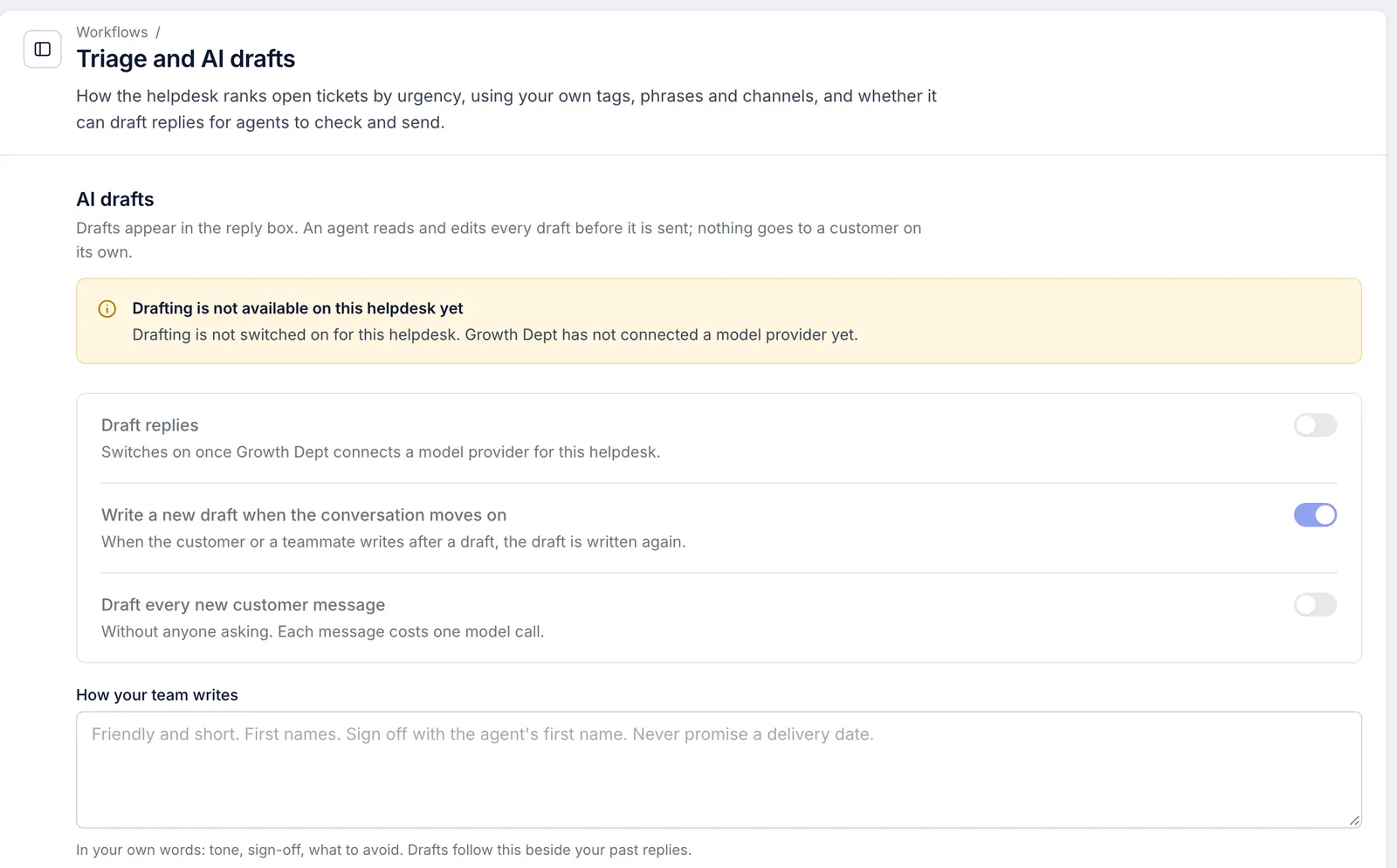
AI Agent > Voice and drafting opens the Triage and AI drafts page under Workflows. Only admins change it. The AI drafts section has three switches:
| Setting | What it does | Out of the box |
|---|---|---|
| Draft replies | Lets built-in drafting write drafts in this helpdesk. It can be switched on once Growth Dept connects a model provider. | Off |
| Write a new draft when the conversation moves on | When the customer writes again after a draft, the draft is written again so it answers the latest message. | On |
| Draft every new customer message | Writes a draft for each new customer message without anyone asking. Each one is a separate model call. | Off |
These switches apply to built-in drafting. Haylee drafts when someone on your team asks her to, whatever they say.
The rest of the page sets how open tickets are ranked by urgency; see Triage and urgency settings.
Describe how your team writes#
Use How your team writes to tell drafts how to sound, in up to 2,000 characters of plain words. For example: "Short and warm. Use the customer's first name. Sign off with your own first name. No exclamation marks. Never promise a delivery date."
Built-in drafts follow these notes alongside the replies your team has sent before. Haylee takes her voice from your macros and earlier replies; when a rule of tone matters in a particular situation, put it in that skill's steps too.
There are no ready-made personalities, no emoji switch and no separate instructions per channel. Write any of these into the box instead, for example "no emoji in email; one is fine in chat". Built-in drafts leave the signature off because the helpdesk adds one; Haylee signs the way your macros do.
Language#
There is no setting for the language drafts reply in, and no separate instructions per language. The ticket's language, or your helpdesk's when the ticket has none, only decides how words are compared when a draft looks for matching macros. Check the language when you read a draft, as you check the rest of it. If customers often write in another language, say in How your team writes which language to answer in.
Tags and ticket fields#
Haylee tags tickets when a skill tells her to and Tag the ticket is set to Does it, and she can fill ticket fields your process uses when a skill says which. Write the exact tag name into the step, such as "tag the ticket carrier-check". Built-in drafting writes the reply only and does not tag.
There is no setting that has the AI Agent fill tags or fields on every ticket by itself. For that, use rules; see How rules work.
Rules and the AI Agent#
Rules treat Haylee's changes the way they treat a teammate's: her tags, notes and updates can start rules that run on ticket updates and new messages. So a rule can, for example, assign every ticket she tags "needs-human" to your senior team. Changes made by rules themselves never start other rules.
You cannot write a rule that keeps drafts away from certain tickets. To stop drafts following a skill on some requests, narrow its When to use it, or switch the skill off.
Handing a ticket to your team#
Drafts are always read by a person, so there is no moment where the AI Agent has to hand a live conversation over. What it does instead:
A draft for a request that is unclear, angry, legal, about press, or not covered by your skills comes back with low confidence and a Check before sending note.
When a skill says a person should take the ticket, Haylee assigns it to the team the skill names (with Hand over to a team set to Does it) and leaves an internal note with what she found.
Requests that move money, such as refunds and cancellations, she proposes in an internal note unless the action is set to Does it.
Closing and snoozing#
Out of the box Haylee does not close or snooze tickets: Close the ticket and Snooze the ticket are set to Asks a person, so she suggests it in an internal note. If an admin sets them to Does it, she closes tickets that need no answer, such as a thank-you, and snoozes tickets that are waiting on something, such as a carrier, when a skill says to. She does not close a ticket a person has not answered. Each close or snooze shows her name in the ticket history, and AI Agent > Performance counts them.
Related articles
- How the AI Agent worksWhat the AI Agent does in your helpdesk, what each drafted reply is built from, and how your team stays in charge of everything a customer reads.
- Actions and what Haylee may doThe actions library, the 15 built-in actions in your helpdesk and Shopify store, and how to choose for each one whether Haylee does it, asks a person or leaves it alone.
- What drafts know about your businessEvery source a drafted reply reads, what it never sees, and how to give drafts the facts they are missing.
- Urgency settingsTune how the helpdesk scores each open ticket's urgency from 0 to 100, using waiting time, your tags, customer phrases, channels and reply targets.
Still stuck?
Write to the Growth Dept team and a person answers. Say which helpdesk you work in and what you were trying to do.