Access settings
Partly availableHow people sign in, requiring two-factor for passwords, limiting invites to your own email domain, and what each role may do.
On this page
Settings > Access gathers the rules for who gets into your helpdesk and what they can do once inside. Admins can change it; an owner is needed for the two-factor requirement. Everyone else sees the page read only. Change a setting, then select Save changes, or Discard to drop your edits.
Sign-in methods#
| Method | Status |
|---|---|
| On for everyone. Works with a personal Google account or a Google Workspace account. Owners always sign in this way. | |
| Email and password | On for everyone except owners. A password sign-in can be protected with an authenticator app. |
| Microsoft | Not available yet. |
| Single sign-on (OIDC) | Not available yet. |
Both working methods are always on and cannot be switched off. They apply to every helpdesk in your organization.
Signing in through your own identity provider, such as Okta, JumpCloud or Microsoft Entra ID, is not available. Until it is, use Google sign-in if your team works in Google Workspace, so leavers lose access when their Workspace account is closed, and deactivate their helpdesk user as well (see Manage users).
Require two-factor for password sign-ins#
Switch on Require two-factor for password sign-ins to make everyone who signs in with a password use an authenticator app. Anyone without one is asked to set it up at their next sign-in before they can get in. Google sign-ins are left to the Google account's own protection.
Only an owner of your organization can change this switch. Each person sets up their own app under Settings > Two-factor sign-in; see Two-step sign-in.
Invite domains#
By default an invite can go to any email address. To allow only your company's addresses:
Under Invite domains, type a domain such as
yourstore.comand select Add domain. Add more if your team uses several.Select Save changes.
From then on, inviting an address at any other domain from Settings > Users is refused. Remove a domain with the cross on its badge. People already in the helpdesk are not affected.
Letting anyone with a matching address join on their own, without an invite, is not available. Invite each person.
What each role can do#
The table on this page shows the six helpdesk roles side by side. The roles are the same in every helpdesk and cannot be edited; you choose a person's role on the users page. Roles and what each can do explains when to pick each one.
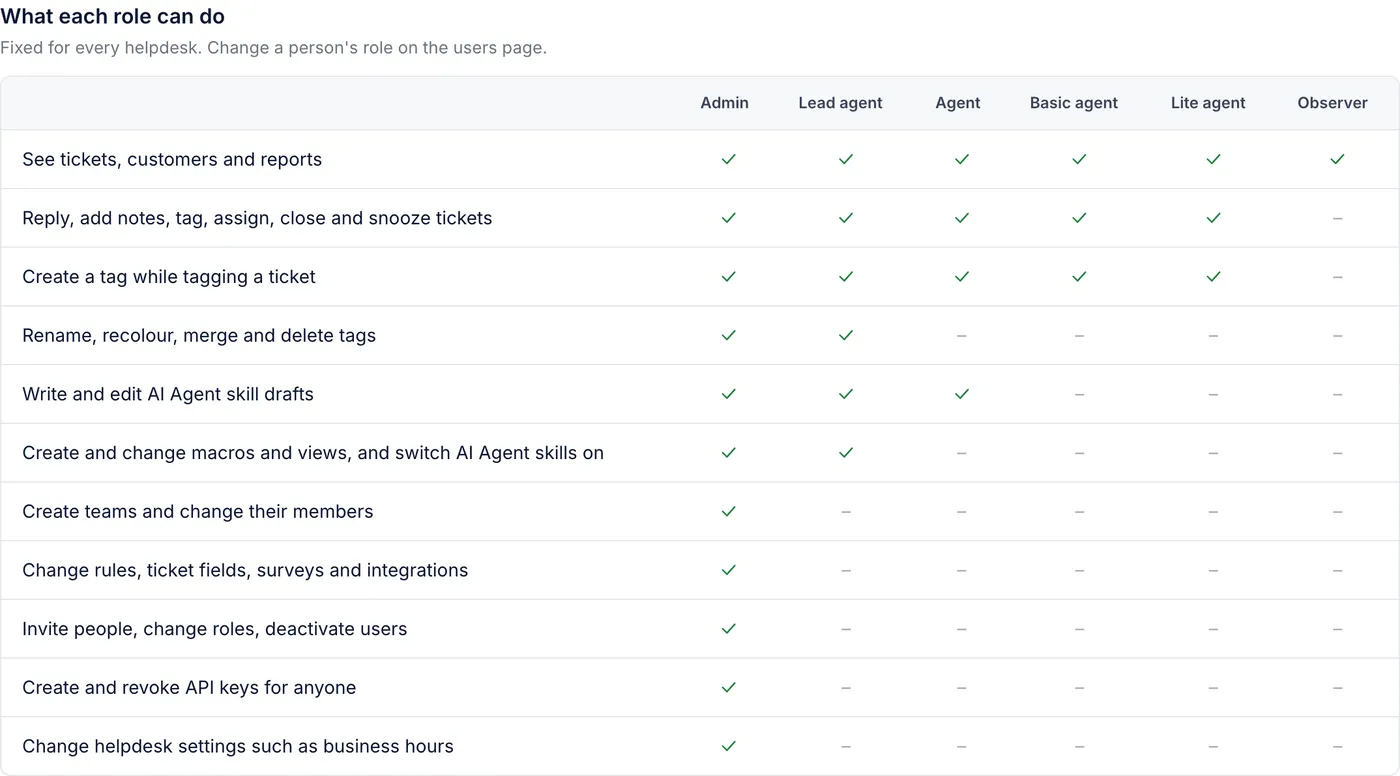
Limits on what roles can see#
Two settings below the table are not available yet:
Lite and basic agents see only tickets assigned to them or their teams. For now, every role that can read tickets sees all of them.
Hide customer profiles from observers. For now, observers see customer profiles.
Until they are, invite only people who may read every ticket and every customer profile.
When signing in misbehaves in one browser#
A stuck sign-in, a page that keeps sending you back to the sign-in screen, or Google choosing the wrong account is often caused by old cookies or a browser extension. Try a private window, which starts with no cookies and usually no extensions:
| Browser | Where to find it |
|---|---|
| Chrome | The three-dot menu, New Incognito window |
| Safari | File menu, New Private Window |
| Firefox | The menu button, New private window |
| Edge | The three-dot menu, New InPrivate window |
Sign in there. If it works, clear the helpdesk's cookies in your normal window or switch extensions off one at a time. If it fails in the private window too, Sign in and fix sign-in problems lists the other causes.
Related articles
- Two-step sign-inAsk for a code from your phone's authenticator app after your password, keep recovery codes for a lost phone, and turn it off again.
- Manage usersInvite people, change their role, deactivate someone who has left and hand the owner role to someone else.
- Roles and what each can doThe six helpdesk roles from Admin to Observer, the organization roles above them, and a table of what each role may change.
- Sign in and fix sign-in problemsHow to sign in with Google or a password, reset a forgotten password, use a two-factor code, and what each sign-in error means.
Still stuck?
Write to the Growth Dept team and a person answers. Say which helpdesk you work in and what you were trying to do.