Refund, cancel, duplicate and replace orders
Refund, cancel, copy or replace a Shopify order, change its address or resend its email from the ticket, with Shopify's own figures shown before anything runs.
On this page
Open an order in the ticket's side panel and its buttons are at the bottom: Refund, Cancel, Duplicate, Replacement, Change address and Resend email. Each opens a short form. Review then asks Shopify for the exact figures and shows you what confirming will do. Nothing changes in Shopify until you select the confirm button.
The buttons work once an admin has switched on Order actions for the store in Settings > Store; see Connect your Shopify store.
Who can do what#
| Role | Review any action | Run Duplicate, Change address, Resend email | Run Refund, Cancel, Replacement |
|---|---|---|---|
| Observer | No | No | No |
| Lite agent, basic agent | Yes | Yes | No |
| Agent, lead agent | Yes | Yes | Only when Agents can run money actions is on |
| Admin | Yes | Yes | Yes |
Refunds, cancellations and free replacements count as money actions because they return money or give goods away. Agents can run money actions is a switch on the store's card in Settings > Store, and it starts off. When your role cannot run an action, the review says that only an admin can run it and the confirm button stays greyed out. The plan you reviewed is not passed to anyone, so ask an admin to open the order and run the action themselves.
Haylee, the AI agent, follows the same table as an agent, and each action also has its own setting for her in AI Agent > Actions. She runs an order action only when it is set to on there. See Actions and what Haylee may do.
Run an action#
Open the ticket and, in the side panel, select the order to open it.
Select the action's button.
Fill in the form, then select Review. The helpdesk reads the order from Shopify again and works out the result.
Read the plan. It has a title such as "Refund $42.00 on #1001", a line for each thing that will happen, and warnings in amber. Back returns you to the form.
Select the confirm button. Its label says what it does: Refund $42.00, Cancel the order, Create the draft, Create the replacement draft, Change the address or Send the email.
The dialog says Done in Shopify and the order is read again. When you acted from a ticket, an internal note on the ticket records what was done, such as the amount refunded and whether Shopify emailed the customer.
A reviewed plan is good for 15 minutes. When you confirm, the helpdesk reads the order once more. If it changed in the meantime, for example someone refunded part of it in Shopify, the helpdesk stops before sending and asks you to review again. If Shopify does not answer in time, the dialog says it is unclear whether the change went through. Run it again after two minutes: the helpdesk first checks what Shopify already did, so the same refund or draft is not made twice.
The helpdesk acts only on an order that belongs to the ticket's customer, matched by their Shopify customer record, email address or phone number. On the new ticket form the buttons stay greyed out; open the ticket or the customer's profile to act.
Refund#
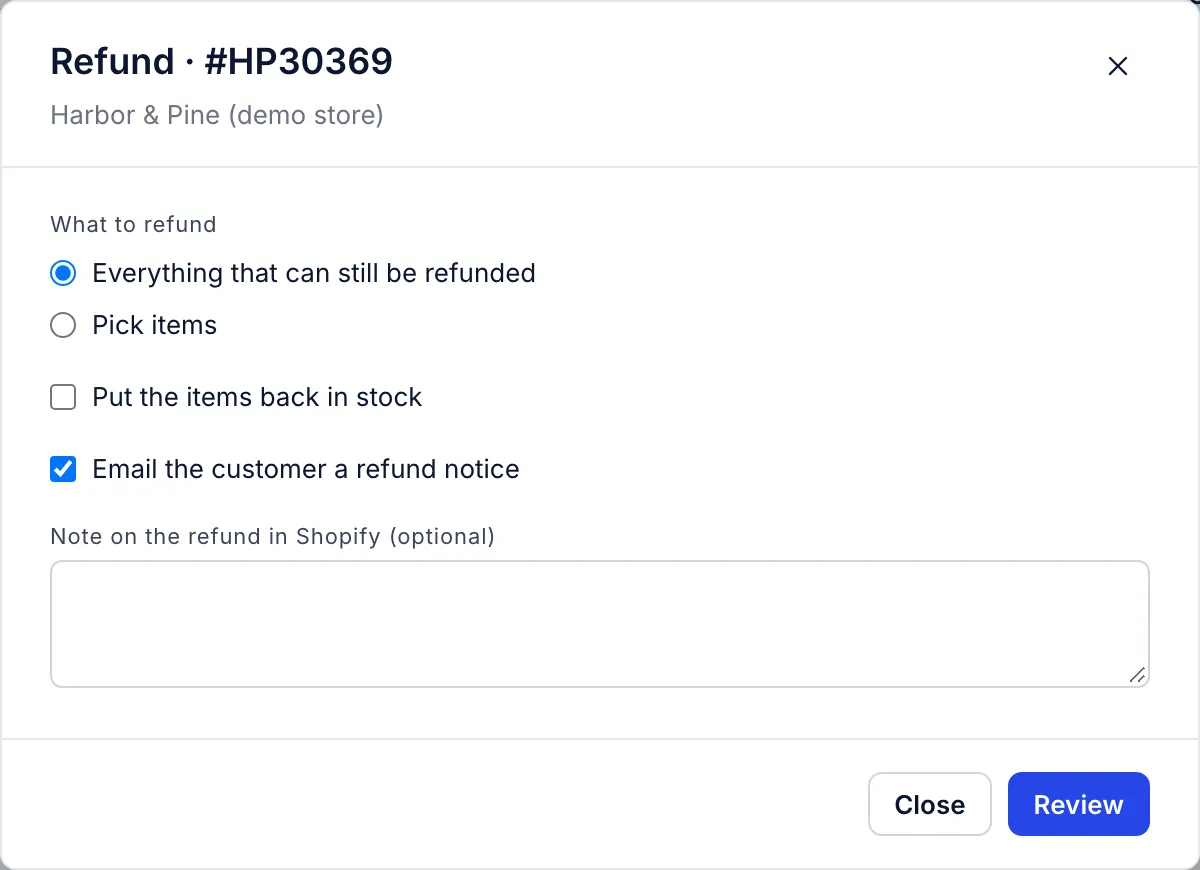
| Option | What it does |
|---|---|
| Everything that can still be refunded | Every item not yet refunded, plus the shipping charge |
| Pick items | Choose items and quantities, up to what is still refundable, and tick Refund the shipping charge if it should go back too |
| Put the items back in stock | Off unless you tick it. Items that had not shipped go back to stock straight away; shipped items are restocked as a return |
| Email the customer a refund notice | On unless you untick it. Shopify sends its own refund email |
| Note on the refund in Shopify (optional) | Up to 500 characters, saved on the refund in Shopify |
The amount is Shopify's own calculation for what you picked, tax included. You cannot type a different amount; for a partial amount that does not match items or shipping, refund in Shopify. The money goes back to the payments the customer made, and the review lists each one. If the customer paid in another currency, the refund is in that currency and the review also gives the amount in the store's currency.
A cancelled order cannot be refunded from the helpdesk; refund it in Shopify. Neither can an order with nothing left to refund, or one with no payment Shopify can send money back to. On orders with more than 50 items, only the first 50 can be picked.
Cancel#
Cancelling here works for an order that is still unfulfilled, scheduled or on hold. Once any part of it has shipped, handle it as a return in Shopify.
| Option | What it does |
|---|---|
| Reason | The customer asked, Out of stock, Payment declined, Looks fraudulent, Staff mistake or Something else. Saved on the order in Shopify |
| Refund the payment | On unless you untick it. Refunds what was paid to the original payment methods. Unticked, any payment taken stays on the order for someone to settle in Shopify |
| Put the items back in stock | On unless you untick it |
| Email the customer that the order is cancelled | On unless you untick it |
| Staff note in Shopify (the customer does not see it) | Up to 500 characters |
A payment that was only authorised is released either way. Cancelling cannot be undone. Shopify finishes the cancellation in the background, usually within a minute.
Duplicate#
Makes a draft order in Shopify with the items you choose, for the same customer, email address, shipping address and currency. Use it to set up a reorder or an exchange the customer pays for.
Choose quantities for each item; the form starts with the quantities on the original order.
Prices are today's prices, not what the customer paid. An item that is no longer a product in the store is copied as a custom item at its original price, and the review warns you.
Items removed from the original order are left out.
Note on the draft (optional) goes on the draft, up to 500 characters. Without one, the note says the draft is a copy made from the helpdesk.
The draft is tagged
helpdesk-duplicateand has no shipping charge.
Nothing is charged until someone completes the draft in Shopify. After the draft is made, the dialog shows its number and an Open in Shopify link.
Replacement#
Makes a draft order at 100% off for the items you choose, to the same customer and shipping address. Use it for a damaged or missing item.
Choose quantities, up to the number ordered.
Why it is being replaced (optional, shown on the draft) takes up to 200 characters.
The review warns when an item is out of stock or not for sale. An item that is not a product in the store cannot be replaced from here.
The draft is tagged
helpdesk-replacement.
The replacement ships only after someone completes the draft in Shopify. The form sends the same items again; sending a different size or colour is possible only through the REST API.
Making a second draft#
If a duplicate or replacement draft was already made for the same order in the last 30 minutes, confirming stops and names that draft, in case someone already did it. Select Make another draft if you do want a second one.
Change address#
Works until the order ships: while it is unfulfilled, scheduled, on hold, open or waiting to be fulfilled. The form starts with the current address. Street, City and a two-letter Country code such as US are required. You can also change First name, Last name, Company, Apartment, suite (optional), Postal code, State or province code and Phone for the carrier (optional).
The review shows the old and new address side by side. Shopify does not email the customer about the change, so tell them in your reply. Once the order has shipped, a new address would not reach the parcel: contact the carrier, or send a replacement.
Resend email#
Asks Shopify to email the order to the address on it again; the review shows where it goes. Shopify sends this email as an invoice, and it only sends invoices for an order that still has money owing. The button is therefore greyed out for an order that is paid in full. To send a paid customer their confirmation again, open the order in Shopify with Open in Shopify.
Why a button is greyed out#
The reason appears when you hold the pointer on the button.
| Reason | What to do |
|---|---|
| Order actions are off for this store | An admin switches on Order actions in Settings > Store |
| Your role cannot act on orders | Ask someone with a different role (see the table above) |
| Open a ticket or customer to act on their orders | You are on the new ticket form; open the ticket or the customer's profile |
| Cancelled orders are refunded in Shopify | Refund it in Shopify |
| Nothing left to refund | The order is already refunded in full |
| Items have shipped | Handle it as a return in Shopify |
| It has shipped, so a new address would not reach it | Contact the carrier, or send a replacement |
| The order has no email address | Add one in Shopify first |
| Paid in full | Open the order in Shopify to email the customer |
If the store's app is missing a permission an action needs, Review names it. An admin adds it in Shopify, or asks Growth Dept for a store Growth Dept linked, then selects Check again in Settings > Store.
A record of every action#
Each action run from a ticket leaves an internal note on the ticket, written in the name of whoever ran it. Every plan, attempt and result is also kept in the order action log with the order, amount, person and reason. The log can be read through the REST API; there is no page for it in the helpdesk yet.
Not available#
Creating a new order from scratch, or adding and removing items on an existing order. Use Duplicate for a new draft, or edit the order in Shopify.
Editing Shopify order or customer tags and notes from the helpdesk. Make the change in Shopify.
Discount codes. Create them in Shopify and paste the code into your reply.
Running order actions from a macro. Macros can still put order details into a reply; see Variables in macros.
Related articles
- Orders beside each ticketRead a customer's Shopify orders, payment and shipping status, tracking and refunds in the ticket's side panel, and know how fresh they are.
- Connect your Shopify storeLink your Shopify store with the Growth Dept Helpdesk app, a custom app's token or Growth Dept's own connection, then turn on order actions.
- Actions and what Haylee may doThe actions library, the 15 built-in actions in your helpdesk and Shopify store, and how to choose for each one whether Haylee does it, asks a person or leaves it alone.
- Roles and what each can doThe six helpdesk roles from Admin to Observer, the organization roles above them, and a table of what each role may change.
Still stuck?
Write to the Growth Dept team and a person answers. Say which helpdesk you work in and what you were trying to do.