Tags
Label tickets by topic so views, rules, macros and reports can find them, and keep the tag list tidy with descriptions, colours and merges.
On this page
A tag is a short label on a ticket, such as damaged or order-status. Agents add tags while they work, rules and macros add and remove them for you, and views, rules and the Tags report use them to find tickets. A ticket can carry as many tags as it needs.
 6. Setting up tags
Tag a ticket#
Open the ticket. Its tags sit at the top of the right-hand panel, under Ticket details.
Select the + button next to them, or press T.
Start typing. Pick a tag from the list, or finish typing a new name to create that tag on the spot.
To take a tag off, select the × on it. Capital letters do not matter: VIP and vip are one tag.
A ticket you start yourself has its own Add tags button on the new ticket form.
Tag many tickets at once#
In a view, tick the tickets you want, then:
in the table layout, select Tag above the list and choose the tag;
in the narrow list beside an open ticket, open More actions (the … button) and choose Add a tag….
The tag goes on the tickets you ticked on the current page. When you have selected every ticket in the view, the Tag button is greyed out; tag a whole view with a rule instead. Removing a tag from many tickets at once is not available either, so use a rule with the Remove tags action for that. Act on many tickets at once covers the rest of the selection bar.
Let rules and macros tag for you#
A rule can Add tags or Remove tags when a ticket arrives, changes or gets a new message, and its conditions can test Tags with includes any of, includes all of, includes none of, does not include all of, is empty and is not empty. See Rule conditions and actions.
A macro can add or remove tags when the agent sends its reply. See Macro actions.
No action wipes every tag off a ticket in one go. Add tags only adds; list the tags you want gone in a Remove tags action.
The tag list#
Workflows > Tags lists every tag with its colour, its description, how many tickets carry it (Tickets) and when it was made (Created). The busiest tags come first. Select a column heading (Tag, Tickets or Created) to sort by it, and select it again to flip the order. The search box matches names and descriptions.
| Role | What they can do here |
|---|---|
| Observer | See the list |
| Lite agent, basic agent and agent | See the list and create tags |
| Lead agent and admin | Create, edit, merge and delete tags |
Every role except observer can also create a tag from a ticket by typing a new name.
A new helpdesk has no tags. There is no starter set: the list fills up as your team, your rules and your macros use names.
Create a tag#
Go to Workflows > Tags and select Create tag.
Enter a Name, up to 100 characters. Agents choose tags by name, so short and specific works best.
Add a Description if you like, such as when to use it. It shows in the list and the search box matches it.
Pick a Colour: one of the ten swatches, a hex code such as
#2546e8, or None. A new tag saved without a colour gets a soft one chosen from its name.Select Create tag.
Edit or delete a tag#
Select the pencil on a tag's row to change its name, description or colour, then Save tag. A renamed tag stays on all of its tickets.
Select the bin on a row to delete one tag, or tick several and select Delete above the list. The confirmation says how many tickets carry them. Deleting takes the tag off every ticket and off the list; views that filter on it simply stop matching those tickets.
The helpdesk refuses to delete a tag while a rule or macro still uses it, and the message names that rule or macro. Change or delete the rule or macro first, then delete the tag.
Merge duplicate tags#
When two tags mean the same thing, such as refund and refunds, merge them:
On Workflows > Tags, tick both tags (or more than two).
Select Merge.
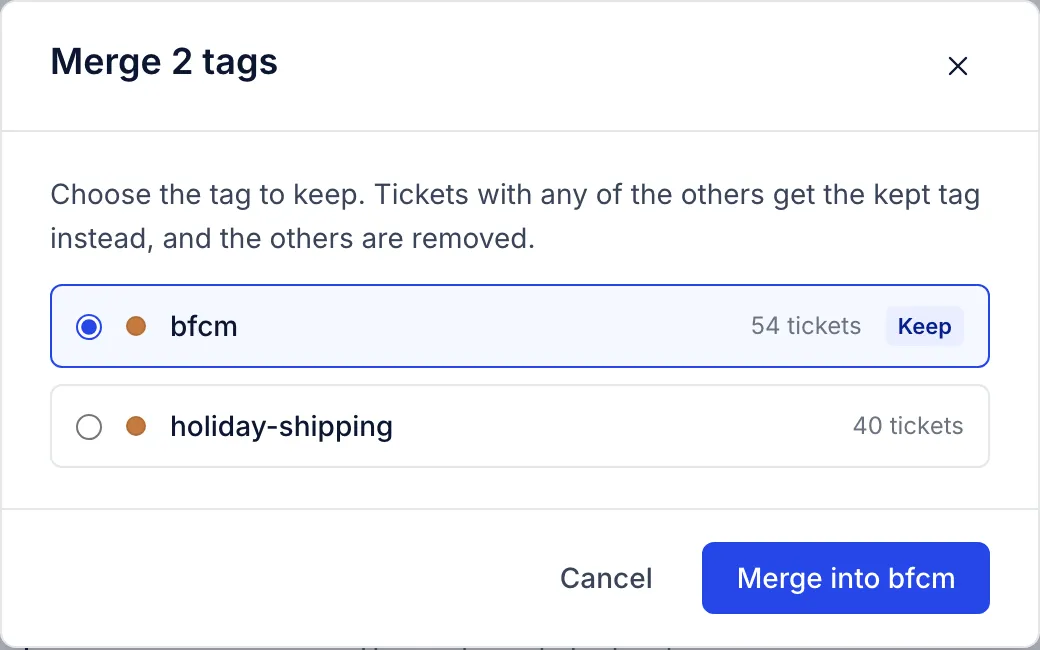
Choose the tag to keep. The one on the most tickets is chosen for you.
Select Merge into followed by the kept tag's name.
Every ticket that had one of the other tags now has the kept tag, and the others are deleted. There is no undo.
Where tags show up#
Views filter on them, so a queue such as "damaged items, last 30 days" is one condition. See Filters for views and search.
The macros list can be filtered by the tags a macro adds.
Analytics has a Tags report with ticket counts per tag over time. See Tags report.
Related articles
- Views and sectionsBuild the ticket queues in the inbox sidebar, decide who sees each one, group them into sections, and choose which built-in views each agent keeps in sight.
- Rule conditions and actions referenceEvery field a rule can check, the operators each one offers, how matching works, and every action a rule can take.
- Macro actionsWhat a macro can change on a ticket when the reply goes out, how to set each action up, and what to use for jobs a macro cannot do.
- Tags reportSee which tags come up most, how many tickets carry no tag, and how quickly and how well each kind of ticket is resolved.
Still stuck?
Write to the Growth Dept team and a person answers. Say which helpdesk you work in and what you were trying to do.