Routines
Have Haylee answer the same question on a schedule, such as a Monday summary or a morning check for upset customers, and carry on from each answer.
On this page
A routine is a question Haylee answers for you on a schedule: every day, every weekday, once a week or once a month, at a time you choose. Use one for anything you would otherwise ask her every week, like a summary of last week or a list of customers who are getting upset.
Lead agents and admins create and change routines. Everyone can read them and their runs. A helpdesk can have up to 10.
Create a routine#
In the Assistant, click + next to Routines in the left sidebar, or open Routines and click Create routine.
Start from a template, or write your own:
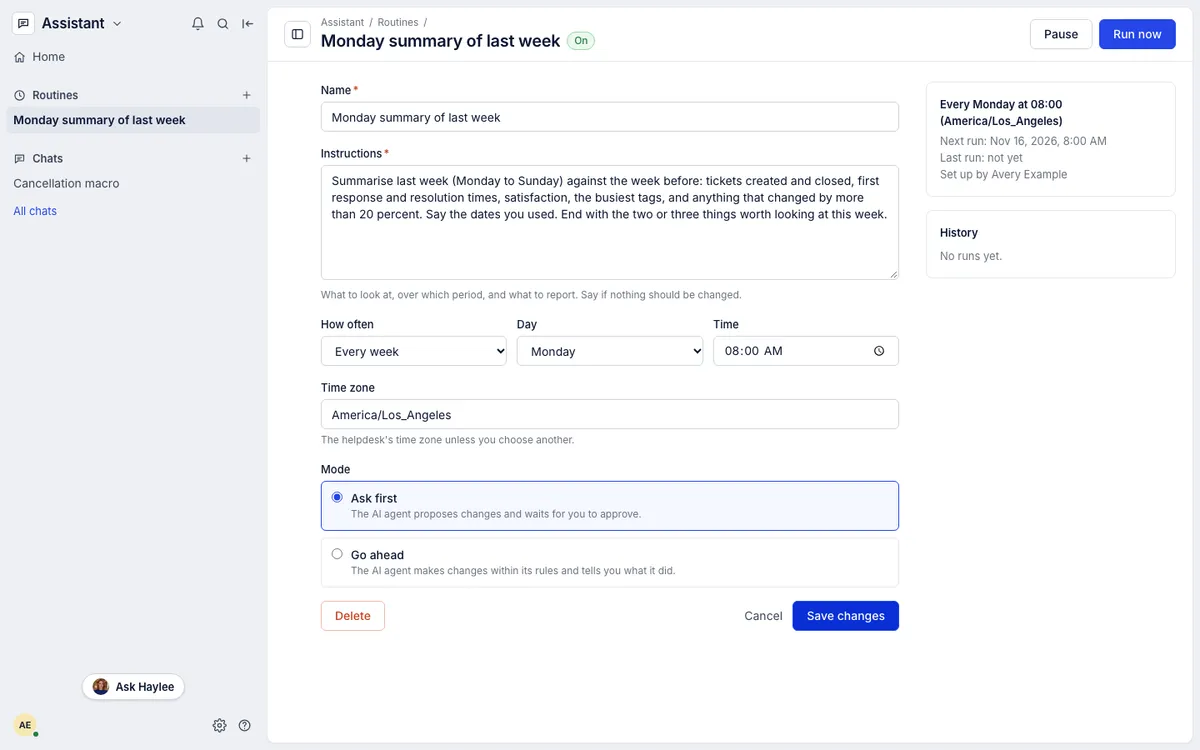
Name, so you can find it.
Instructions: what to look at, over which period and what to report. Say so if nothing should be changed, for example "Recommend only; make no changes."
How often, the day for a weekly or monthly routine, and the Time. The time zone is the helpdesk's unless you change it.
Mode: Ask first (Haylee proposes any change and waits) or Go ahead. See Chat with Haylee in the Assistant.
Click Create routine. The page shows when it runs next.
The templates cover a Monday summary of last week, a morning check for upset customers, topics no skill covers, a tidy-up of macros and rules, and a report on how Haylee's drafts were used.
Runs#
Each run opens a new chat marked Routine run, with the instructions as its first message. Haylee answers it like any message, usually within a few minutes of the scheduled time. Open a run from the routine's History or from All chats, and ask follow-up questions in it.
Run now starts a run straight away without changing the schedule. It waits while an earlier run has not been answered.
If no AI agent is linked when a run is due, that run is skipped and the routine moves on to its next time.
Change, pause or delete#
Open the routine to change it; the next run is worked out again when you save. Pause stops its runs until you click Resume. Delete stops it for good; its past runs stay in your chats.
Related articles
- Chat with Haylee in the AssistantAsk Haylee about your helpdesk or have her build macros, rules, skills and actions, in chats that keep their history, with her changes proposed for your approval first.
- Analytics overviewFind the reports, read the ten headline figures on the Overview page, see how each moved against the period before and chart any of them over time.
- SkillsCreate, switch on, change and archive the skills that tell drafted replies and Haylee how your team handles each kind of request.
- Link or unlink the AI agent accountGive Haylee her own account and key in your helpdesk, replace the key, choose whether her skills need approval, or remove her access.
Still stuck?
Write to the Growth Dept team and a person answers. Say which helpdesk you work in and what you were trying to do.