Link or unlink the AI agent account
Give Haylee her own account and key in your helpdesk, replace the key, choose whether her skills need approval, or remove her access.
On this page
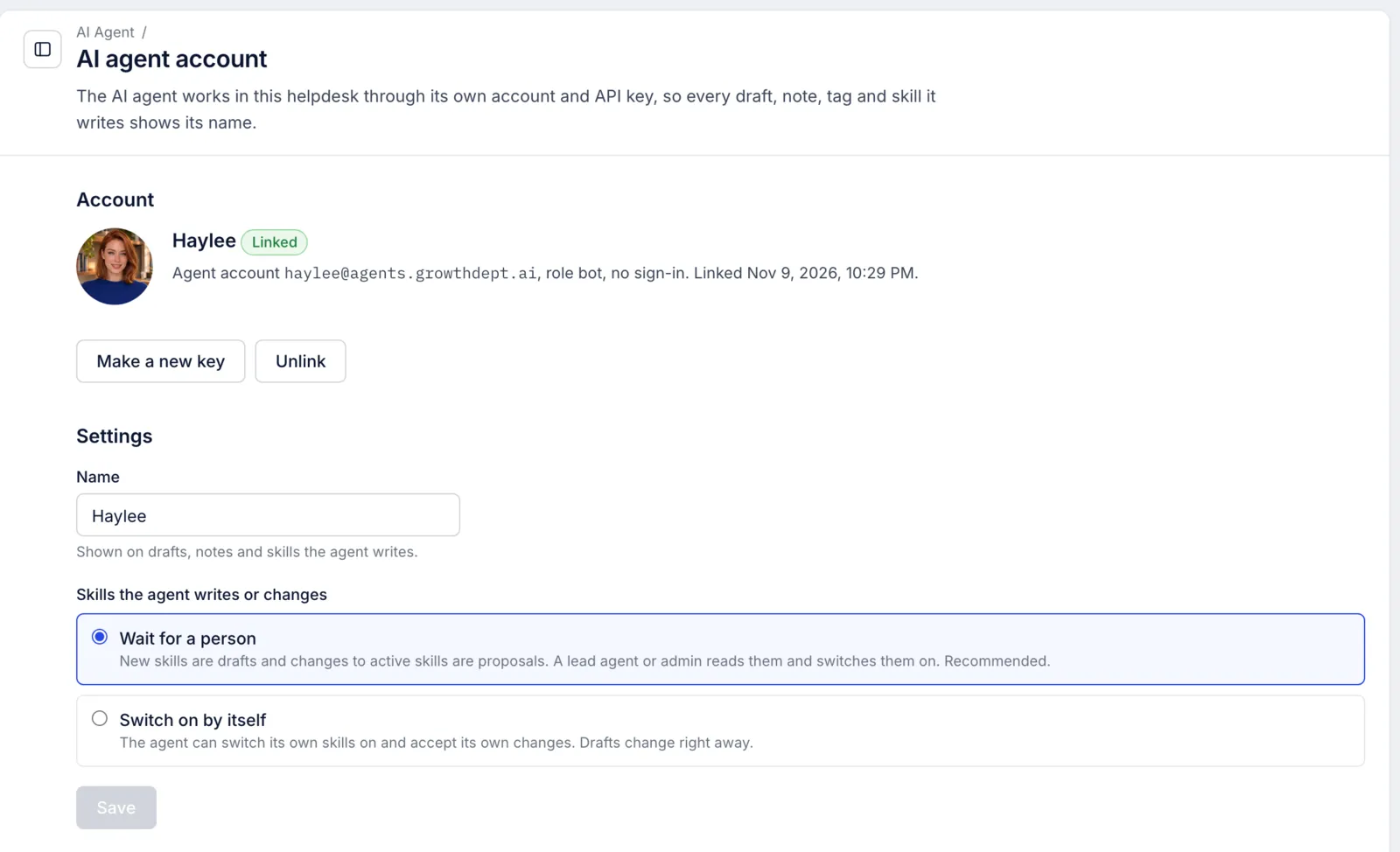
Haylee works in your helpdesk through an account of her own and an API key that belongs to that account. Linking creates both; unlinking stops the key working at once. Everything happens on AI Agent > AI agent account, and only admins can change it. Everyone else sees the page read-only.
Growth Dept normally links Haylee when it sets up your helpdesk, so most teams never need this page except to rename her or change how her skills are approved.
Video coming: How Haylee works in your helpdesk. Haylee's own account and key, her drafts, notes and skills, and where to review them.
What linking creates#
| Account | An agent in your helpdesk with the role bot and the email haylee@agents.growthdept.ai. The address only identifies her; nothing is sent to it, and the account cannot sign in to the helpdesk pages. |
| Key | An API key for that account. Haylee uses it to read tickets and to leave drafts, notes, tags and skills, so all of it is recorded under her name. |
The page shows whether she is Linked, when, and for each key when it was made and last used. Only the start of a key is ever shown again.
Link Haylee#
Open AI Agent > AI agent account. The page says Not linked.
Check the name under Settings; it is the name the account gets.
Click Link Haylee.
Copy the key straight away. It is shown once, with the username beside it: Haylee signs in to the API with her account email as the username and the key as the password.
Give the key to Growth Dept privately, never in a Slack channel or a shared email thread. Growth Dept stores it on the machine Haylee runs on.
If Haylee was linked before and later unlinked, linking again brings back the same account, with her earlier drafts, notes and skills still under her name, and gives her a new key.
Make a new key#
Use this if a key may have been seen by someone it should not have, or Growth Dept asks for a fresh one.
Click Make a new key and confirm.
The old key stops working at once. Copy the new one and give it to Growth Dept privately, before Haylee next needs to work on tickets.
Until Growth Dept stores the new key, Haylee cannot reach your helpdesk, and questions in Ask Haylee wait unanswered.
Choose how her skills are approved#
Skills the agent writes or changes has two choices:
| Choice | What happens |
|---|---|
| Wait for a person | New skills she writes are drafts, and her changes to active skills are proposals. A lead agent or admin reads them and switches them on. This is the default and the recommended choice. |
| Switch on by itself | She can switch her own skills on and accept her own changes, so what she writes reaches drafts straight away. |
Pick one and click Save. With Switch on by itself she can also switch skills off and archive active ones, the way a lead agent can.
Rename her#
Type a new Name, up to 60 characters, and click Save. It changes the name on her drafts, notes and skills in this helpdesk. See Haylee, Growth Dept's AI agent.
Unlink Haylee#
Click Unlink and confirm.
Her keys stop working at once and her account is switched off. Drafts, notes and skills she wrote stay where they are, marked with her name.
After unlinking, Ask Haylee says she is not linked, and the AI Agent overview shows a Link Haylee button to admins. Active skills stay active, because they belong to your helpdesk, not to her.
Related articles
- Haylee, Growth Dept's AI agentWho Haylee is, what she does in your helpdesk and in Slack, what she never does, and how to ask her for help from any page.
- SkillsCreate, switch on, change and archive the skills that tell drafted replies and Haylee how your team handles each kind of request.
- The REST API and API keysFind your API address, create and revoke keys, and connect your own scripts and tools to the helpdesk, including tools written for Gorgias.
- Roles and what each can doThe six helpdesk roles from Admin to Observer, the organization roles above them, and a table of what each role may change.
Still stuck?
Write to the Growth Dept team and a person answers. Say which helpdesk you work in and what you were trying to do.