Connect a Gmail or Google Workspace mailbox
Connect your support mailbox so its mail arrives as tickets within a minute and replies go out from Gmail in the customer's own thread.
On this page
An admin connects the mailbox once from Settings > Email. After that, new mail in its inbox becomes tickets within a minute, and every reply your team sends goes out through Gmail, in the same thread the customer started.
Gmail and Google Workspace work the same way here: Workspace is Google's paid package for companies, and its mail runs on Gmail. A personal @gmail.com address connects too. If your support address is with another provider (Outlook, Zoho, your web host), forward it to the helpdesk instead.
Before you start#
You need the admin role in the helpdesk. Other roles can see the Email page but not change it.
You need to be able to sign in to the Google account that owns the mailbox. Connect its main address; an alias or a group address is handled with the address filter below.
Decide how much past mail you want: the last 30 days, the last 7, or nothing before today. Older mail can be brought in afterwards with Import older email.
Connect the mailbox#
Open Settings > Email.
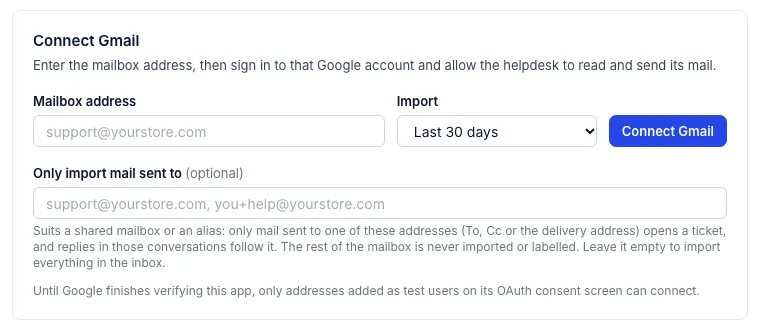
Under Connect Gmail, type the mailbox's address in Mailbox address.
In Import, choose Last 30 days, Last 7 days or From now on.
Optional: fill in Only import mail sent to (see the next section).
Click Connect Gmail. Google asks you to pick an account: pick the one that owns the mailbox, and leave every Gmail permission ticked on Google's screen.
Google sends you back to the Email page, which confirms the connection. Past mail you chose to import starts coming in at once, and the card shows its progress.
The helpdesk asks Google for permission to read and send the mailbox's mail, and nothing else in the Google account.
If connecting fails#
| What you see | What to do |
|---|---|
| Connecting the mailbox was cancelled on Google's screen | You closed or declined Google's consent screen. Start again. |
| You chose a different Google account from the mailbox you asked to connect | On Google's account picker, choose the account that owns the address you typed. |
| Google did not give the helpdesk permission to read and send this mailbox's mail | Connect again and leave every Gmail box ticked on Google's screen. |
| Gmail reports a different address for this account | You typed an alias. Connect the account's main address and add the alias to Only import mail sent to. |
| Sign in as the person who started connecting the mailbox | Finish the connection in the same browser and helpdesk sign-in you started from. |
Shared mailboxes and aliases#
Many teams read support mail in a mailbox that also receives other mail, or receive it through an alias such as help@ that lands in someone's inbox. Only import mail sent to handles both. List the addresses that should become tickets, one per line or separated by commas, up to 20.
Mail sent to one of them, whether in To, Cc or as the delivery address, opens a ticket.
Later replies in those conversations follow it, even when the customer writes back to the main address.
Everything else in the mailbox stays out of the helpdesk and is never labelled.
Replies to these customers ask them to answer at the address they wrote to.
Leave the box empty to bring in the whole inbox.
What comes in, and what stays out#
Mail in the inbox becomes tickets. A message that continues a conversation joins its ticket; the helpdesk matches conversations by Gmail's thread and by the reply headers mail programs add, never by the subject line alone, so two customers who both wrote "Order question" stay on separate tickets.
Spam, trash, drafts and Google Chat messages are skipped.
A conversation your mailbox started and nobody answered stays out.
Out-of-office replies, bounces and newsletters still become tickets, tagged
auto-reply,bounceorbulk, and rules never send automatic answers to them.Attachments and pictures in the mail come in with the message. Attachments larger than 25 MB are left out.
New mail is picked up within a minute. When Gmail push is set up on the helpdesk's side, the mailbox card says so and mail arrives as soon as Gmail reports it.
Replies#
Replies your team sends from a ticket go out through Gmail, from the mailbox, in the customer's thread. They also appear in the mailbox's Sent folder. The helpdesk never sends a Gmail mailbox's replies through any other mail service; if Gmail refuses one, the ticket shows why (see When an email reply is not delivered). Attachments on a reply can add up to 25 MB, Gmail's limit.
If someone answers the customer from Gmail itself, that reply joins the ticket as a message from your team and is not sent a second time. Close the ticket in the helpdesk when the conversation is done. Mail the mailbox sends outside any ticket stays out of the helpdesk.
The mailbox card#
Once connected, the mailbox has a card on the Email page with its status (Connected, Importing, Needs reconnecting or Disconnected), when it last checked for mail, and these buttons:
Check now looks for new mail at once.
Reconnect signs in to Google again.
Disconnect stops reading and sending. Tickets and messages stay, and you can connect the mailbox again later.
Under Sender name, signature, what to import and Gmail label you can change:
| Setting | What it does |
|---|---|
| Sender name | The name customers see beside the address on every reply. |
| Replies show as | The sender name alone, or the agent's name followed by it ("Sam at Harbor & Pine"). |
| Make this the default mailbox | New email tickets that do not name a mailbox are sent from it. Shown on a mailbox that is not the default yet; the default one carries a Default sender badge. |
| Signature | Text added under every reply from this mailbox. See Email signatures. |
| Label imported mail in Gmail | Gives each message the helpdesk brings in a Gmail label, "Growth Dept Helpdesk" unless you rename it, so you can tell handled mail apart in Gmail. |
| Import | Choosing a longer window later brings in the older mail the first import skipped. Mail already in stays. |
| Only import mail sent to | The address filter described above. |
Click Save mailbox settings to keep changes.
Reconnect a mailbox#
Google sometimes stops accepting a connection: someone changed the account's password, removed the helpdesk's access in their Google account, or an administrator changed the Workspace's rules. The card then shows Needs reconnecting in red.
Click Reconnect and sign in to the same Google account. Replies that were waiting while the mailbox was cut off are sent as soon as it reconnects, and the confirmation says how many.
Common questions#
Some customer emails never became tickets. Check, in this order: whether the mail went to Gmail's spam folder, whether Only import mail sent to leaves its address out, whether it arrived before the import window, and whether it is a conversation your mailbox started that nobody answered.
Can I connect Outlook or Microsoft 365? Not directly. Forward the address instead; see Outlook and Microsoft 365 mailboxes.
Gmail sorts mail into Social, Promotions and Updates. Do those become tags? No. Gmail's inbox categories are not copied. Automatic mail is tagged as described above.
Related articles
- Forward a support address from any mail providerSet up forwarding from Outlook, Zoho or any other provider, see how replies are sent, and why no DNS records or domain verification are needed.
- Import older emailBring up to two years of past conversations from a connected Gmail mailbox into the helpdesk as tickets, without sending anything or running rules.
- Email signaturesGive each mailbox a signature that is added under every email reply, with the sending agent's name filled in for you.
- Email, your store and several mailboxesHow mailboxes, Shopify stores and helpdesks fit together, which address a reply comes from, and when a second brand needs its own helpdesk.
Still stuck?
Write to the Growth Dept team and a person answers. Say which helpdesk you work in and what you were trying to do.