Orders beside each ticket
Read a customer's Shopify orders, payment and shipping status, tracking and refunds in the ticket's side panel, and know how fresh they are.
On this page
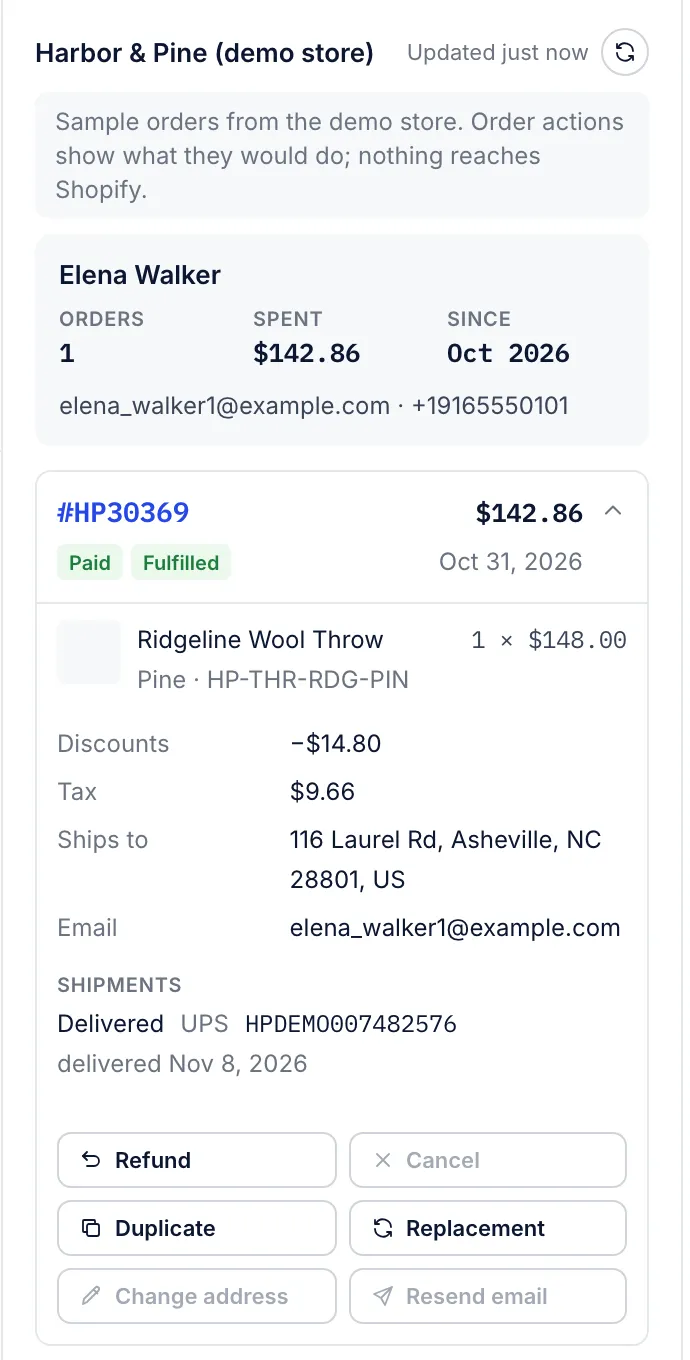
With a store connected, the right-hand panel of every ticket has a section for the store under the customer's details. It shows the matching Shopify customer and their latest orders, read from Shopify when you open the ticket. The same section appears on the customer's profile and on the form for a new ticket once you have chosen the customer.
Every role can read it, observers included. Acting on an order needs more; see Refund, cancel, duplicate and replace orders.
How the customer is matched#
The helpdesk looks the person up in Shopify by email address first, then by phone number. It uses the addresses saved on the helpdesk customer: up to three email addresses and two phone numbers. A phone number only matches when it is saved in international form, such as +15551234567. When the match came from a phone number, the section says Matched by phone number.
If nobody in Shopify has those details, the section says so. The usual cause is a customer writing from a different address from the one they used at checkout. Add that address to the customer's profile, or merge the two customer profiles if both exist; the section picks it up the next time it reads Shopify. How tickets find their customer and Merge customers cover both.
The customer summary#
The top of the section shows the Shopify customer:
| Item | Meaning |
|---|---|
| Name and Shopify link | The customer's name in Shopify; the link opens them in your Shopify admin |
| Orders | Every order they have placed, from Shopify's own count |
| Spent | What they have spent with the store in total |
| Since | The month they became a customer in Shopify |
| Email and phone | The details on their Shopify profile |
| Tags | Their customer tags from Shopify |
Their orders#
The eight most recent orders are listed newest first, and the newest one starts opened. Each order shows its number, total, date and badges for its payment and fulfilment status in Shopify's terms, such as Paid, Partially refunded, Unfulfilled or Fulfilled. A cancelled order also has a red Cancelled badge. The total is in the currency the customer paid in.
Select an order to open or close it. Opened, it shows:
each item with its picture, variant, SKU, and quantity times price. 2 of 3 means one of three was taken off the order. The first ten items appear; More items in Shopify. marks a longer order;
the shipping charge, discounts, tax and anything refunded so far;
Ships to, the shipping address, and the email address on the order;
Shipments: each parcel's status, carrier and tracking number, which links to the carrier's tracking page, and the delivery date once Shopify has one;
Refunds: the date and amount of each refund;
Open in Shopify, the order in your Shopify admin, and Status page, the order status page the customer sees;
the order action buttons.
When the customer has more orders than the panel lists, a link at the bottom (All 16 orders in Shopify, for example) opens the full list in Shopify. Orders more than 60 days old may be missing from the panel even when they count towards Orders; Shopify questions explains why.
How fresh the orders are#
The store's heading says when the helpdesk last read Shopify, such as Updated 4 min ago. The helpdesk keeps a copy for two minutes; open the ticket after that and it reads Shopify again. To read it at once, select the round arrow next to the heading (Read again from Shopify).
Shopify also notifies the helpdesk about new and changed orders, and the copy is refreshed in the background. That depends on how the store is connected; Connect your Shopify store explains the difference.
When Shopify does not answer, the panel keeps showing the last copy, marked Last read with the reason underneath. The store is still connected; select the round arrow again in a minute.
When the section shows something else#
| You see | What it means |
|---|---|
| No Shopify store connected | No store is connected yet. Admins get a Connect a store link |
| The Shopify connection needs attention | Shopify refuses the helpdesk's access token, for example after it was revoked or replaced in Shopify. Admins get an Open store settings link |
| Growth Dept's store connection needs attention | The store is linked through Growth Dept, and Growth Dept has to link it again |
| A line in amber over the orders | The last read failed, and the orders are from the copy |
| No orders yet. | The customer is in Shopify but has not ordered |
| Greyed-out action buttons | Hold the pointer over one to see why. Order actions lists the reasons |
Several stores#
Each connected store gets its own section with its own customer match and orders, so a customer who bought from two of your stores shows up twice.
Store data elsewhere#
Macros can put order details into a reply, such as the latest order's number or tracking link. Variables in macros lists them.
Haylee, the AI agent, can look up a customer's orders when Look up an order is on in AI Agent > Actions. See Actions and what Haylee may do.
Related articles
- Connect your Shopify storeLink your Shopify store with the Growth Dept Helpdesk app, a custom app's token or Growth Dept's own connection, then turn on order actions.
- Refund, cancel, duplicate and replace ordersRefund, cancel, copy or replace a Shopify order, change its address or resend its email from the ticket, with Shopify's own figures shown before anything runs.
- How tickets find their customerHow the helpdesk picks each ticket's customer from an email address, when it makes a new profile, and how the store section finds the same person in Shopify.
- Variables in macrosEvery variable the macro editor offers, the store fields you can type yourself, and the filters that format dates and fill gaps.
Still stuck?
Write to the Growth Dept team and a person answers. Say which helpdesk you work in and what you were trying to do.