Steps and apps for actions
Connect your returns, subscription or shipping app with its key, and write HTTP steps that call it and read values from its answer.
On this page
Actions reach your other apps through HTTP steps. An app holds the address and the key; a step describes one request to it. Both are under AI Agent > Actions, on the Apps and Steps tabs. Only admins add and change them.
This works with any app that has an HTTP API: returns, subscriptions, loyalty, shipping and fulfilment apps. You need its API documentation and a key from it. If that is new to you, ask a developer to set up the first step; after that, anyone can use it in actions.
Add an app#
On Apps, click Add an app and fill in:
Name: what the app is called in your actions.
Base address: where its API starts, such as
https://api.example-returns.com/v2. It must use https and be on the public internet.How the helpdesk signs in: an API key in a header (give the header's name, often
X-Api-Key), a bearer token, a user name and password, or no sign-in.The key, token or password. It is stored encrypted and never shown again, to anyone. To change it, type a new one; leave the box empty to keep the saved one.
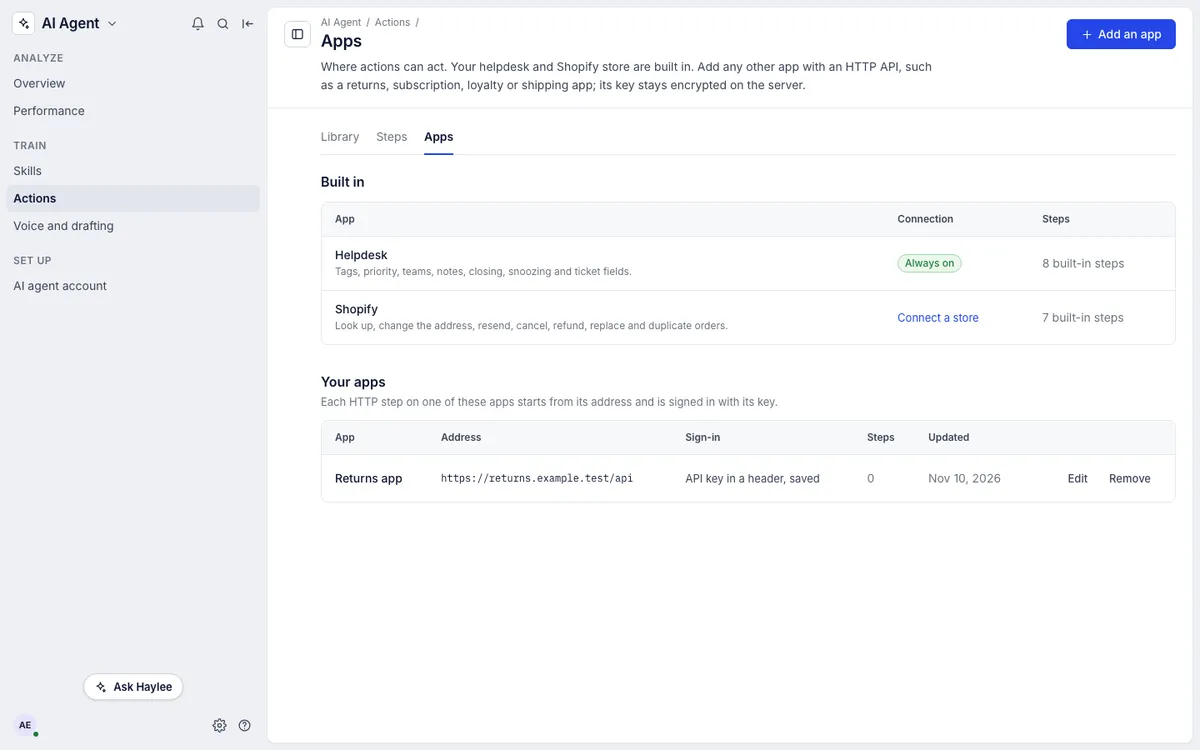
Your helpdesk and your Shopify store are built in and need nothing here. An app whose steps are still in use cannot be removed; removing one erases its key.
Write a step#
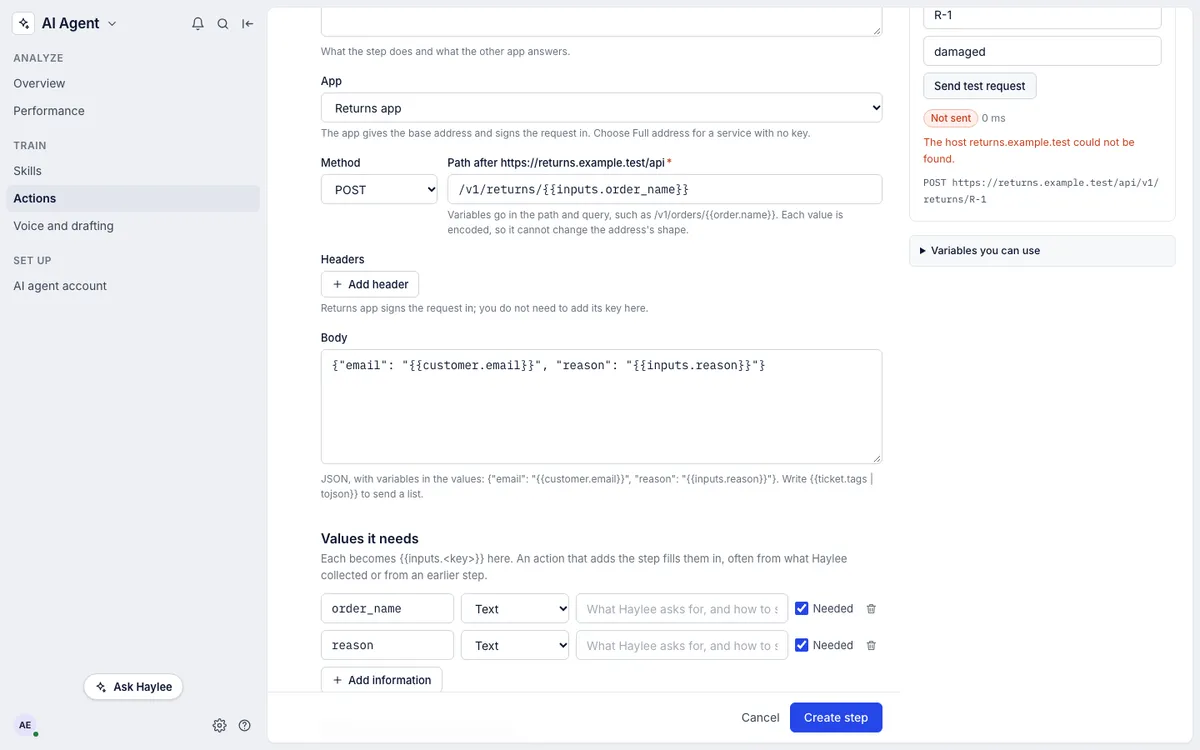
On Steps, click New HTTP step:
Name and description: what the request does.
App: the app it calls, or Full address, no app for a service with no key.
Method and path: such as
POSTand/v1/returns/{{inputs.order_name}}. With an app, give the path after its base address.Headers, if the app needs more than its key. The app's sign-in is added for you.
Body, for anything but GET and DELETE: JSON with variables in the values, such as
{"email": "{{customer.email}}", "reason": "{{inputs.reason}}"}. Write{{ticket.tags | tojson}}to send a list.Values it needs: each one becomes
{{inputs.<key>}}in the step. An action that adds the step fills them in.What to read from the answer: a name and the value's place in the JSON answer, such as
label_urlatdata.label.url. Later steps in an action use it as{{steps.2.label_url}}.
Values put into the address are encoded, so a customer's answer cannot change which address is called.
Test a request#
Send test request sends the step once, for real, with the values you type, and shows the answer and what it read from it. Give a ticket number to fill the ticket, customer and order values from that ticket. The test shows the header names it sent but never the key. Tests are not written to any event log.
Test with an order or account you can safely change, because the app acts on the request.
Limits#
Addresses must use https and reach the public internet. A host on a private network is refused before anything is sent.
Steps do not follow redirects. Use the final address.
Each request has 15 seconds to answer, and the first 64 KB of the answer are read.
Demo helpdesks never call outside apps; their runs and tests say so.
Change or delete a step#
Every action that adds a step uses its new version as soon as you save. The step page names the actions that use it, and warns when one of them is switched on. A step cannot be deleted while an action adds it.
Related articles
- Build an actionPut steps together into an action of your own, with the information Haylee collects first, conditions, the customer's agreement and a setting for what Haylee may do.
- Run actions and read the event logRun an action from a ticket, see every run with each step's request and answer, and see which skills use an action.
- Actions and what Haylee may doThe actions library, the 15 built-in actions in your helpdesk and Shopify store, and how to choose for each one whether Haylee does it, asks a person or leaves it alone.
- HTTP integrationsCall your own service whenever a ticket is created, changes or gets a message, with the ticket's details in the request, signed so you can trust it.
Still stuck?
Write to the Growth Dept team and a person answers. Say which helpdesk you work in and what you were trying to do.